Create a Remote AE
Introduction
After creating a Local AE on the Gateway, you need to create a Remote AE for each modality or DICOM device that will connect to it.
A Remote AE represents an external DICOM device, such as a CT scanner, MRI scanner, ultrasound machine, or PACS. It defines the AE Title used by the remote device and allows the Gateway to identify and manage incoming DICOM associations. For a detailed explanation of Remote AEs and all available configuration options, refer to the Remote AEs documentation.
Prerequisites
Before you begin, complete the following:
- Install and connect an AdvaPACS Gateway.
- Create a Local AE on the Gateway.
- Obtain the modality's configured AE Title.
- Ensure the modality can communicate with the Gateway over the network.
If you need help in locating this information from your modality, you can get in touch with your IT department or the modality vendor's technical support.
Steps
-
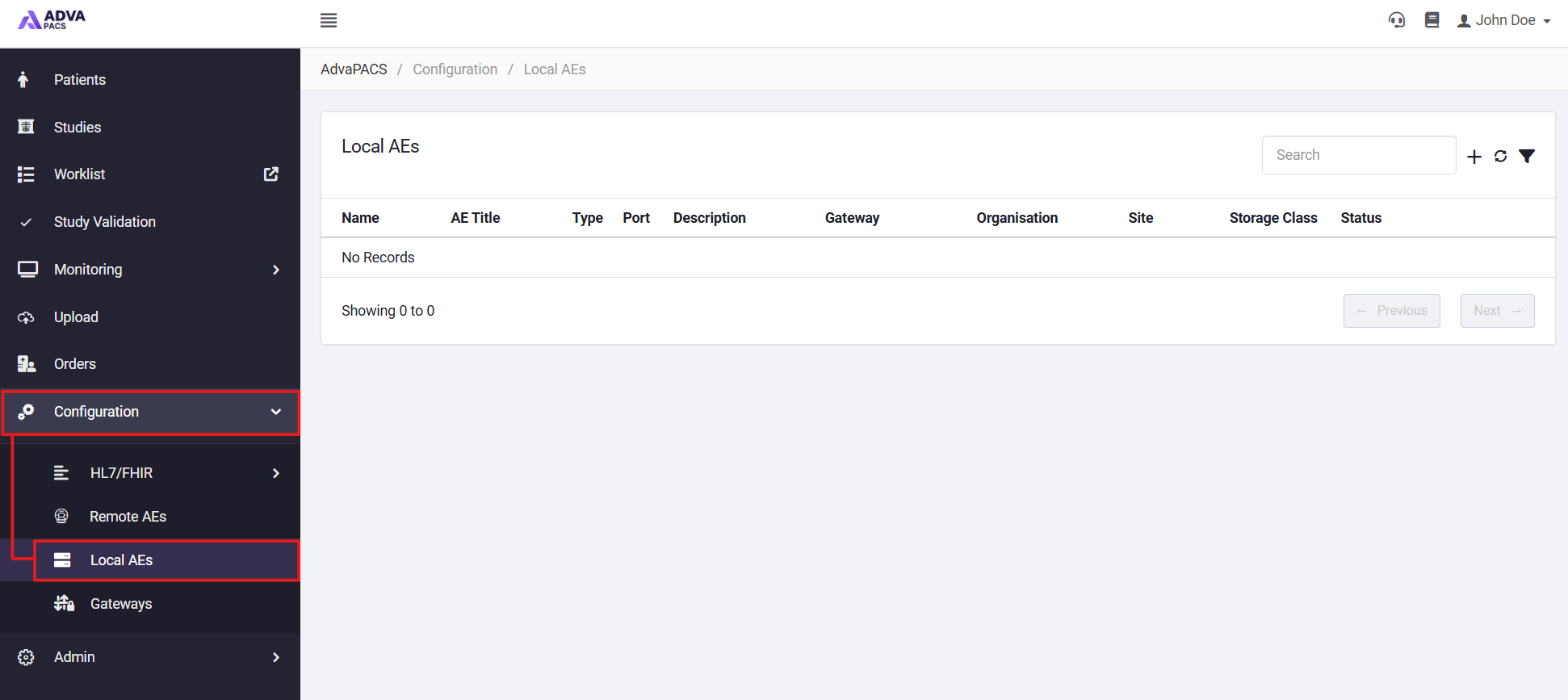
From the AdvaPACS Dashboard, open Configuration → Remote AEs.
-
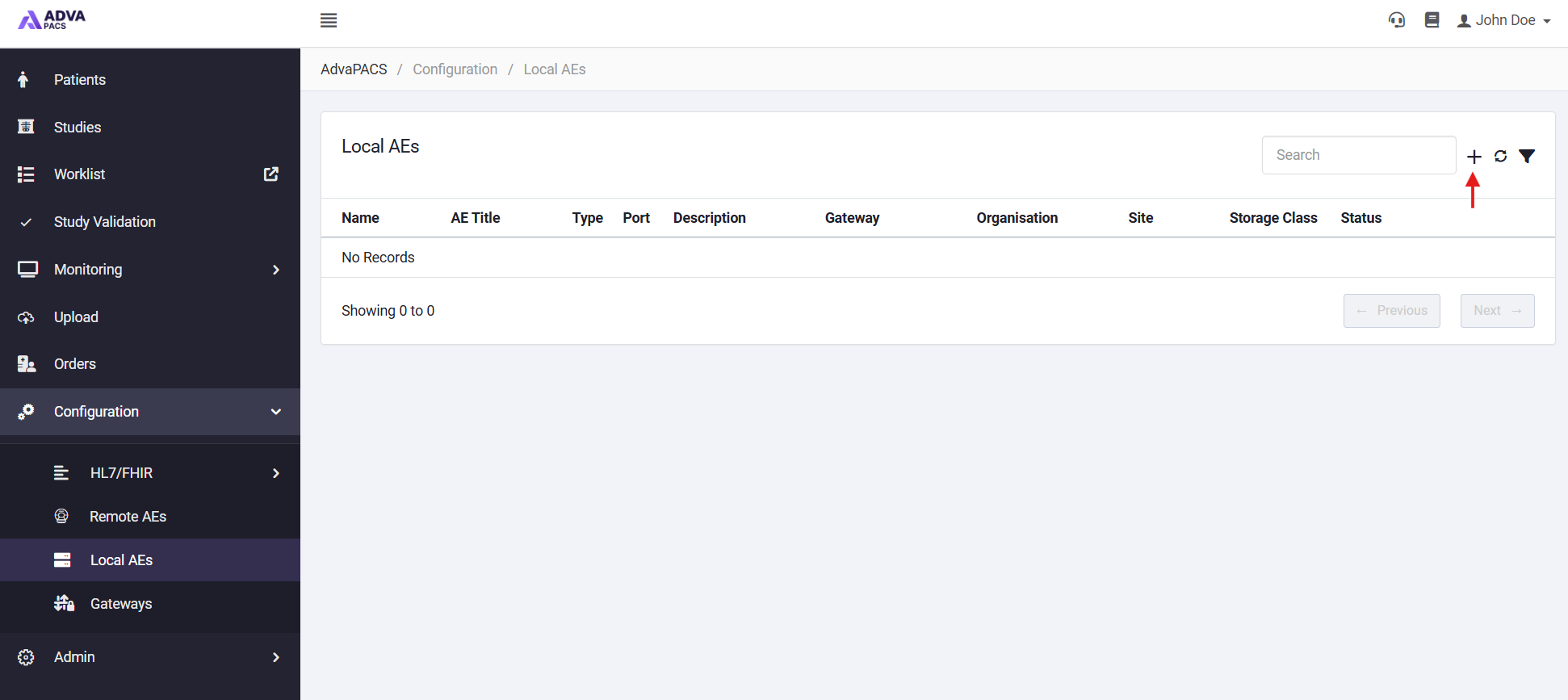
Click the + icon in the top right to create a new Remote AE.
-
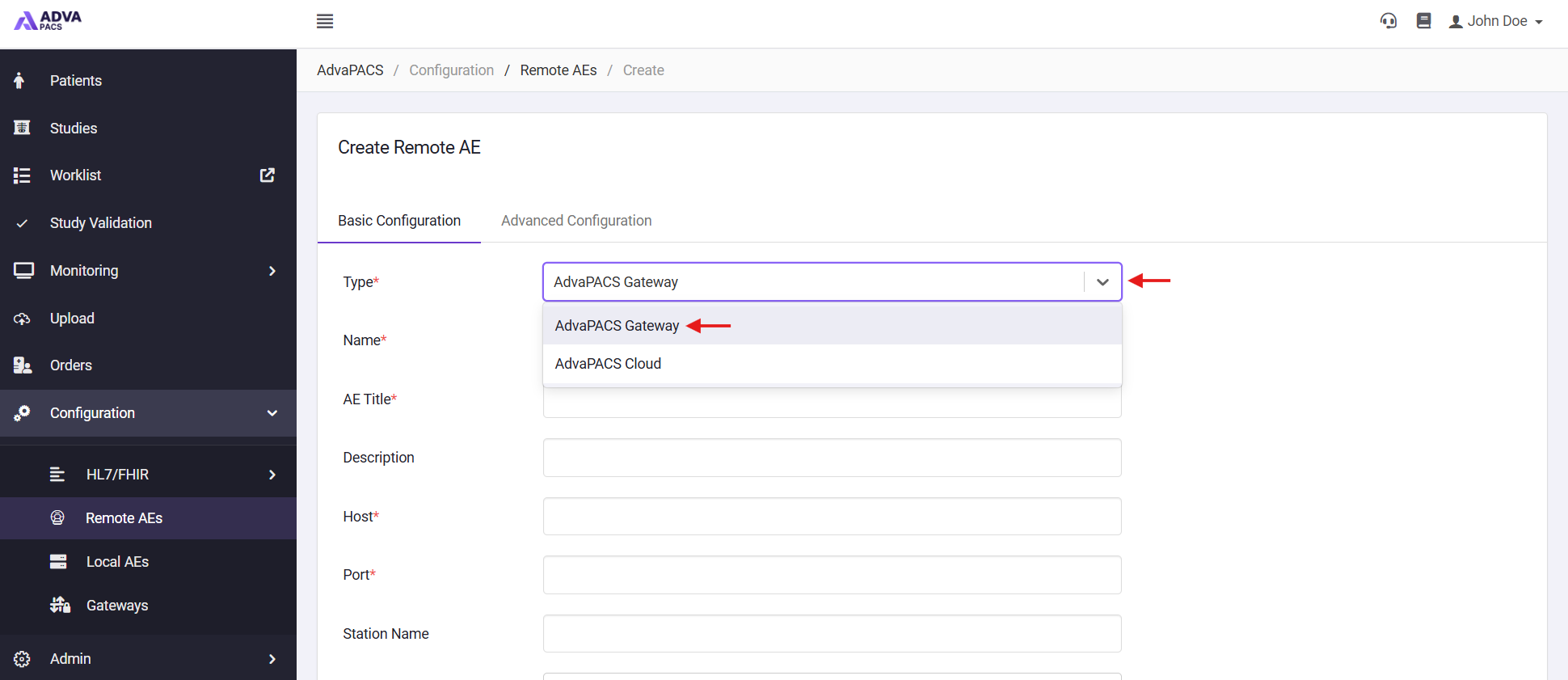
Select AdvaPACS Gateway from the Type menu.
-
Fill in the required information:
- Name - Create an easily identifiable name for the Remote AE
- AE Title - Add the AE title of the modality.
- Host - Enter the IP address of the modality.
- Port - Add the port used by the modality.
-
Click create to finish adding the new Remote AE.
The newly created Remote AE will appear in the Remote AEs list. When a modality with a matching AE Title (and any configured connection restrictions) attempts to connect to the associated Local AE, the Gateway will recognise the device and allow the DICOM association.
Depending on some optional features you may have enabled like Organisations or Assigning Authorities, there may also be other required fields for you to complete.