Windows
The Windows Gateway installs as a Windows Service, allowing it to run continuously in the background and automatically start when the server boots. Once registered, it securely forwards studies received from your local modalities to AdvaPACS.
This installation method is suitable for both Windows Server and Windows desktop operating systems, although Windows Server is recommended for production deployments.
Prerequisites
Before installing the Gateway, ensure you have:
- A Gateway created in AdvaPACS.
- You have administrator access to the Windows machine.
- The following Gateway details:
- Access Key ID
- Access Key Secret
- Region
If you haven't yet created a Gateway, complete that step before proceeding.
Download & Install
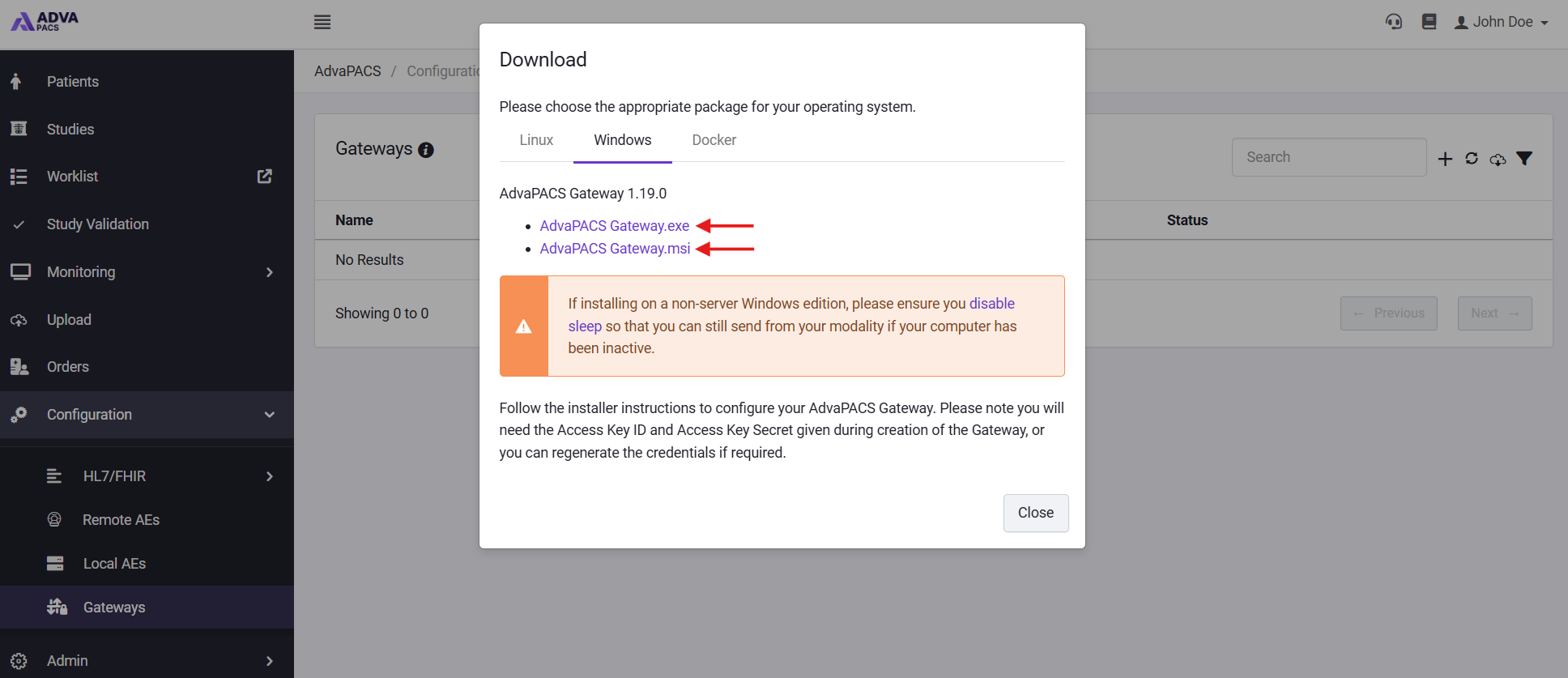
The Windows Gateway is available as both a .exe and .msi installer. Both packages install the same Gateway software, with the .exe installer recommended for most manual installations and the .msi package intended for automated or enterprise deployments.
-
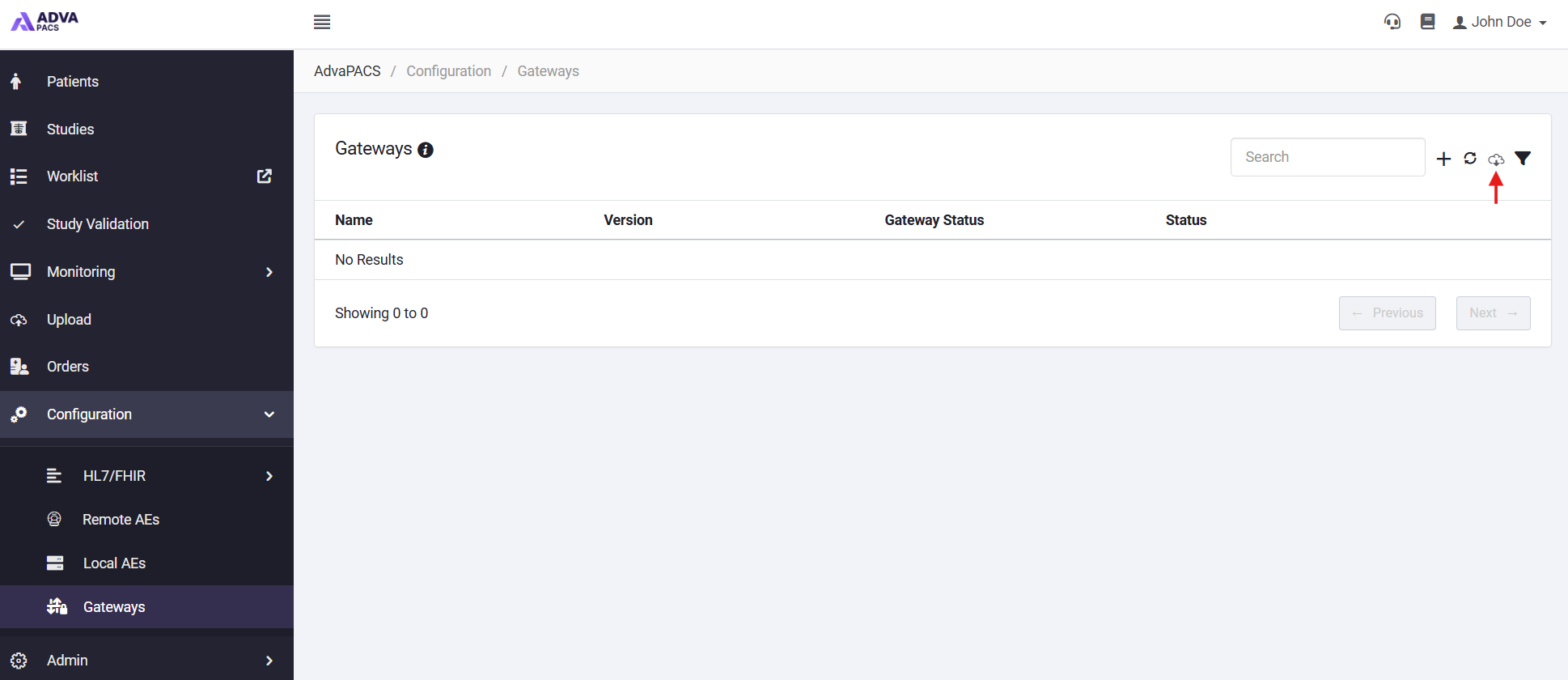
Navigate to Configuration → Gateways and click the Download button.
-
Select the preferred installer to begin the download.
-
Run the installer with Administrator Privileges and follow the installation wizard.
-
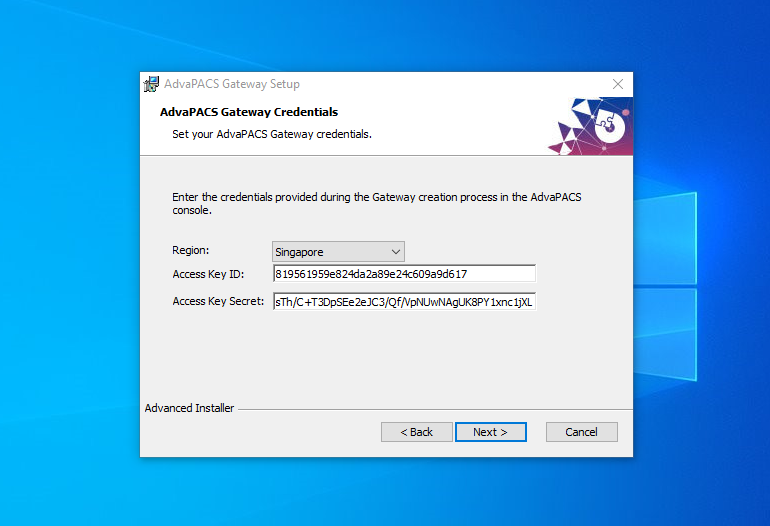
When prompted, enter the Region, Access Key ID and Access Key Secret, which are provided to you when you create a Gateway profile.
-
Select its installation folder, then click Next.
-
Click Install to start the installation. The process may take several minutes depending on the hardware.
-
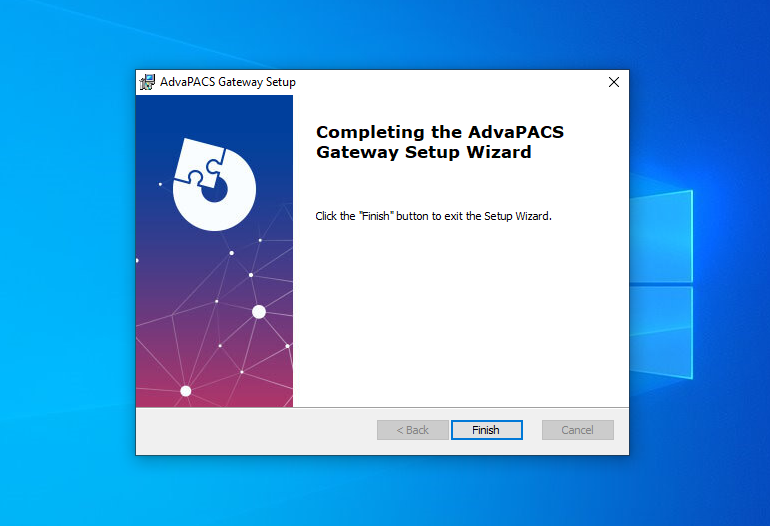
If the gateway was installed successfully, click Finish to complete the installation.
Run the Gateway
The Gateway is installed as a Windows Service and starts automatically after installation. It will also start automatically each time Windows boots. If however the gateway has not started automatically, you can perform the following steps to start it manually:
-
Press Win + R to open the Run dialog box.
-
Type
services.msc, and press Enter. -
Find the AdvaPACS Gateway service, right-click on it and click start.
-
Verify the Gateway is online by returning to Configuration → Gateways in AdvaPACS. Within a few minutes, the Gateway should now show as Online.
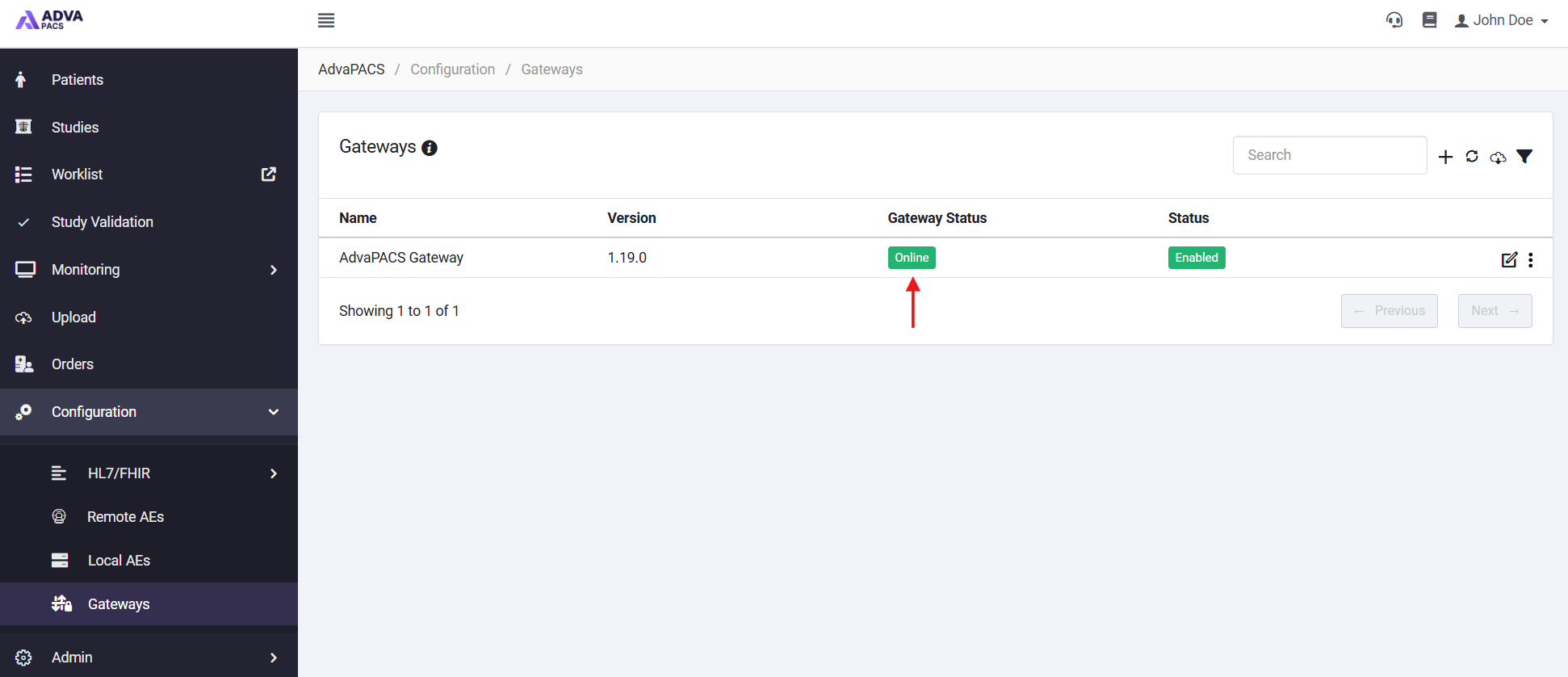
If it does not appear immediately, refresh the page.
Next Steps
Your Gateway is now ready to receive DICOM studies.
The next step is to configure one or more DICOM servers on the Gateway, then point your modalities at those servers.