Local AEs
A Local AE (Application Entity) represents a DICOM endpoint within AdvaPACS. Local AEs are used to define the DICOM services that AdvaPACS provides and allow external systems such as modalities, gateways, viewers, and third-party PACS systems to communicate with the platform.
Each Local AE is identified by an AE Title, listening port, and the network interface it is bound to.
What are Local AEs used for?
Local AEs allow AdvaPACS to:
- Receive DICOM studies from imaging modalities
- Accept incoming C-FIND, C-MOVE, and C-GET requests
- Provide DICOM Query/Retrieve services
- Receive DICOM Storage (C-STORE) requests
- Support integrations with gateways and third-party systems Learn more ›
A single AdvaPACS organisation can have multiple Local AEs configured.
Create a Local AE (AdvaPACS Gateway)
To create a Local AE on an AdvaPACS Gateway:
-
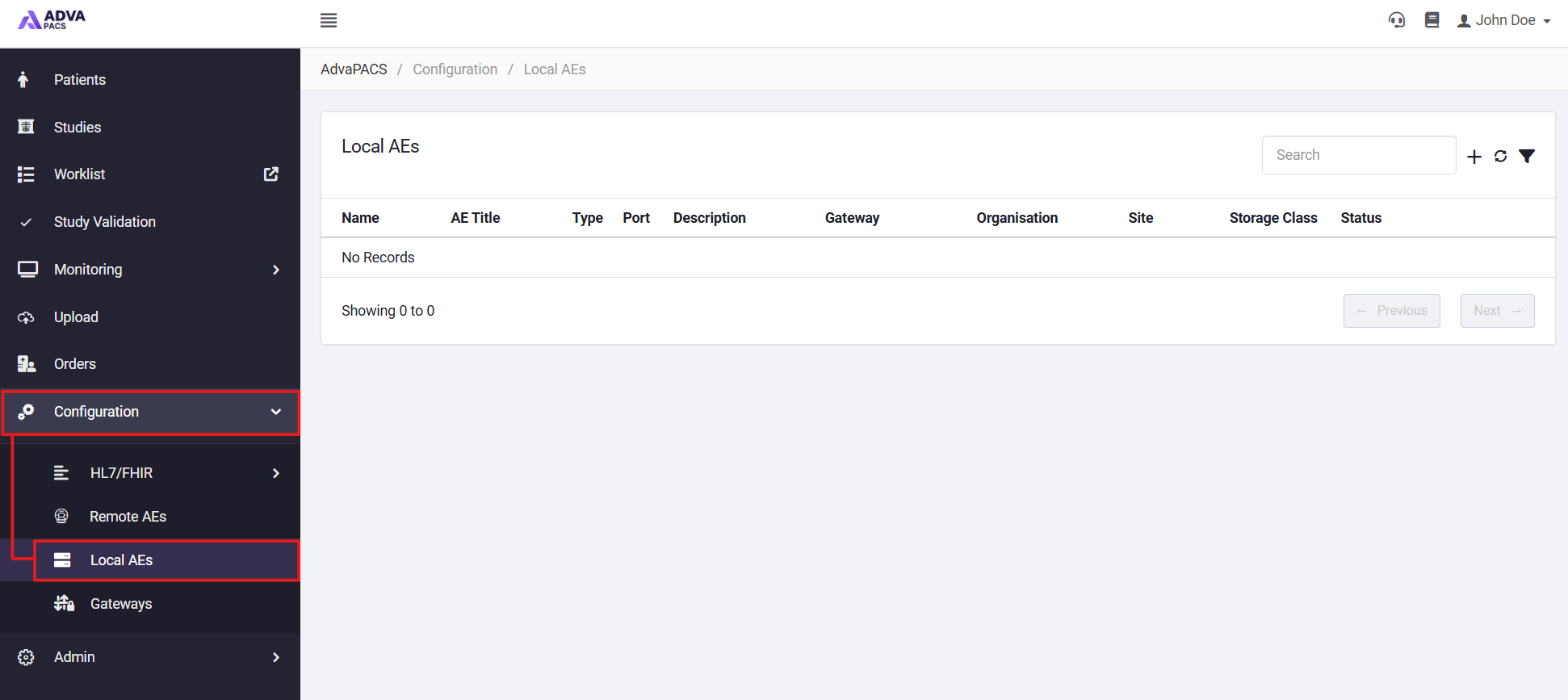
From the AdvaPACS Dashboard, open Configuration → Local AEs.
-
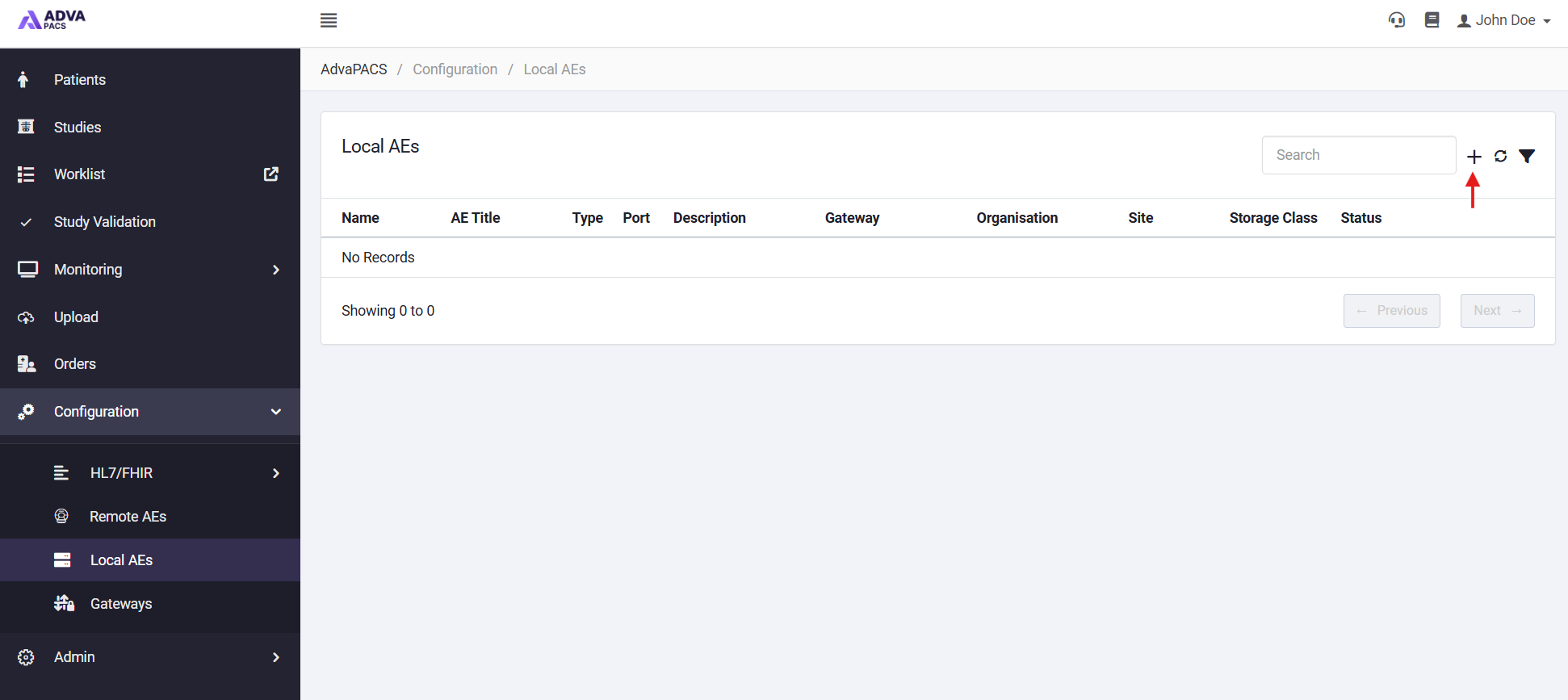
Click the + icon in the top right to create a new Local AE.
-
Fill in the required information:
- Gateway - Select the Gateway where you want to create a Local AE.
- AE Title - Create a name for the Local AE.
- Description - Add a description for the Local AE.
- Port - Add an unused port which the Gateway will listen on.
-
Click create to finish add the new Local AE.
Once the Local AE has been created, it will appear in the Local AEs list. The Gateway automatically updates its configuration and starts listening for incoming DICOM connections using the configured AE Title and port.
Depending on some optional features you may have enabled like Organisations or Assigning Authorities, there may also be other required fields for you to complete.
Create a Local AE (AdvaPACS Cloud)
This article guides you through the process of creating a Local AE with type AdvaPACS Cloud.
This type of Local AE allows modalities to connect directly to AdvaPACS over a mutual TLS (mTLS) connection. A peer certificate must be used to utilize this feature. We will learn how to generate a peer certificate bundle later in the tutorial.
-
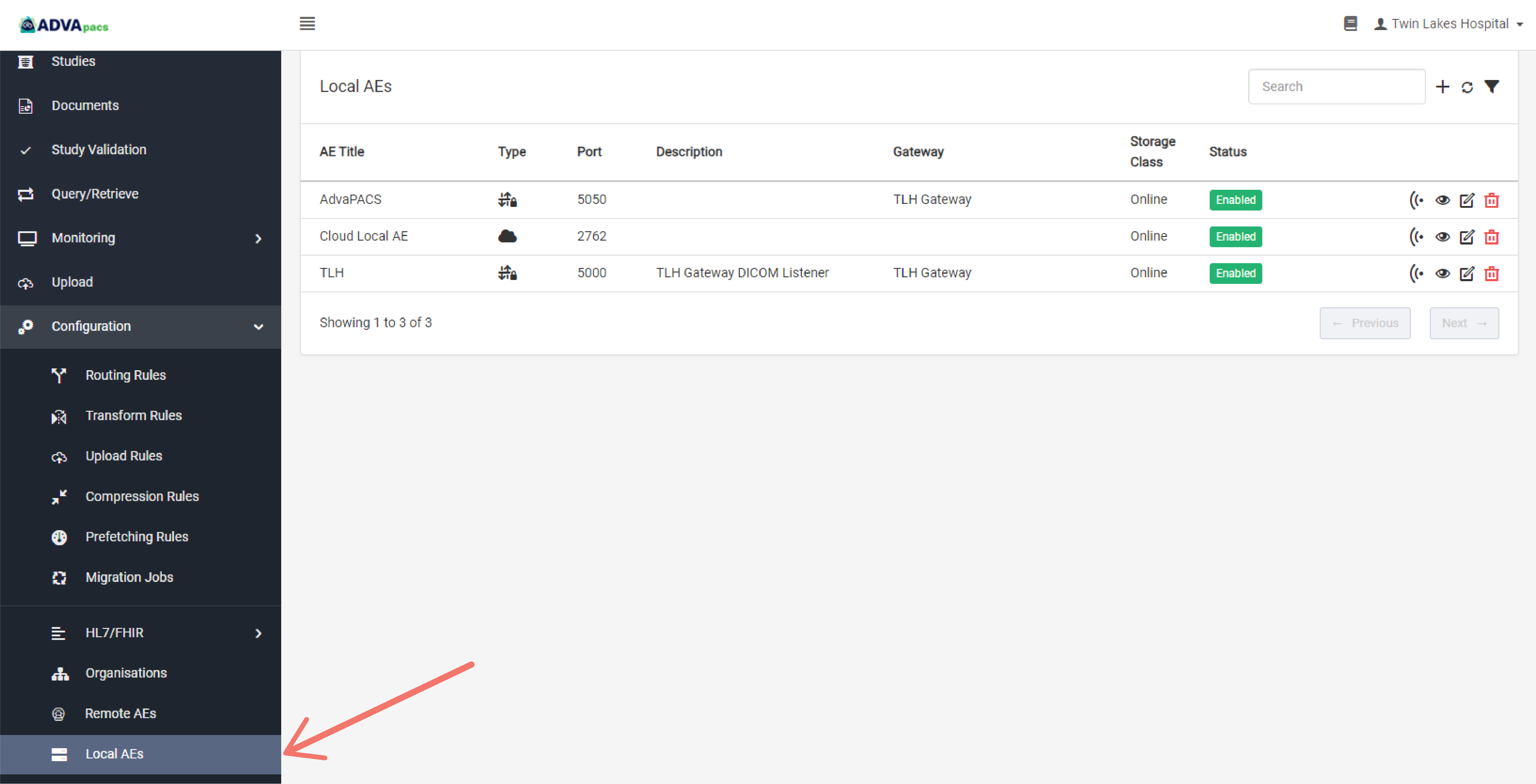
Navigate to the Local AEs page. Click Configuration on the left sidebar, and click Local AEs.
-
Click on the "+" icon to create a new Local AE.

Configuring the Local AE
Creating a Local AE has two configurations separated into sections.
Basic Configuration
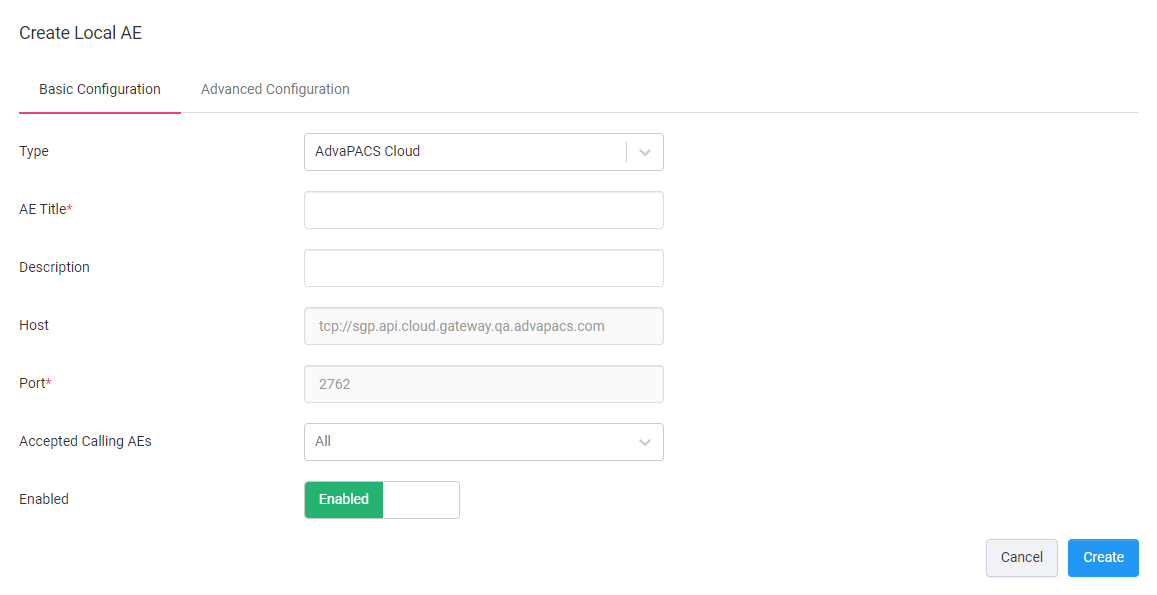
This section contains information for connecting to the Local AE, inputs for naming the Local AE, and restricting connections.
-
Type. Select the AdvaPACS Cloud Type.
-
AE Title. Create a name for the Local AE.
-
Description. Add a description for the Local AE.
-
Host. Host to connect to the Local AE. Fixed.
-
Port. Port to connect to the Local AE. Fixed.
-
Accepted Calling AEs. Select which Remote AEs are allowed to connect to this Local AE.
Advanced Configuration
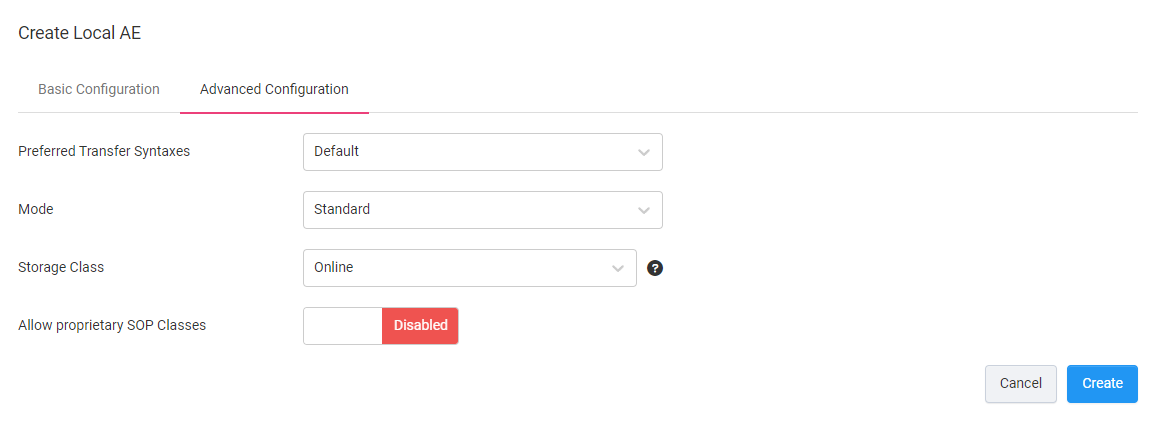
-
Preferred Transfer Syntaxes. When the AdvaPACS Gateway is negotiating an association, it can be configured to prefer certain transfer syntaxes.
- Default - the first transfer syntax that is accepted will be used.
- Custom - select multiple preferred transfer syntaxes and arrange them according to the most preferred to the least. These will be used if possible, or it will fall back to defaults.
-
Mode. Choose how the instances uploaded through this Local AE will be processed once they are received by AdvaPACS.
- Standard - the instances are processed synchronously.
- Migration - the instances are processed synchronously but certain features like instance caching will be bypassed.
-
Storage Class. Select your preferred Storage Class. Instances that are uploaded to AdvaPACS through this Local AE are stored according to the selected Storage Class unless dynamically set by an Upload Rule.
-
Allow proprietary SOP Classes.
- Enabled - allows AdvaPACS to accept non-standard SOP classes.
- Disabled - the system will reject non-standard SOP classes.
Once configured, navigate to the Basic Configuration section and click Create to create the Local AE.