Create a Gateway
A Gateway profile connects an AdvaPACS Gateway installation to your tenant.
When the profile is created, AdvaPACS generates the credentials required by the Gateway during installation. These credentials allow the Gateway to securely connect to the correct tenant.
Create the Gateway profile
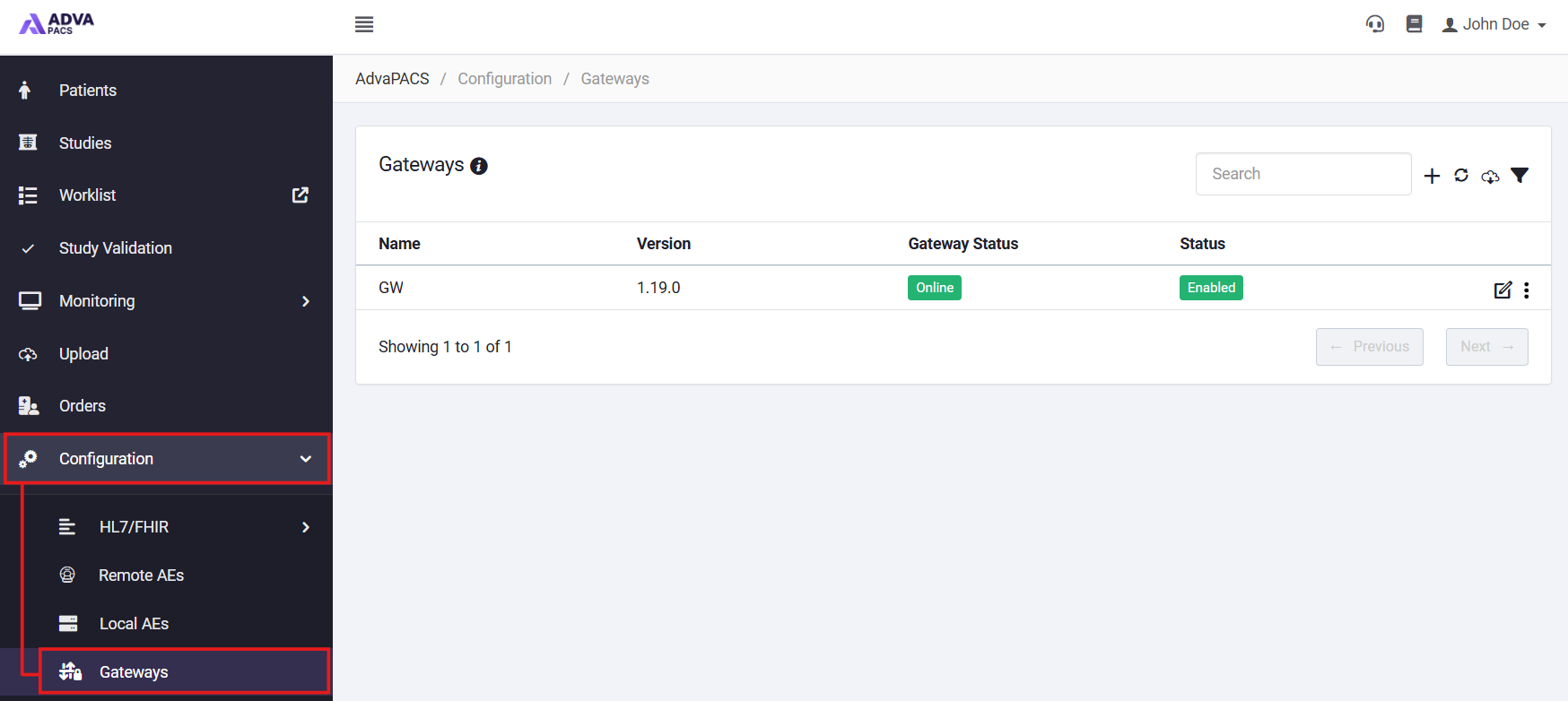
- In the sidebar, select Configuration → Gateways.
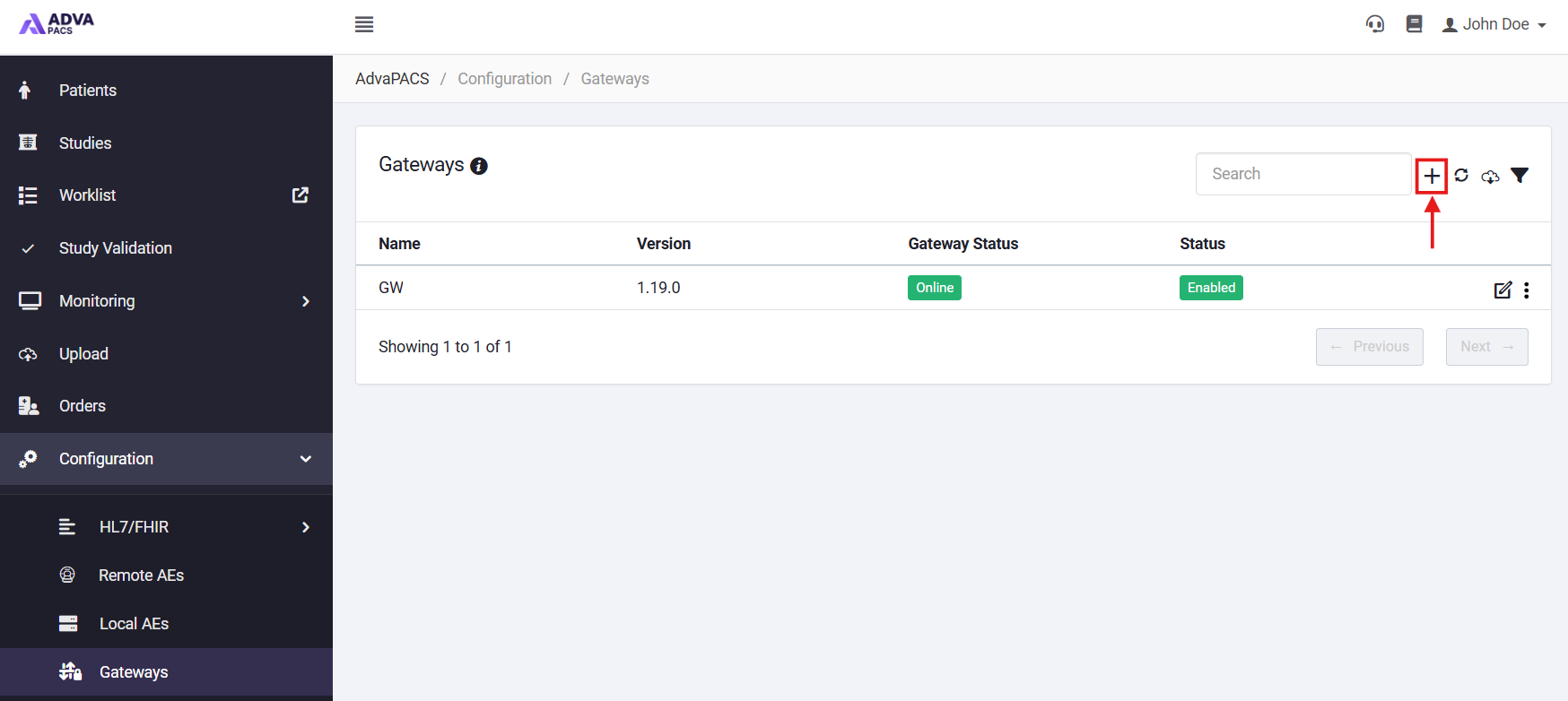
- Click the + icon to create a new Gateway.
- Enter a name for the Gateway.
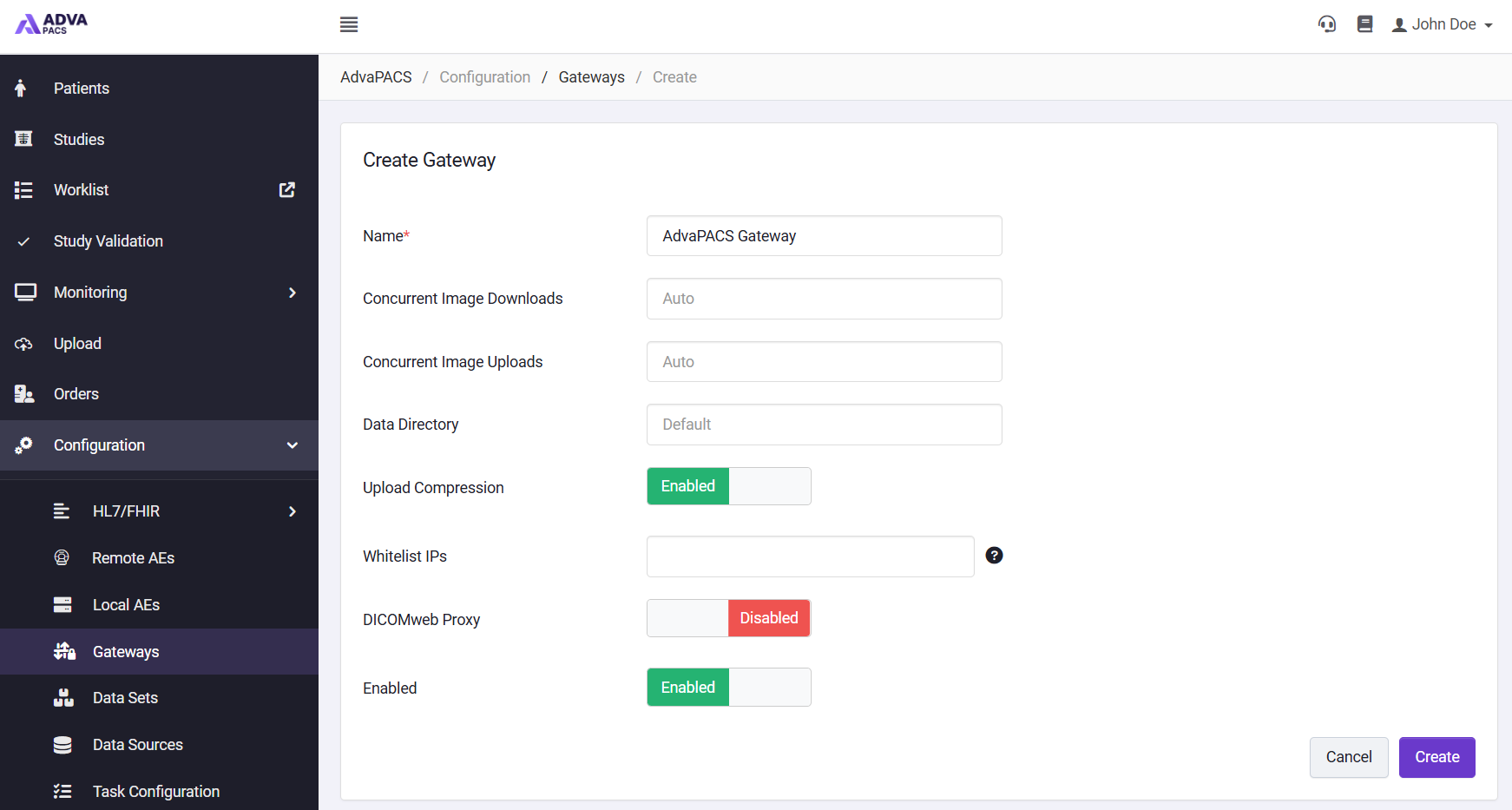
- Configure the Gateway settings as required.
- Click Create.
- After the Gateway is created, AdvaPACS displays the Region, Access Key ID and Access Key Secret. Copy these credentials.
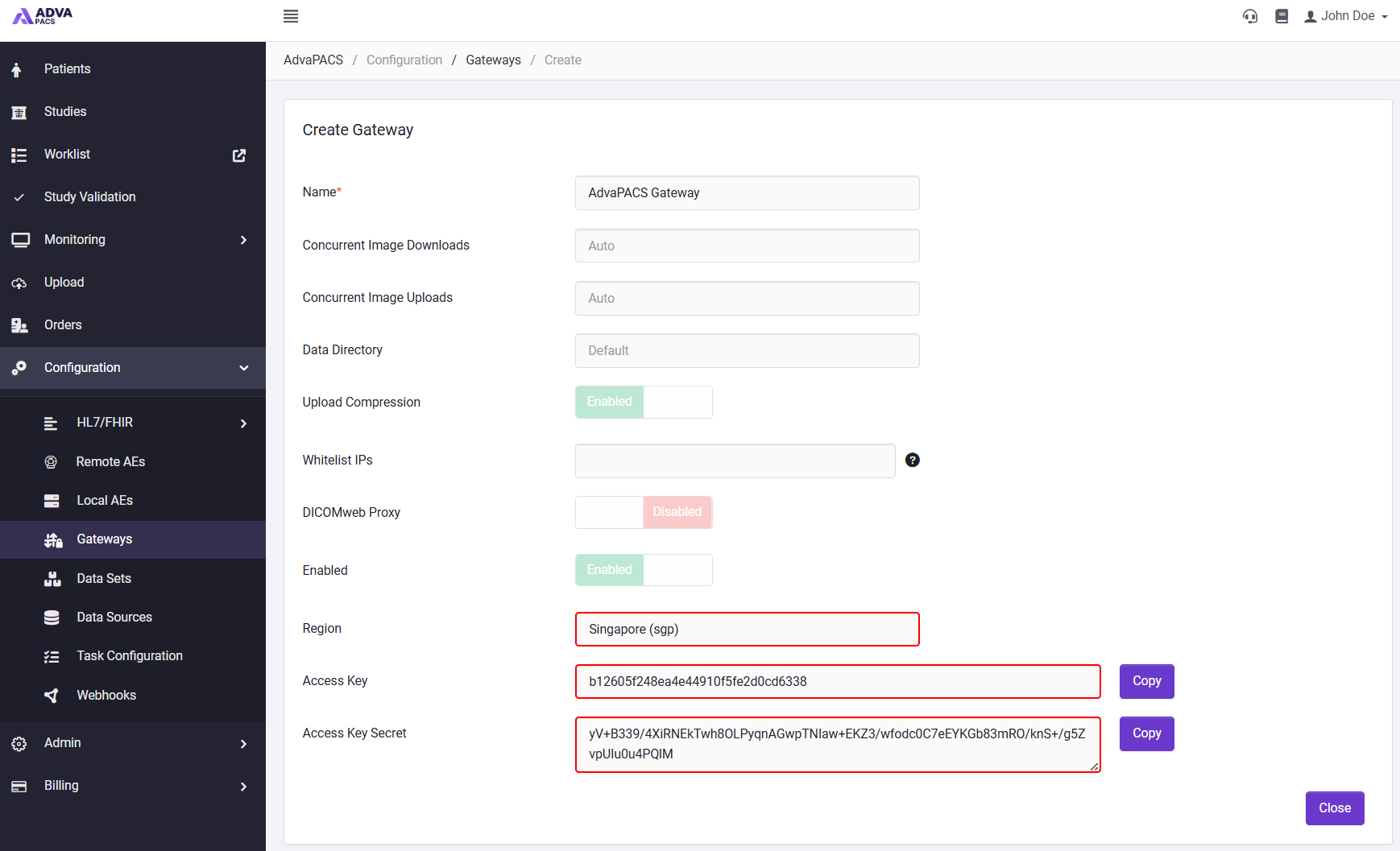
- Click Close.
- Confirm that the new Gateway appears in the Gateways list.
warning
The Access Key Secret is only shown once. Copy and store it securely before closing the window.
Regenerate Gateway credentials
If the Gateway credentials are lost, you can generate a new set from the Gateway profile.
- In the sidebar, select Configuration → Gateways.
- On the row for the gateway, click the 3 dot menu and select Regenerate key.
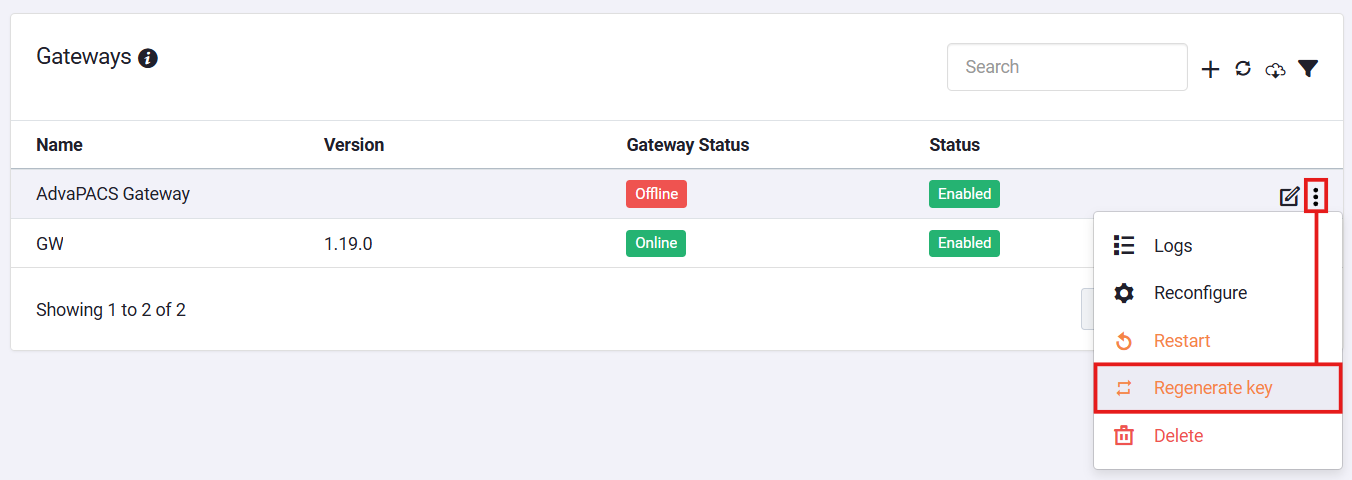
- Copy and securely store the new credentials.
warning
Regenerating credentials replaces the existing credentials. Any Gateway using the old credentials must be updated before it can reconnect.
Next step
After creating the Gateway profile, install the AdvaPACS Gateway on the server that will connect to your local modalities.