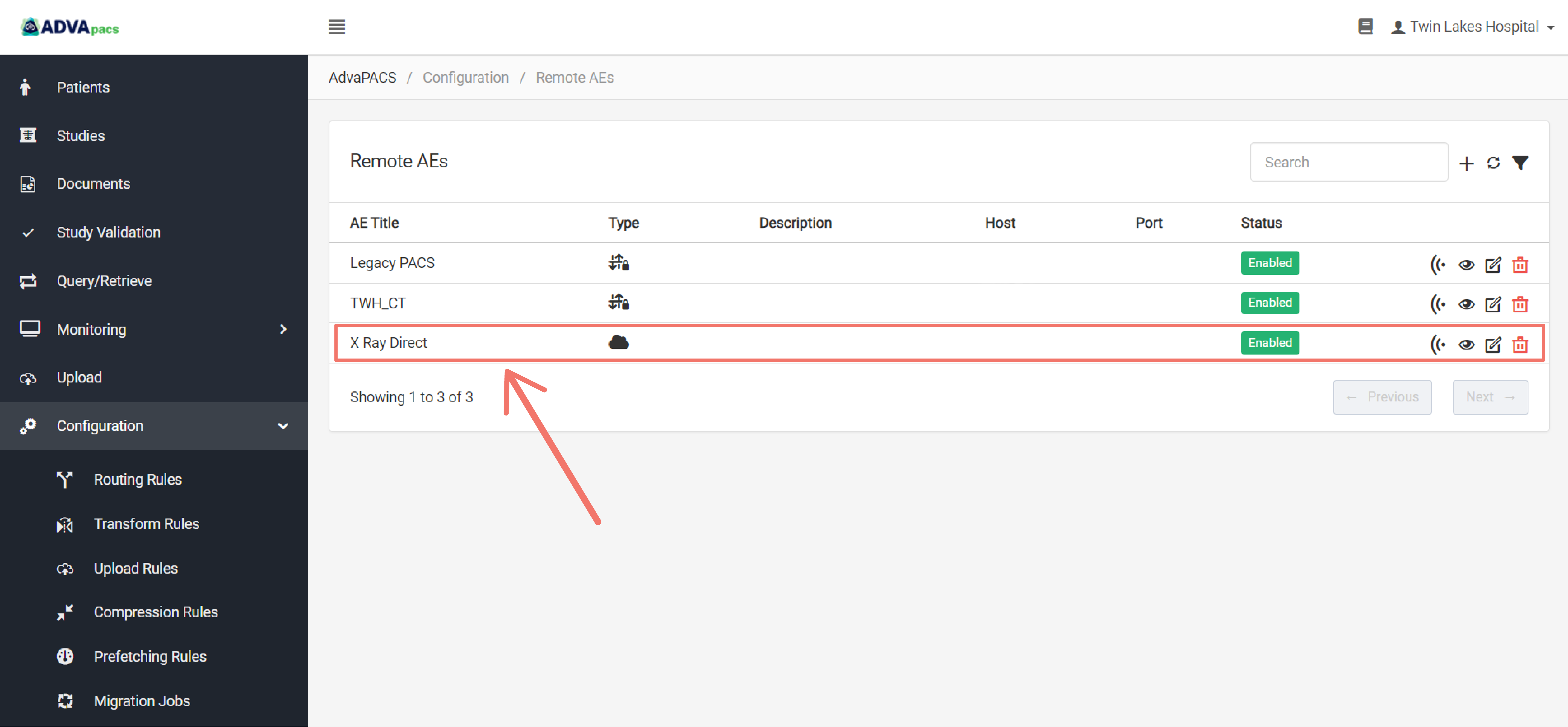
Remote AEs
A Remote AE (Application Entity) represents an external DICOM system that communicates with AdvaPACS. Remote AEs are used to define trusted DICOM destinations and sources, such as imaging modalities, diagnostic workstations, gateways, third-party PACS systems, and vendor applications.
By configuring Remote AEs, AdvaPACS knows where studies can be sent, where requests originate from, and which systems are permitted to establish DICOM associations.
What are Remote AEs used for?
Remote AEs are commonly used for:
- Imaging modalities sending studies to AdvaPACS
- Diagnostic workstations querying and retrieving studies
- Third-party PACS integrations
- DICOM gateways and routers
- Study forwarding and routing destinations
Every remote system that communicates with AdvaPACS over DICOM should have a corresponding Remote AE configuration.
Basic Configuration
The following fields are used to configure the identity and behaviour of the Remote AE. In most cases, these values should match the configuration of the external DICOM device to ensure successful communication with AdvaPACS.
| Field | Description |
|---|---|
| Type | Specifies the type of remote DICOM device, such as a modality, PACS, workstation, router, or archive. This helps classify the remote system within AdvaPACS. |
| Name | A friendly name used to identify the Remote AE within AdvaPACS. |
| AE Title | The DICOM Application Entity (AE) Title used by the remote system. This must match the AE Title configured on the external device. |
| Description | Optional notes describing the purpose of the Remote AE. |
| Issuer of Patient ID | The assigning authority that should be associated with Patient IDs received from this Remote AE. |
| Issuer of Accession Number | The assigning authority that should be associated with accession numbers received from this Remote AE. |
| Organisation | The organisation that owns or uses this Remote AE. |
| Site | Associates the Remote AE with a specific site within the selected organisation. |
| Station Name | An optional station name for the device. This is typically used to identify the physical modality or workstation. |
| Default Stage | Specifies the workflow stage that studies from this Remote AE should enter by default. |
| Send Via | Specifies which Local AE AdvaPACS should use when initiating DICOM associations to this Remote AE. Selecting Any Local AE allows AdvaPACS to choose an appropriate Local AE automatically. |
| Allow Query | Enables Query/Retrieve (C-FIND, C-MOVE and C-GET) operations with this Remote AE. |
| Allow Storage Commitment | Enables DICOM Storage Commitment (N-ACTION/N-EVENT-REPORT) support for this Remote AE. |
| Worklist | Enables Modality Worklist (MWL) support for this Remote AE. Select Configure to define the worklist settings. |
| Enabled | Enables or disables the Remote AE without deleting its configuration. |
The Issuer of Patient ID and Issuer of Accession Number fields are only displayed when Assigning Authorities have been enabled for your AdvaPACS tenant. If Assigning Authorities are not enabled, these fields are hidden and all identifiers are treated as belonging to the default assigning authority.
For more information, see Assigning Authorities.
Modality Worklist
The Worklist setting controls whether the Remote AE can use the DICOM Modality Worklist (MWL) service. When enabled, the modality can query AdvaPACS for scheduled procedures and automatically populate patient, order, and procedure information before an examination is performed. This helps minimise manual data entry and reduces the risk of patient identification errors.
Select Configure to customise the Modality Worklist behaviour for the Remote AE, including any query restrictions or matching criteria.
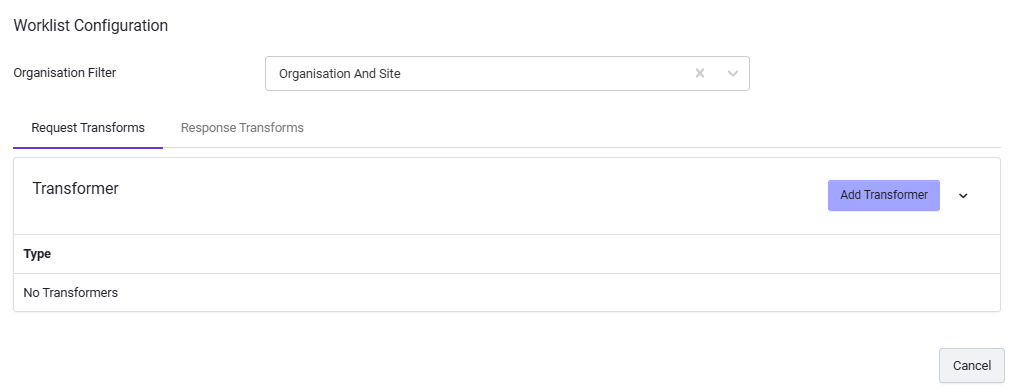
AdvaPACS supports the following Modality Worklist configuration options:
- Organisation: If Organisations and Sites are enabled for your AdvaPACS tenant, this controls which Modality Worklist entries are returned to the Remote AE. By default, Organisation and Site is selected, meaning only studies belonging to the configured Organisation and Site are returned. When Organisations and Sites are not enabled, this filter is ignored.
- Request Transforms: Transforms applied to the incoming C-FIND request before it is processed by AdvaPACS. These can be used to modify, add, or remove query parameters to accommodate modality-specific behaviour.
- Response Transforms: Transforms applied to the worklist entries returned by AdvaPACS before they are sent back to the modality. These can be used to adjust DICOM attributes, populate additional values, or remove information to meet the requirements of a specific device.
For more information about the available transformation types and how to configure them, see the DICOM Transformations page.
Create a Remote AE (AdvaPACS Cloud)
This article guides you through the process of creating a Remote AE with type AdvaPACS Cloud.
This type of Remote AE allows modalities to connect directly to AdvaPACS through a TCP connection.
-
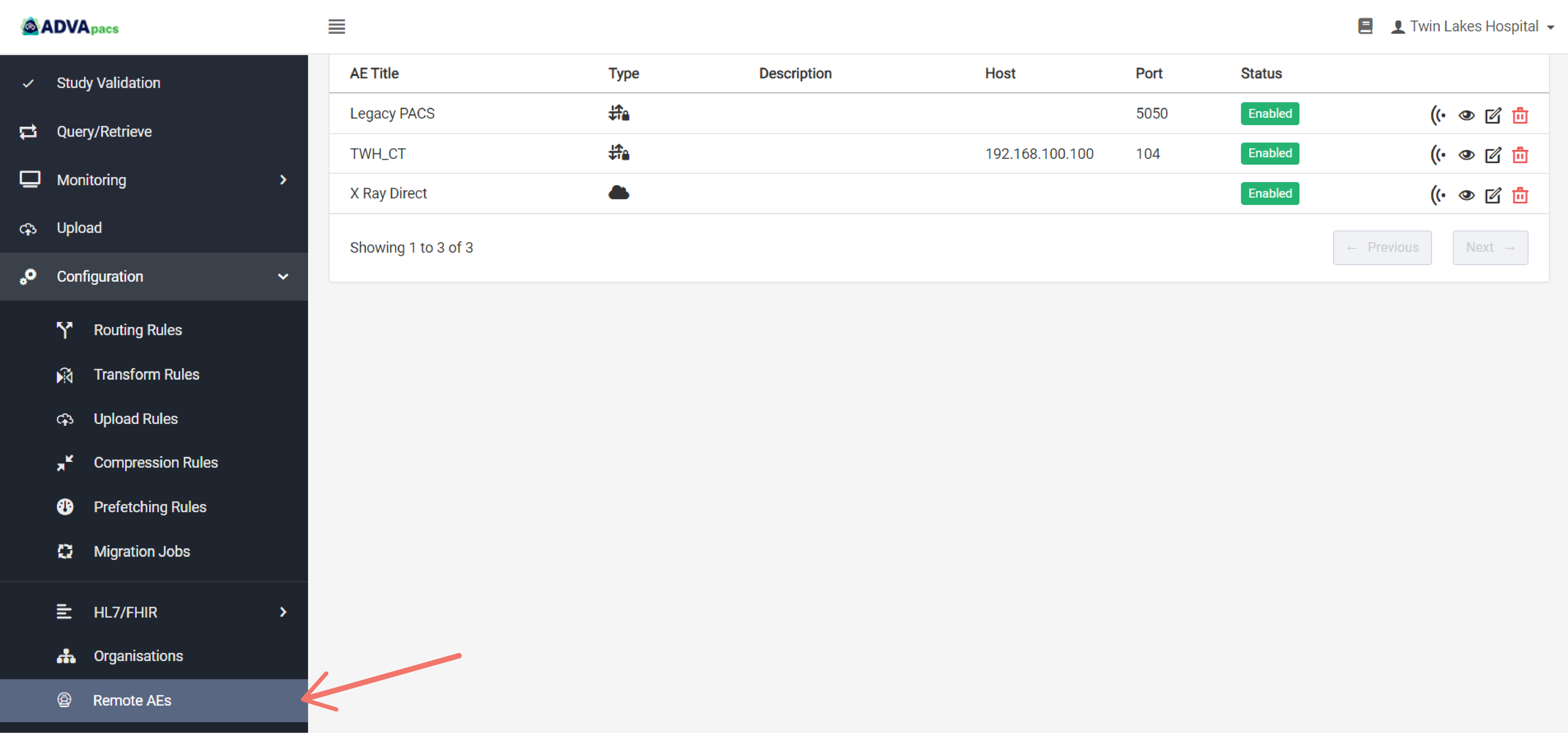
Navigate to the Remote AEs page. Click Configuration on the left sidebar, and click Remote AEs.
-
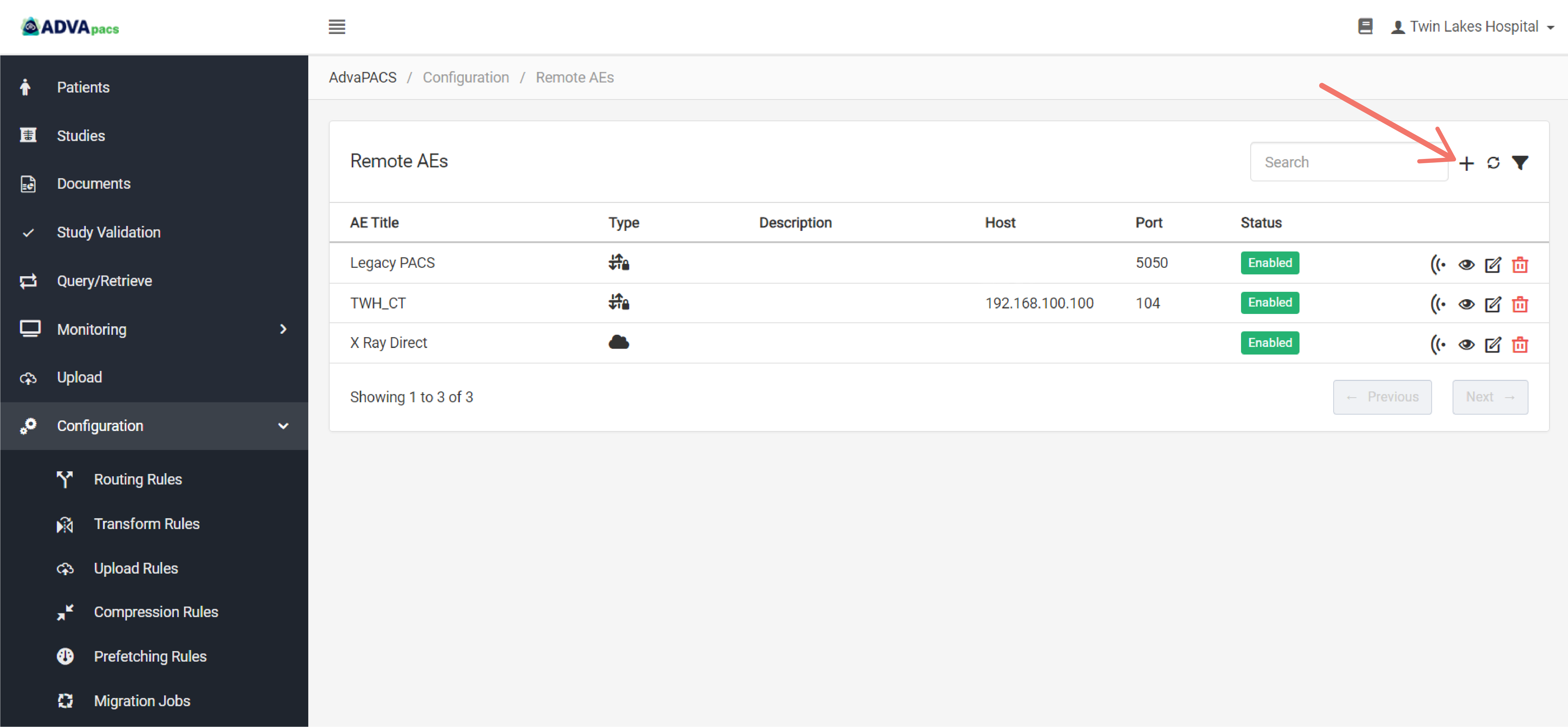
Click on the "+" icon to create a new Remote AE.
Configuring the Remote AE
Creating a Remote AE has two configurations separated into the following sections:
Basic Configuration
This section contains inputs for identifying the Remote AE and managing it.
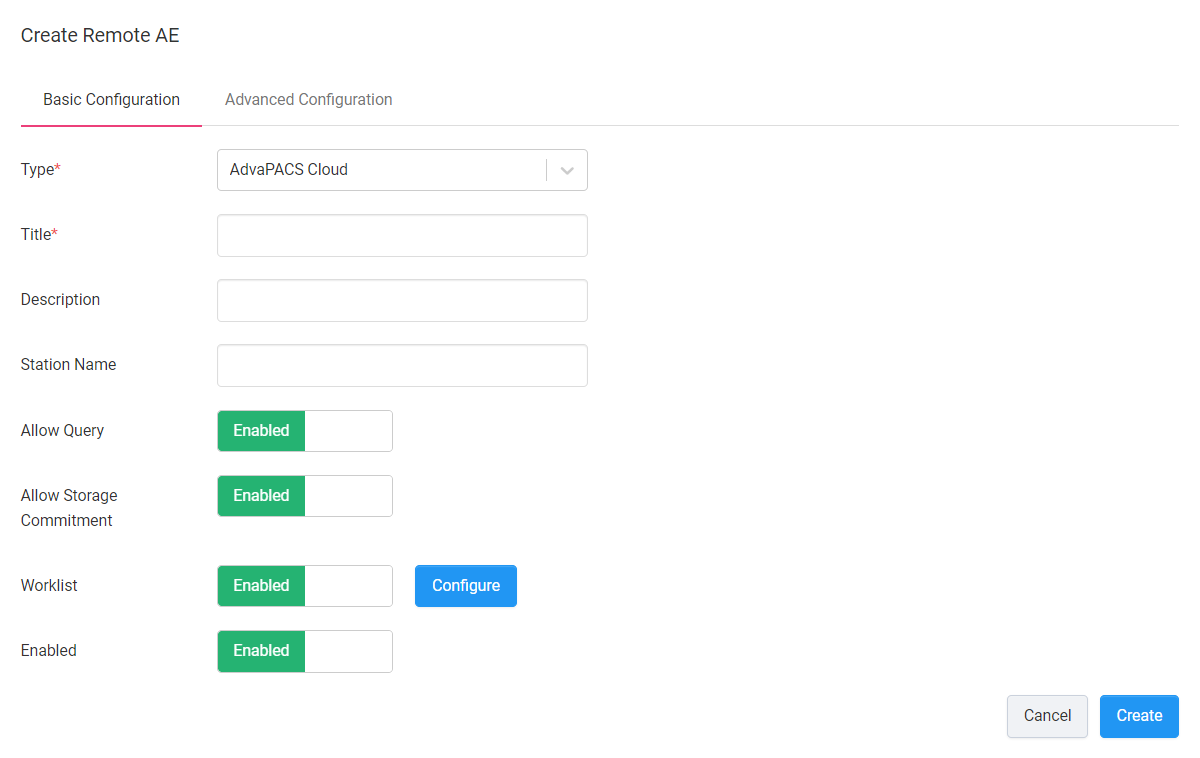
Select the AdvaPACS Cloud Type and configure the following inputs and fields:
- AE Title - Add a name for the Remote AE.
- Description - Add a description for the Remote AE.
- Station Name - Add a Station Name for the Remote AE.
- Allow Query - Control whether the Remote AE can query study data from AdvaPACS.
- Allow Storage Commitment - Control whether the Remote AE can request Storage Commit after storing a study.
- Worklist - Control whether the Remote AE can query worklists from AdvaPACS.
- Configure - Modify worklist queries and responses to centralize worklist filter configuration.
- Enabled - Enables or Disables the Remote AE.
Advanced Configuration
This section contains additional options for managing how the Remote AE operates with AdvaPACS.
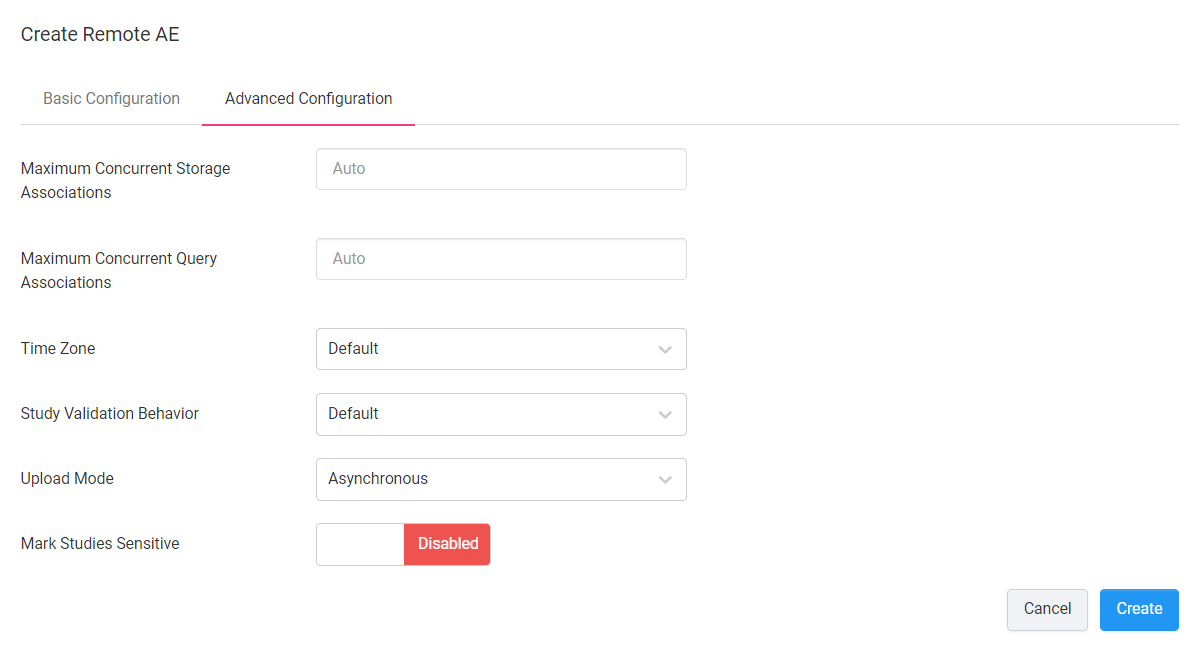
Use the following as guide to configure the inputs in Advanced Configuration
- Maximum Concurrent Storage Associations - Set the maximum number of simultaneous connections AdvaPACS can make to the Remote AE when sending data. When Auto is set, it defaults to 8 connections.
- Maximum Concurrent Query Associations - Set the maximum number of simultaneous connections AdvaPACS can make to the Remote AE when querying data. When Auto is set, it defaults to 8 connections.
- Time Zone - The time zone used when the Remote AE sends data to, or queries data from AdvaPACS and doesn't explicitly provide one. When Default is set, it inherits the time zone set in settings.
- Study Validation Behavior - Set the Study Validation mode used when sending data to AdvaPACS.
- Mark Studies Sensitive - Control whether studies sent from the Remote AE are marked as sensitive.
Creating the Remote AE
Navigate to the Basic Configuration section and click Create to create the Remote AE.
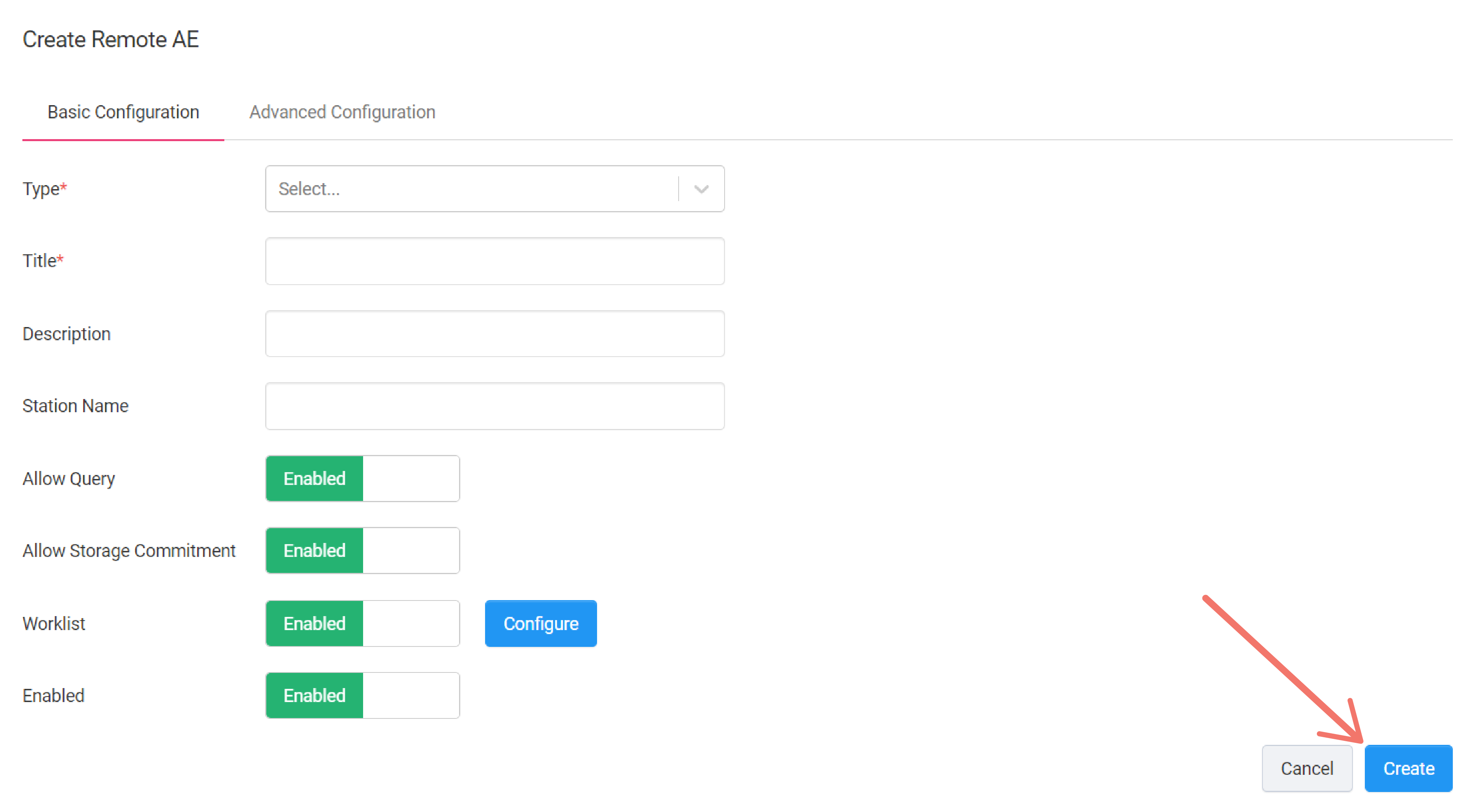
The newly created Remote AE should appear in the Remote AE listing page.