Test the DICOM Connection
Once your modality has been configured to communicate with the AdvaPACS Gateway, the final step is to verify that the connection is working correctly. This involves confirming that the modality can establish a DICOM association with the Gateway and successfully transmit studies to AdvaPACS.
This guide walks through the recommended checks to confirm your configuration is complete before moving into production.
Steps
-
Open the AdvaPACS Dashboard and navigate to Configuration → Gateways and confirm that your Gateway is connected and reporting as Online.
-
Navigate to Configuration → Remote AEs.
-
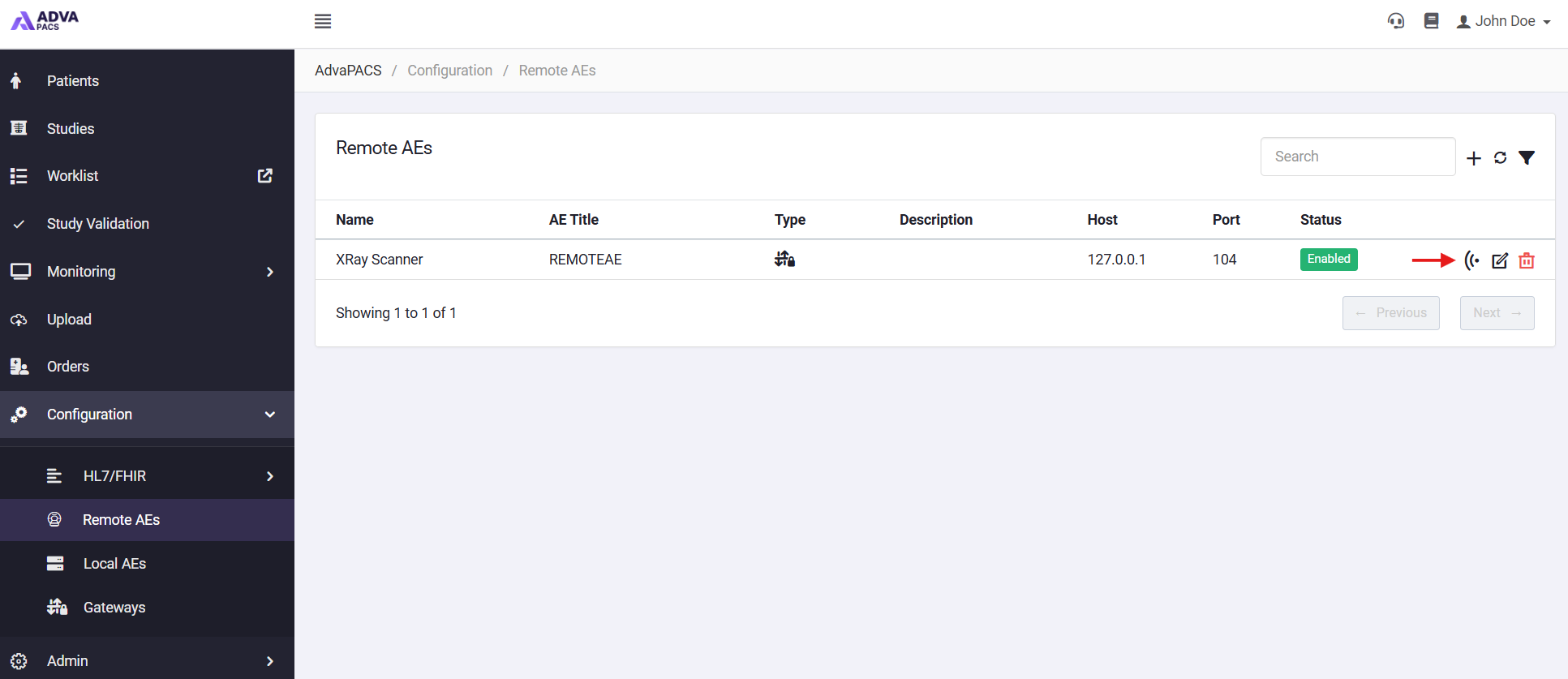
Find the Remote AE you wish to test and click the Echo icon on the right side.
-
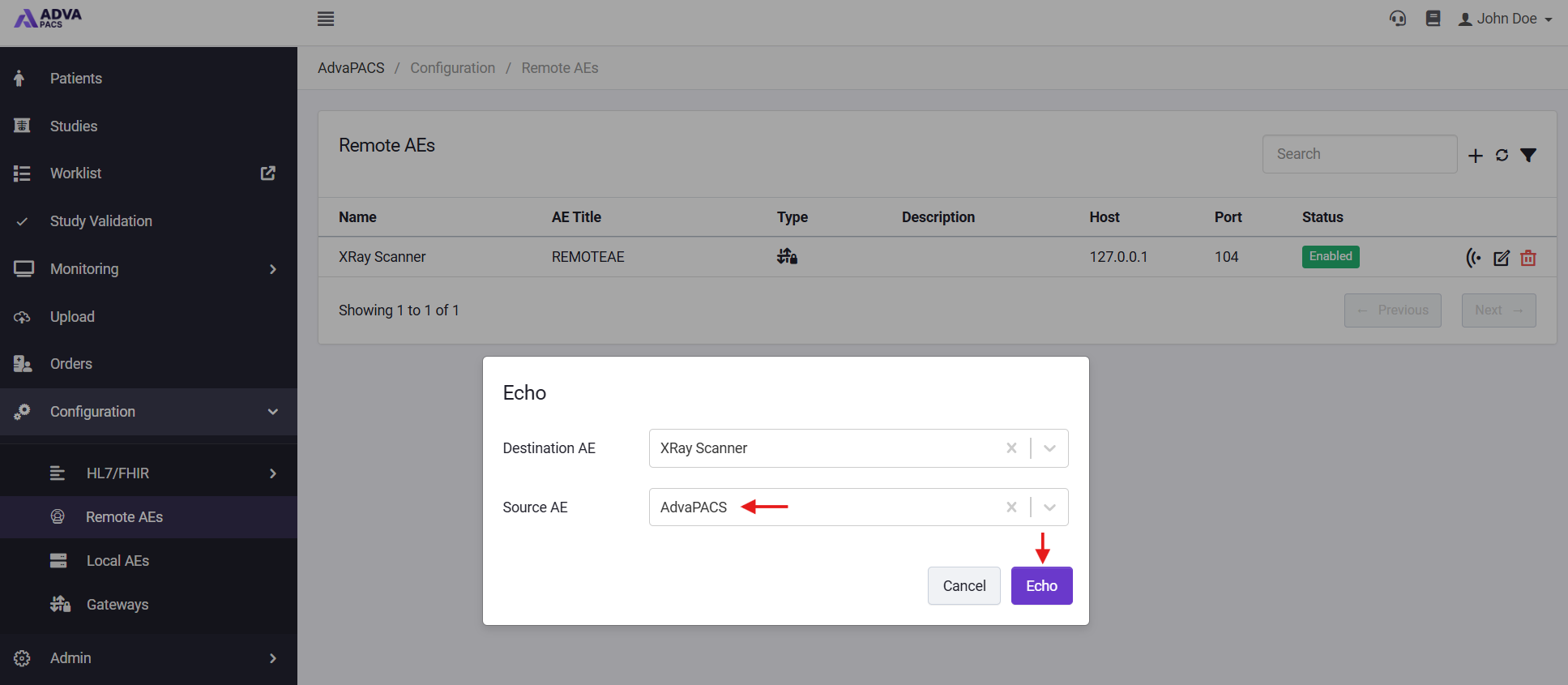
The Destination AE will be pre-populated with your Remote AE, so select the Local AE you set up earlier in the Source AE dropdown and click Echo.
-
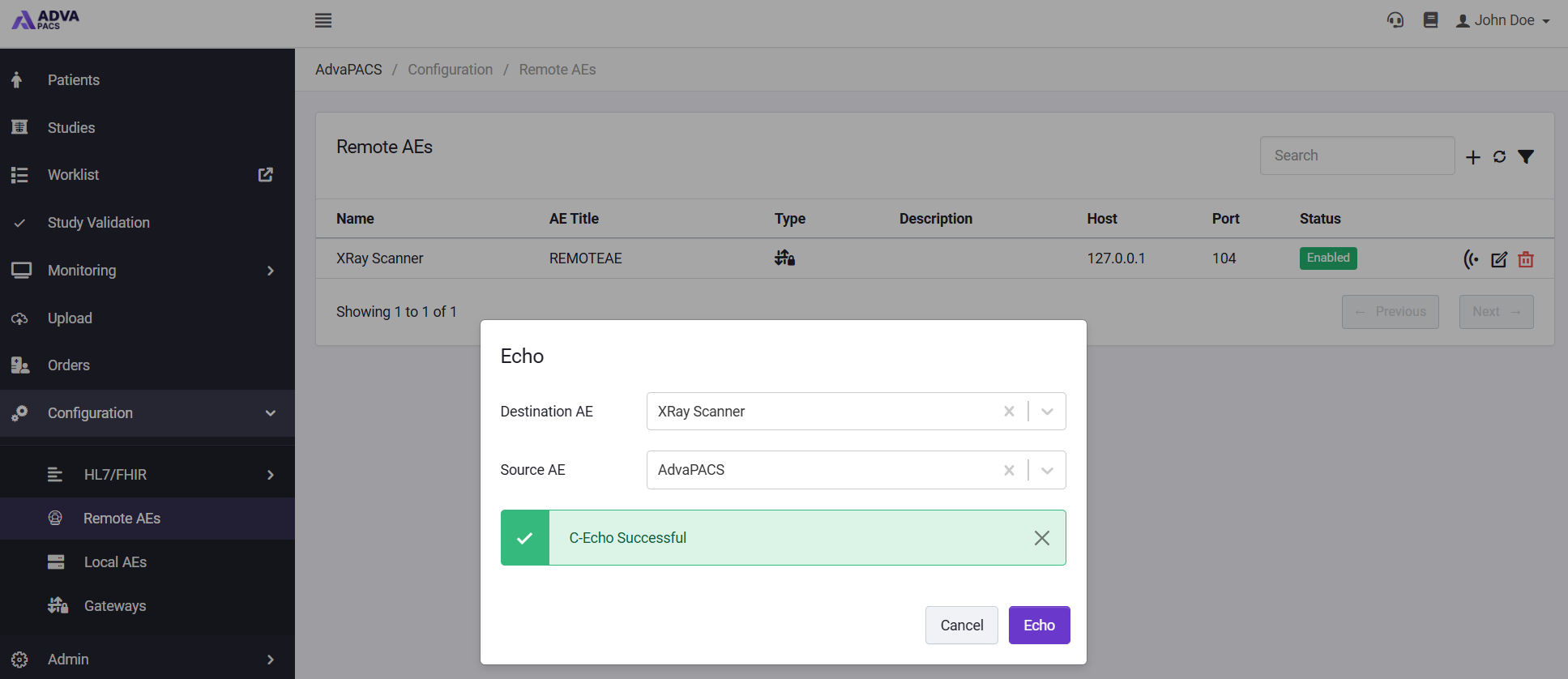
If the connection is successful, a confirmation message similar to the one below will be displayed. This confirms that your modality can successfully communicate with the DICOM server running on the AdvaPACS Gateway.
Your modality is now ready to send DICOM studies through the Gateway to AdvaPACS cloud storage.
Troubleshooting
If the test result is unsuccessful, a message similar to this will show.
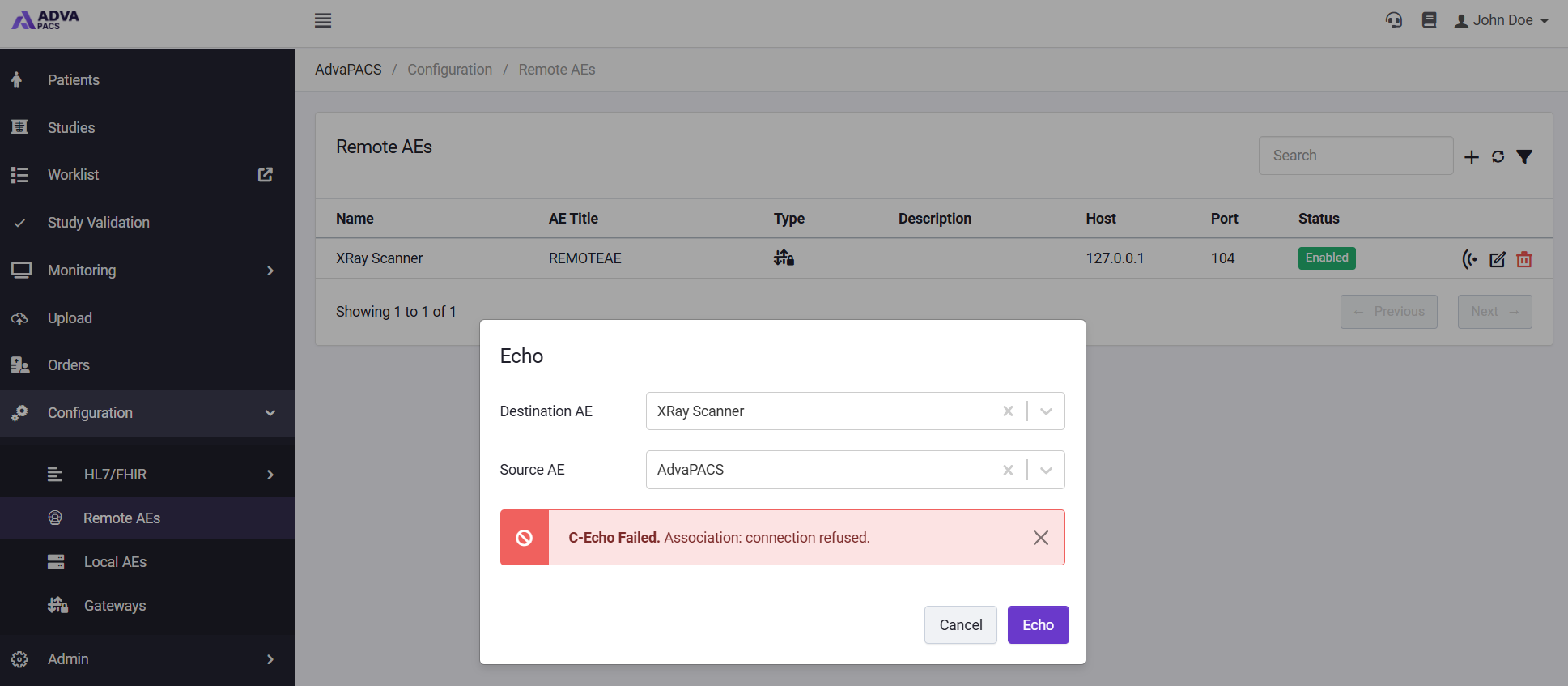
There could be a couple of reasons why this is happening and the issue is usually related to the DICOM configuration or network connectivity between the modality and the AdvaPACS Gateway. We'll start our investigation with the accuracy of the parameters you've entered in your tenant and in your modality.
-
In the Remote AEs screen, check the Remote AE profile you created to see if its details match the modality's details.
-
Also, check the Local AE you created to see if its details match the configuration you entered in your modality.
-
Next, make sure that no firewalls are blocking connections to the ports you specified, both on the server where the Gateway is running and in the modality.