Linux
This guide explains how to install and run the AdvaPACS Gateway on a Linux server.
Prerequisites
Before installing the Gateway, ensure the Linux server has:
- Java 21 or later installed.
- Internet access to the AdvaPACS repository.
- Permission to install packages and manage system services.
- The Gateway region, access key, and access key secret generated during the Creating a Gateway Profile step.
Install the Gateway
The AdvaPACS Gateway can be installed using either a package file or a package manager.
Install using a package file
Package files are available from the Gateway installation dialog in AdvaPACS.
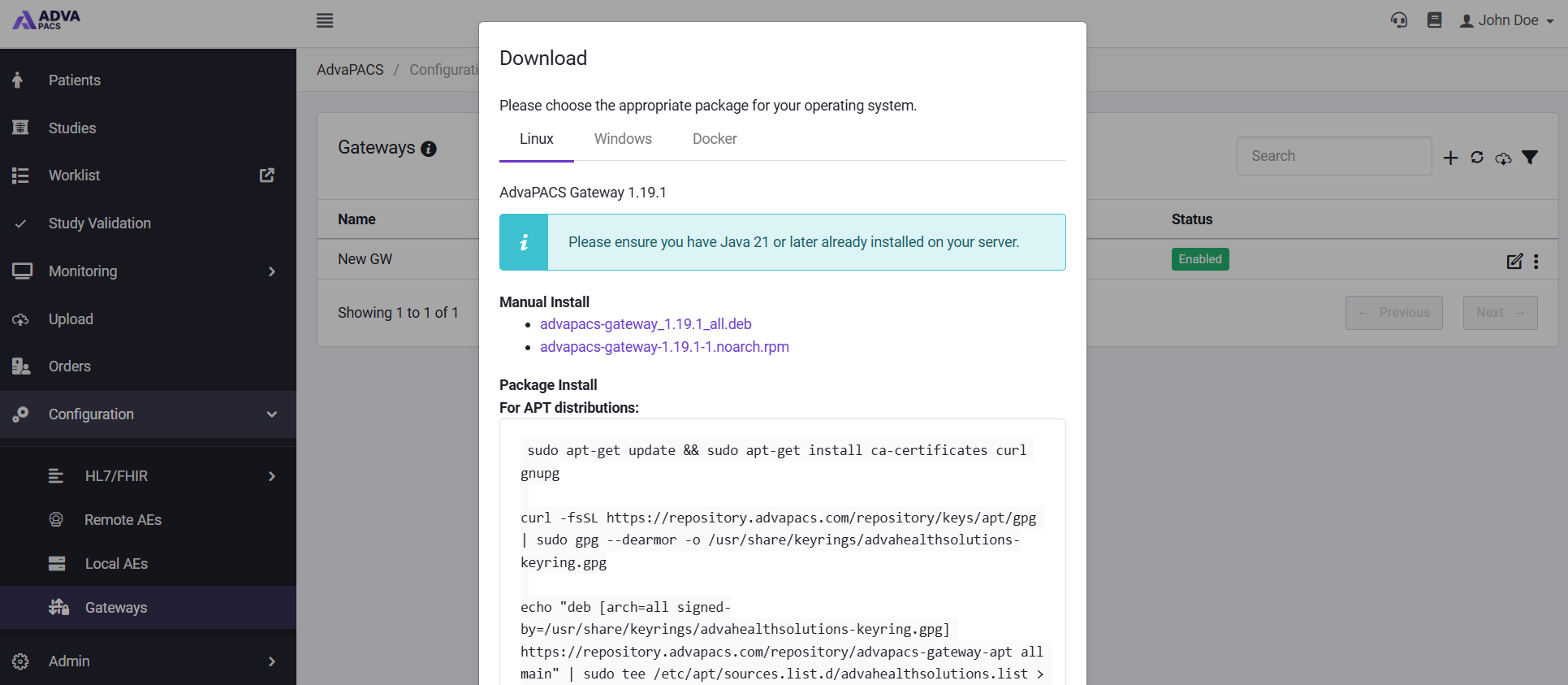
To install via a package file, follow the below steps:
- Open the Gateway installation dialog.
- Select the Linux tab.
- Download the appropriate package for your Linux distribution.
- Install the package using your operating system's package tools.
Install using a package manager
You can also install the Gateway directly from the AdvaPACS package repository.
APT-based distributions
Use these steps for distributions such as Ubuntu or Debian.
-
Update the apt package index file and install the following packages:
ca-certificates,curl, andgnupg.sudo apt-get update && sudo apt-get install ca-certificates curl gnupg -
Add the official GPG key of AdvaPACS to
advahealthsolutions-keyring.gpg.curl -fsSL https://repository.advapacs.com/repository/keys/apt/gpg | sudo gpg --dearmor -o /usr/share/keyrings/advahealthsolutions-keyring.gpg -
Add the following string of text into two files:
advahealthsolutions.listandnull.echo "deb [arch=all signed-by=/usr/share/keyrings/advahealthsolutions-keyring.gpg] https://repository.advapacs.com/repository/advapacs-gateway-apt all main" | sudo tee /etc/apt/sources.list.d/advahealthsolutions.list > /dev/null -
Update the apt package index file and install the
advapacs-gatewaypackage.sudo apt-get update && sudo apt-get install advapacs-gateway
RPM-based distributions
Use these steps for distributions such as Red Hat Enterprise Linux, Rocky Linux, AlmaLinux, Oracle Linux, or CentOS.
-
Add the following string of text into the
advapacs.repofile.sudo tee /etc/yum.repos.d/advapacs.repo << EOF
[advapacs]
name=AdvaPACS Gateway Repository
baseurl=https://repository.advapacs.com/repository/advapacs-gateway-yum/
gpgcheck=1
enabled=1
repo_gpgcheck=0
EOF -
Add the official GPG key of AdvaPACS to
rpm.sudo rpm --import https://repository.advapacs.com/repository/keys/rpm/gpg -
Install the
advapacs-gatewaypackage.sudo yum install advapacs-gateway
Configure the Gateway
Once the Gateway has been installed, it must be configured with the credentials generated in AdvaPACS.
-
Open the AdvaPACS Gateway installation directory
cd /opt/AdvaHealthSolutions/AdvaPACSGateway -
Edit the
credentials.propertiesfilesudo nano credentials.properties -
Configure the credentials and update the following values using the credentials provided when the Gateway was created.
credentials.propertiesadvapacs.access.key.id: <access-key-id>
advapacs.access.key.secret: <access-key-secret>
advapacs.region: <region>For example:
advapacs.access.key.id: c1291092116b144ffbfefd7c8d2f5cc68
advapacs.access.key.secret: H6ZGuZzOVGWTygzAkg3LHTmdNpVe65Y0tvWNQjXiuCOmILgsr7d7ZeX9IXvJWJt6dv10ru3R8kPXrTwv
advapacs.region: sgp -
Save the file once the credentials have been entered.
Start the Gateway
-
Start the Gateway service.
sudo systemctl start advapacs-gatewayTo automatically start the Gateway whenever the server boots:
sudo systemctl enable advapacs-gateway -
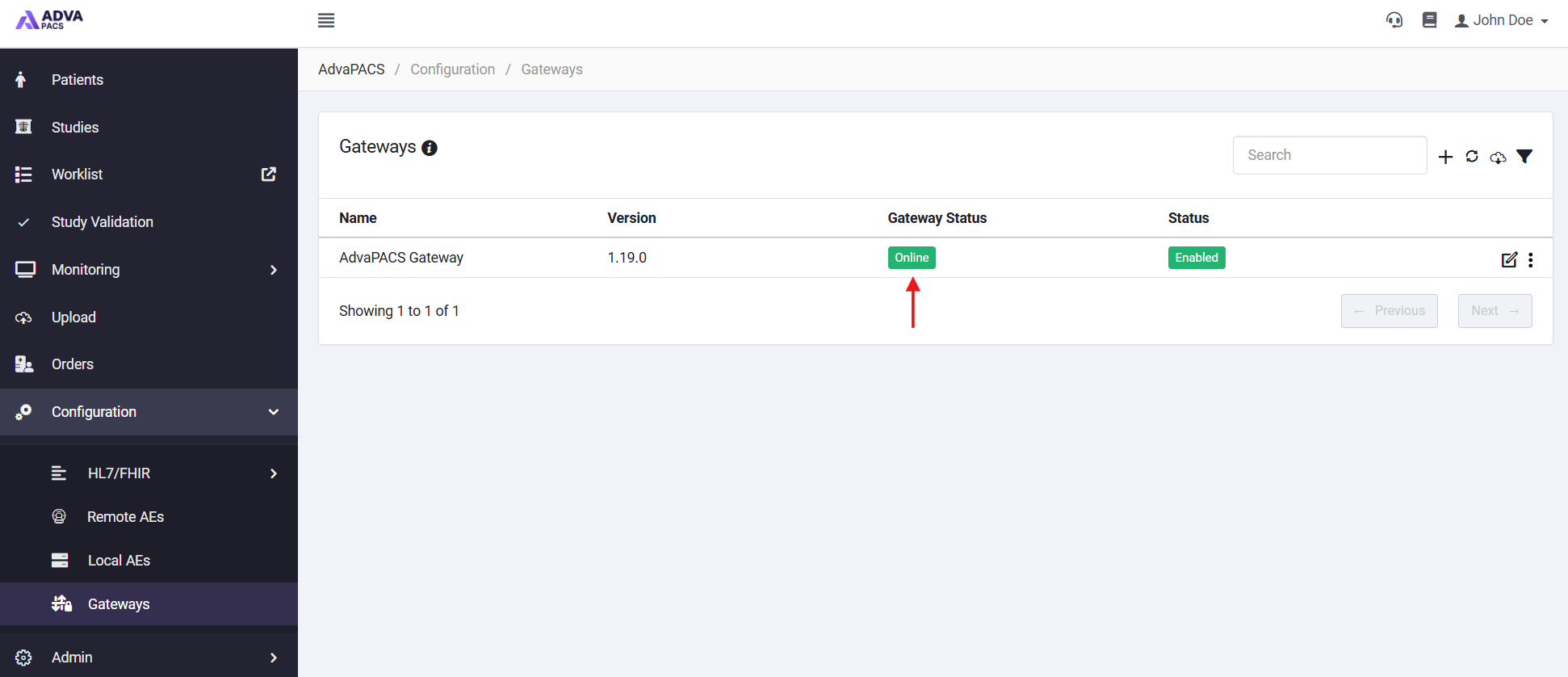
Verify the Gateway is online by returning to Configuration → Gateways in AdvaPACS. Within a few minutes, the Gateway should now show as Online.
Next Steps
Your Gateway is now ready to receive DICOM studies.
The next step is to configure one or more DICOM servers on the Gateway, then point your modalities at those servers.