Study Notes
The Study Notes function allows users to add and manage notes for a study.
Notes help record important information that may not be captured in other study fields.
Prerequisites
You must have the appropriate permissions to view or manage study notes:
| Permission | Description |
|---|---|
| View Notes | Allows the user to view notes. |
| Manage All Notes | Allows the user to create new notes and edit any note. |
| Manage Own Notes | Allows the user to create new notes and edit only their own notes. |
| Delete All Notes | Allows the user to delete any note. |
| Delete Own Notes | Allows the user to delete only the notes they authored. |
Viewing Study Notes
From Study Listing
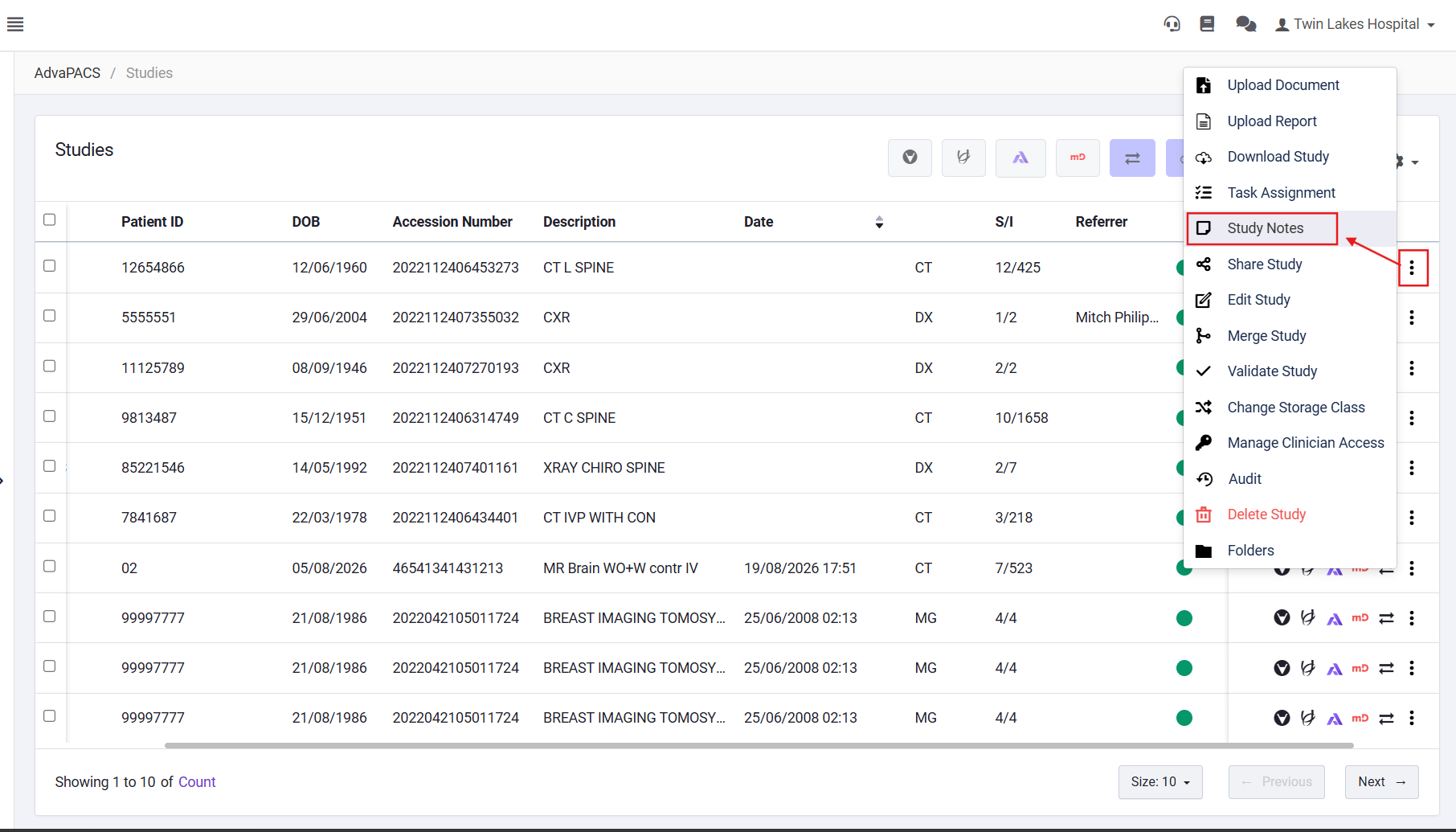
- In the Study Listing, click the More options icon (three dots) next to the desired study.
- Select Study Notes.
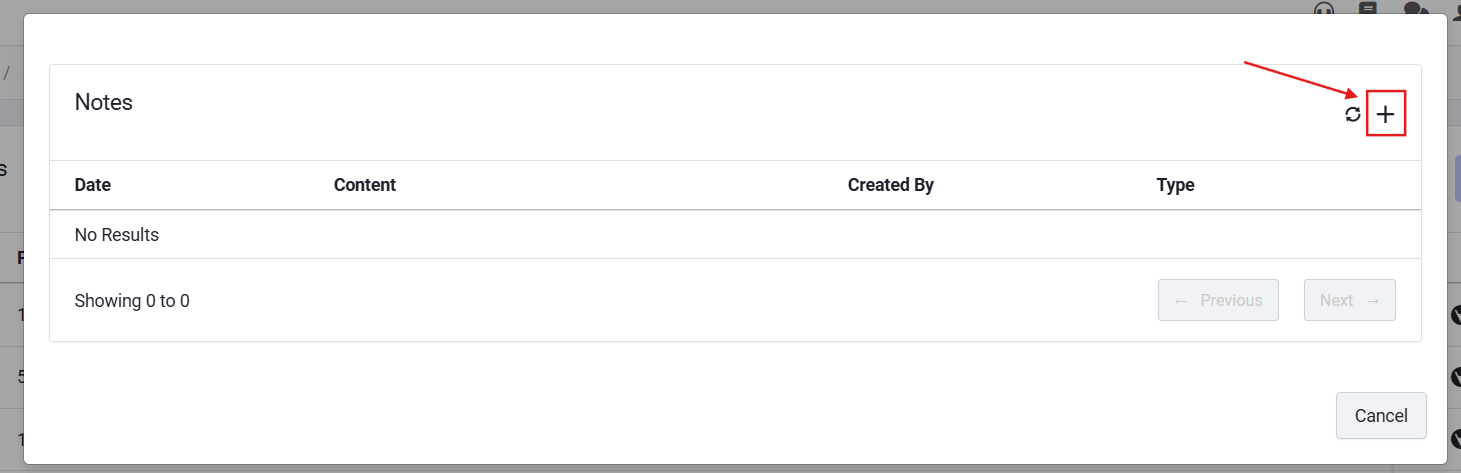
The Notes modal appears, showing all notes linked to that study.
Creating a Note
If you have permission to manage notes:
- Click the + (Add) icon to create a new note.
- In the Create Note modal:
- Select a Type (category of note).
- Enter the Content of your note.
- Click Create to save.
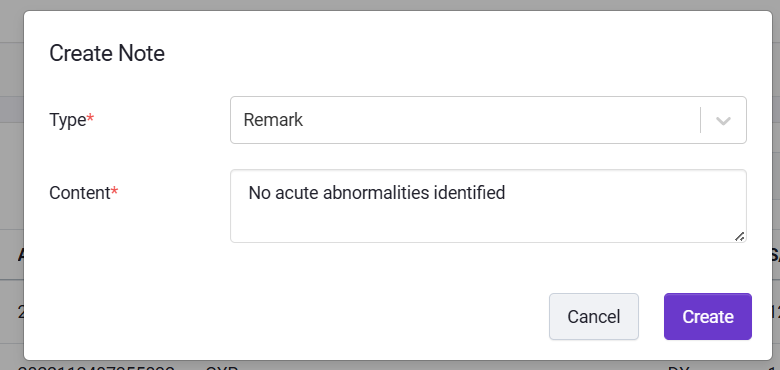
Your new note will appear in the study’s note list.
Editing a Note
If you have edit permissions:
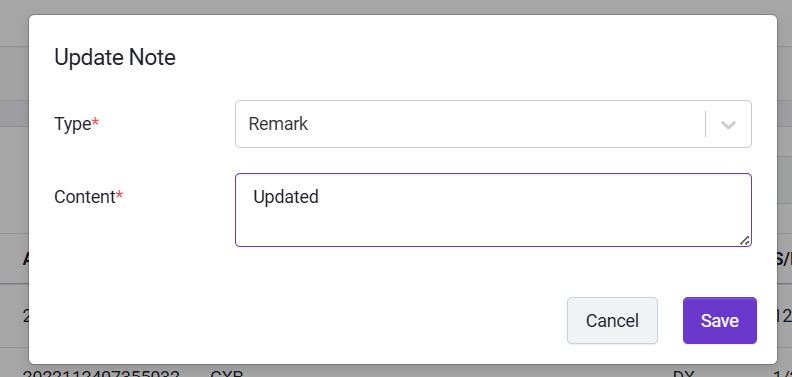
- Click the Edit icon next to the note.
- Update the content or type as needed.
- Click Save to apply changes.
Deleting a Note
To delete a note:
- Click the Delete icon next to the note.
- Confirm the action in the confirmation dialog.
In Study Detail
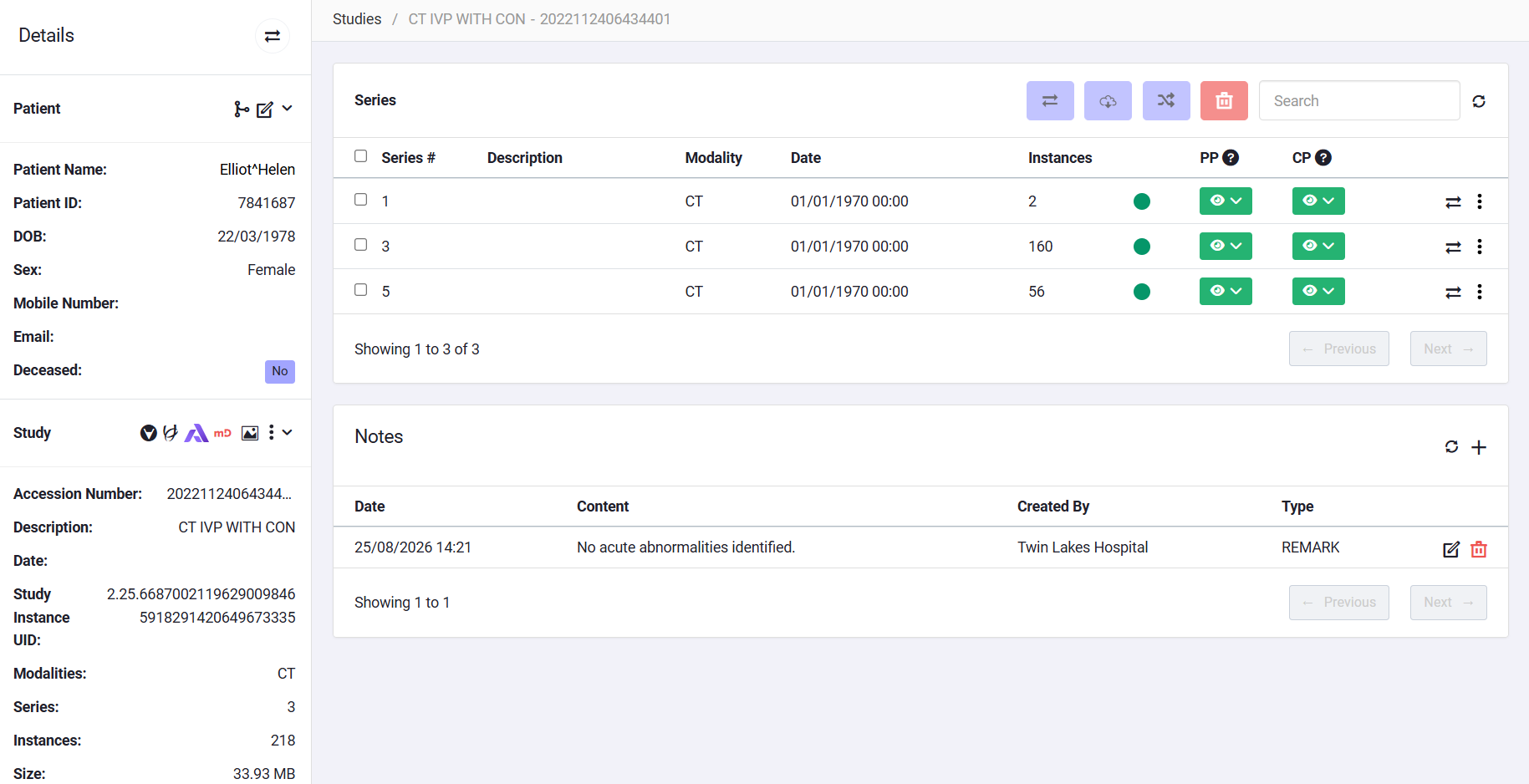
In the Study Detail view, the note list is displayed below the Series and Documents sections.
You can perform the same actions (create, edit, delete) directly from this section, depending on your permissions.
Viewing Notes in Worklist
When a study contains notes, radiologists can view them from the Worklist Detail screen.
- In the Order Section, the number of notes for each order is displayed.
- Click an order to open its details and view the associated notes.
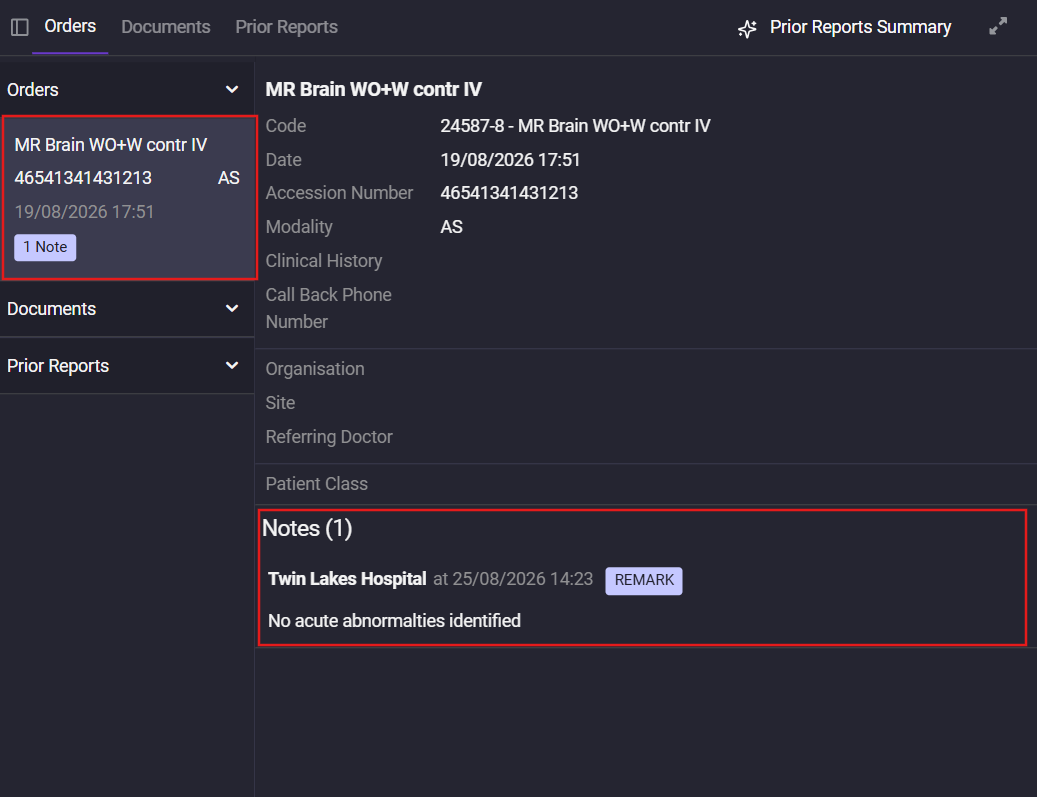
Result:
Study Notes make it easy for users to collaborate, document observations, and maintain a complete record of study-related information across the AdvaPACS system.
In addition to creating notes directly from the user interface, AdvaPACS also supports integrating study notes through HL7 and FHIR.
Refer to the following guides for setup details: