Merge Studies
The Merge Studies function allows users to combine two different studies into a single, consolidated study.
All related data linked to the source study will be transferred to the destination study — except for the order.
Prerequisites
- You must have the Edit Study permission to use this feature.
How to Merge Studies
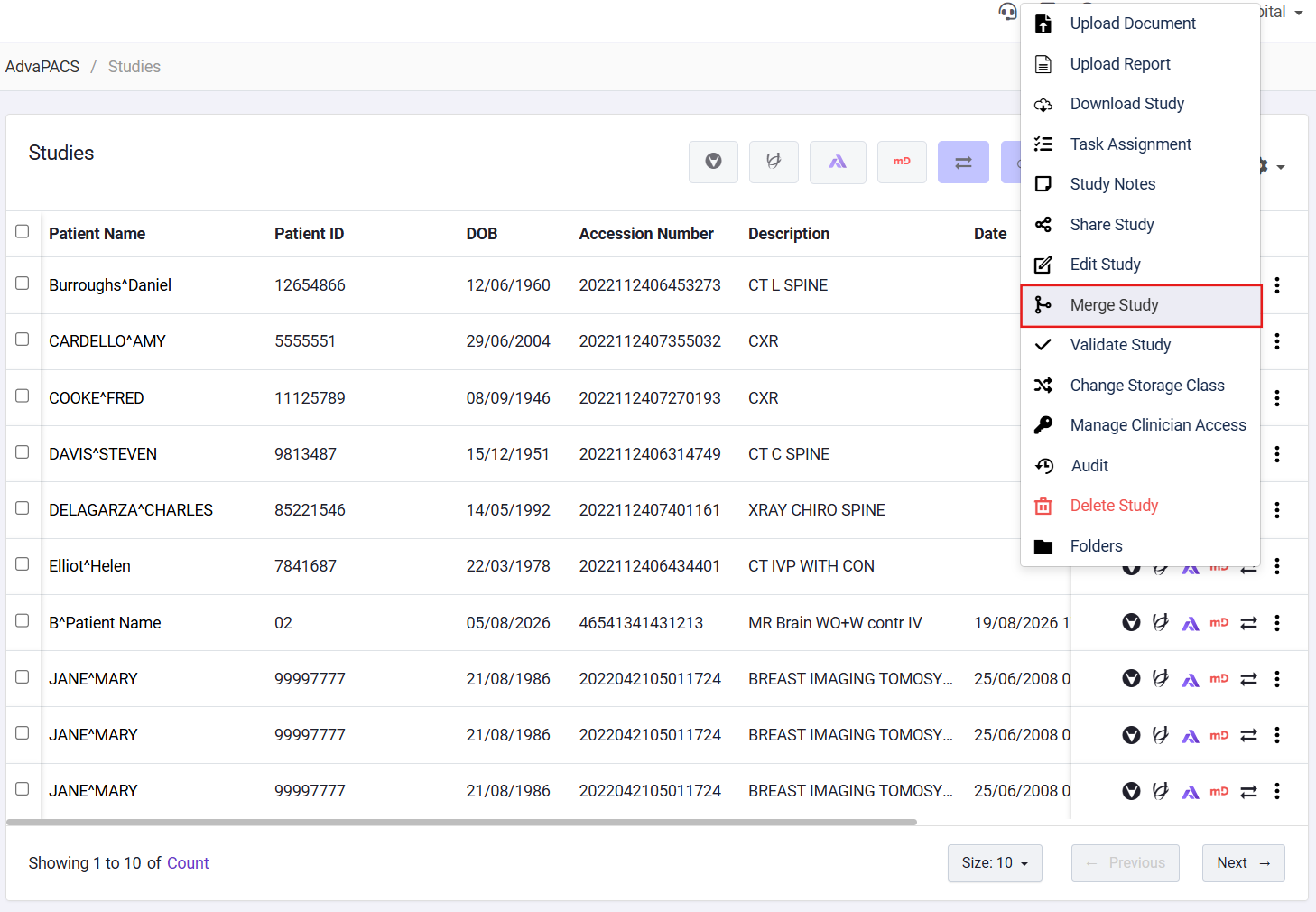
- From the Study Listing, locate the study you want to merge.
- Click the More options icon (three dots) in the study row.
- Select Merge Study.
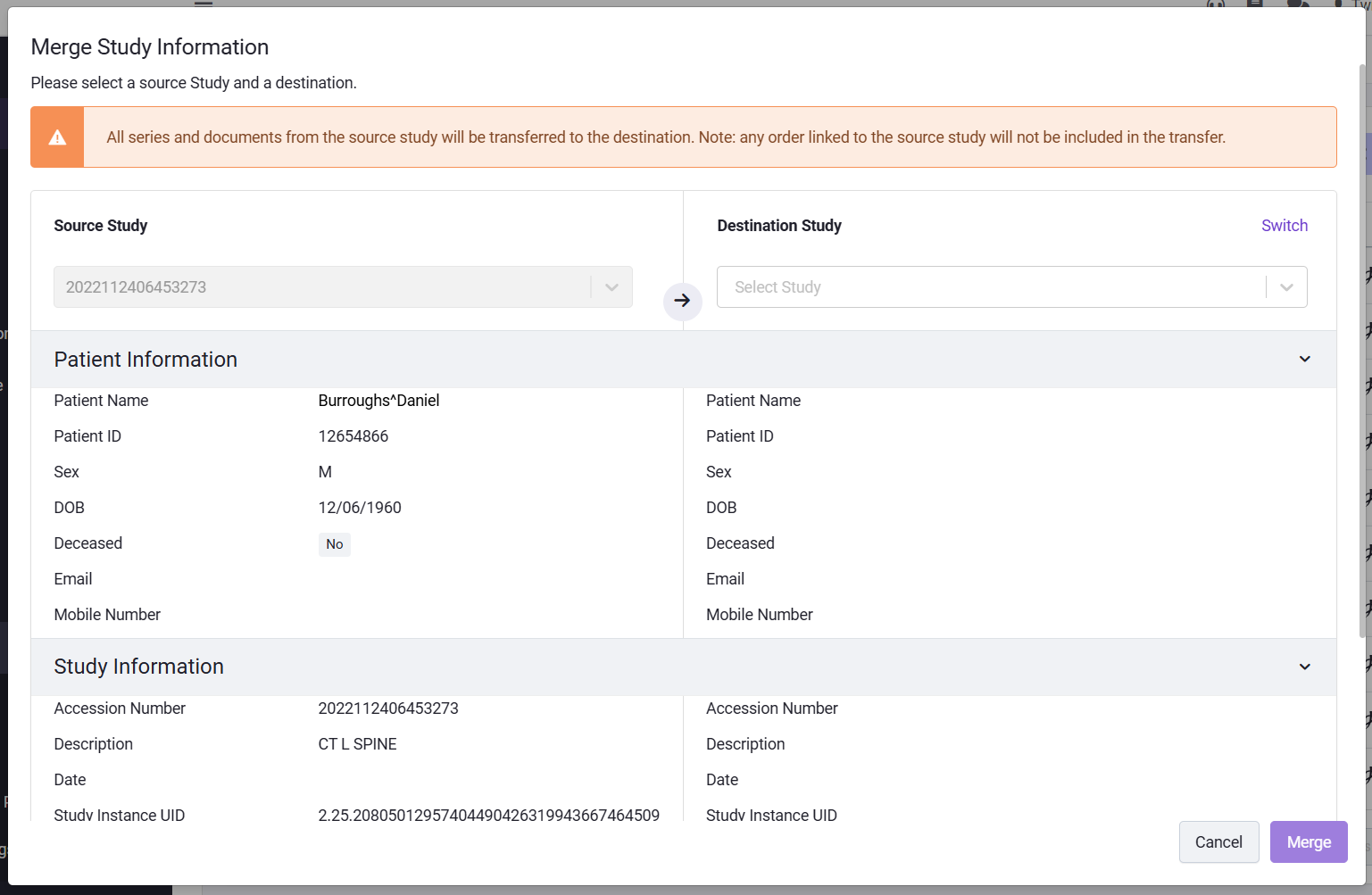
The Merge Study modal appears with the Source Study field automatically populated from your selected study.
The Source Study is the study that will be merged into another study.
All its related data will be transferred to the Destination Study.
If the source study already has an existing report, it cannot be used as the source.
Switching Source and Destination
You can switch between the source and destination studies by clicking Switch on the right side of the modal.
Searching for a Study
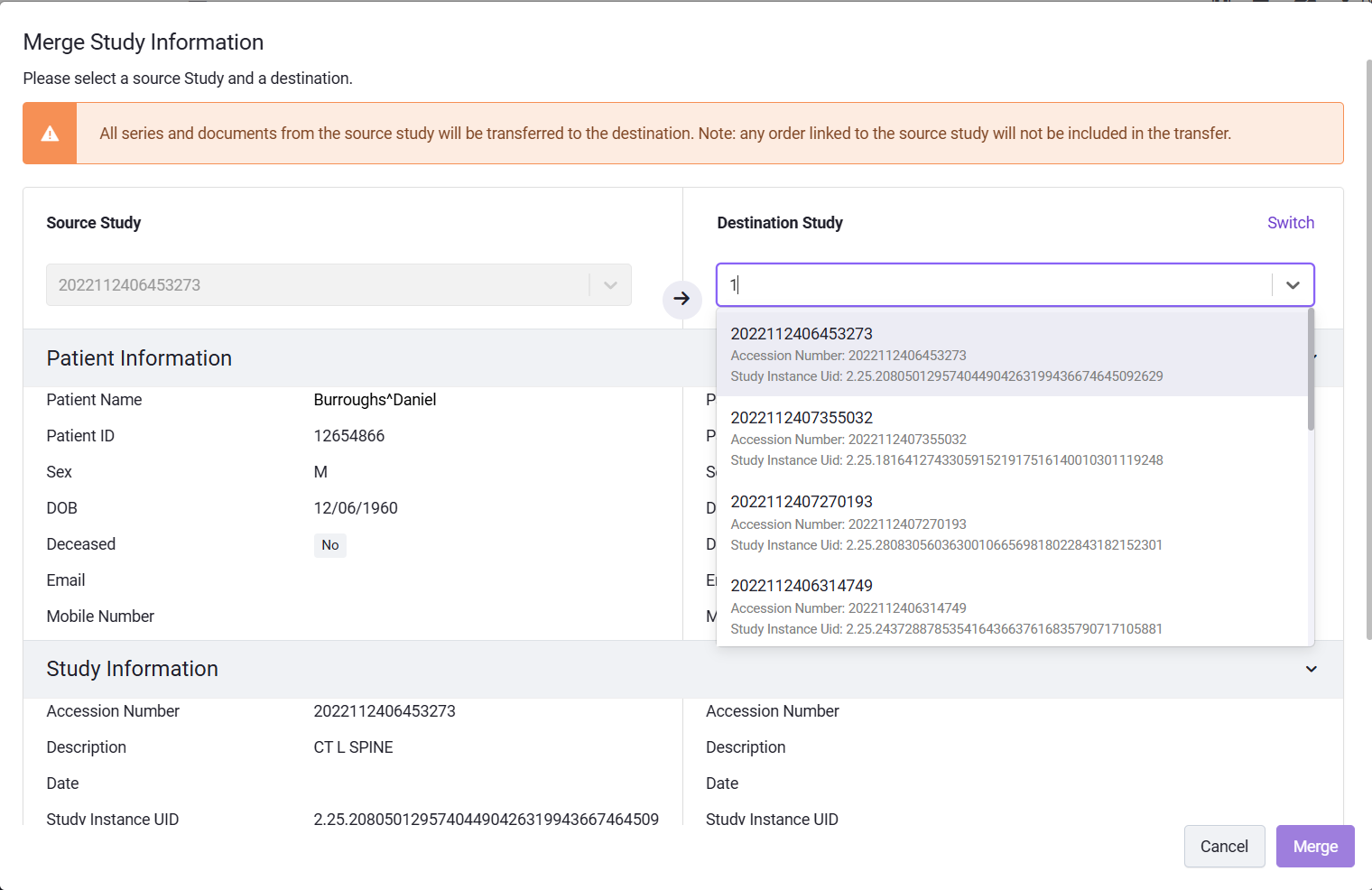
Use the Accession Number field to search for the study you want to merge with.
You don’t need to enter the full accession number.
Enter a few digits to search.
If MIMA is enabled, select the Issuer of Accession Number first — the system will filter results accordingly.
Verifying Study Details
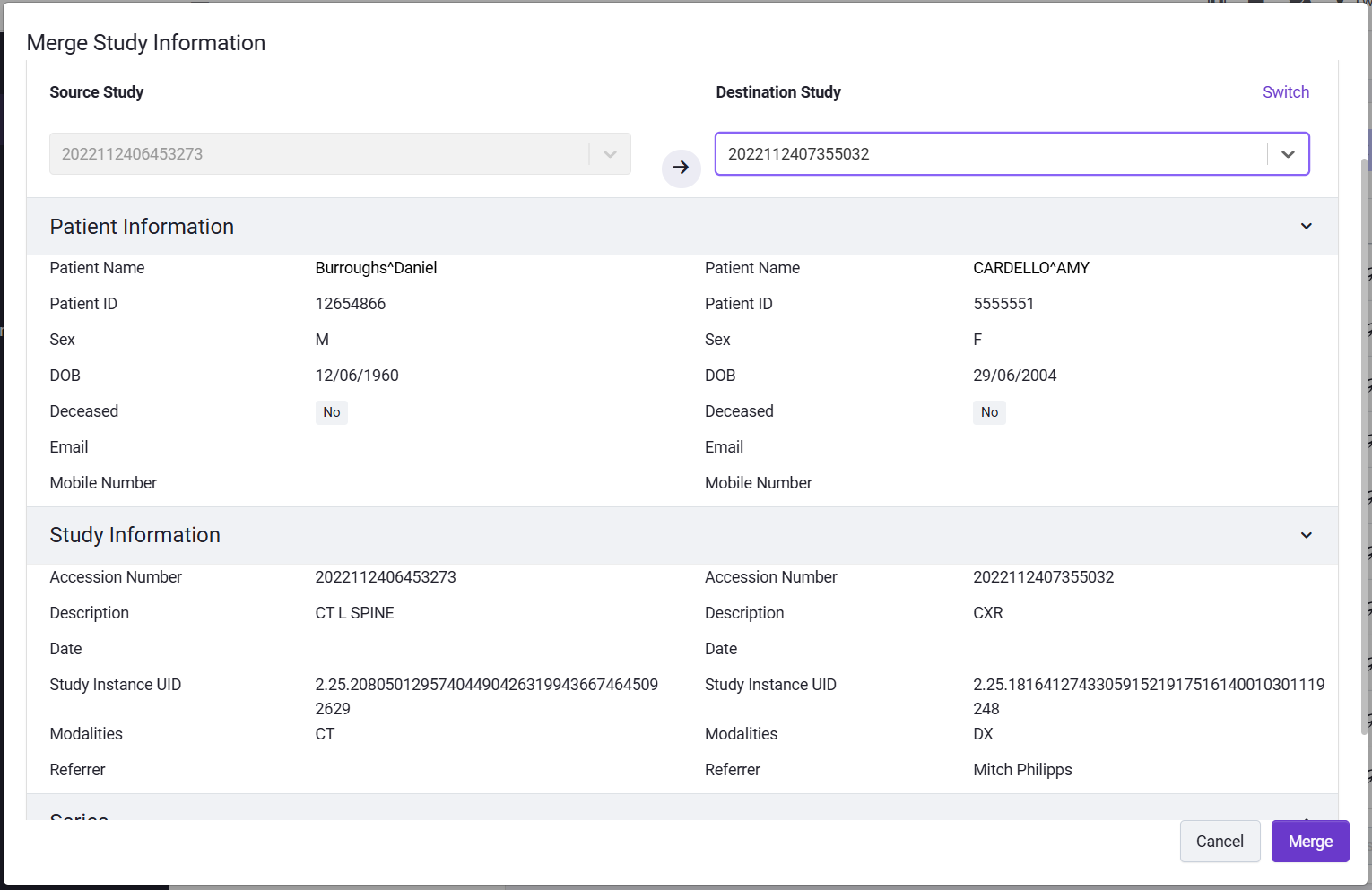
After selecting a study, the system displays key information such as Patient Info, Study Info, Series, and Documents.
Verify these details carefully to ensure you’ve selected the correct study.
Merging the Studies
When you’ve confirmed the correct studies:
- Click Merge.
- In the confirmation field, type
mergeto confirm the action.
Once the process is complete, a success message will appear confirming that the studies have been merged.
Result:
The destination study now contains all data from the source study, while the original source study is merged and no longer exists separately.