Branding
The Branding section allows you to create and manage one or more brand profiles for your Clinician Portal. Branding information is displayed on the Login page and in the PACS Directory, helping clinicians easily recognize your organization and request access to your portal.
This section also guides you through enabling the Clinician Portal and setting up your first brand.
Enable the Clinician Portal and Create Your First Brand
Before you can accept access requests or share studies with Clinician Portal users, the Clinician Portal must be enabled.
Once enabled, the Clinician Portal cannot be disabled.
Follow these steps to enable the portal and create your first brand.
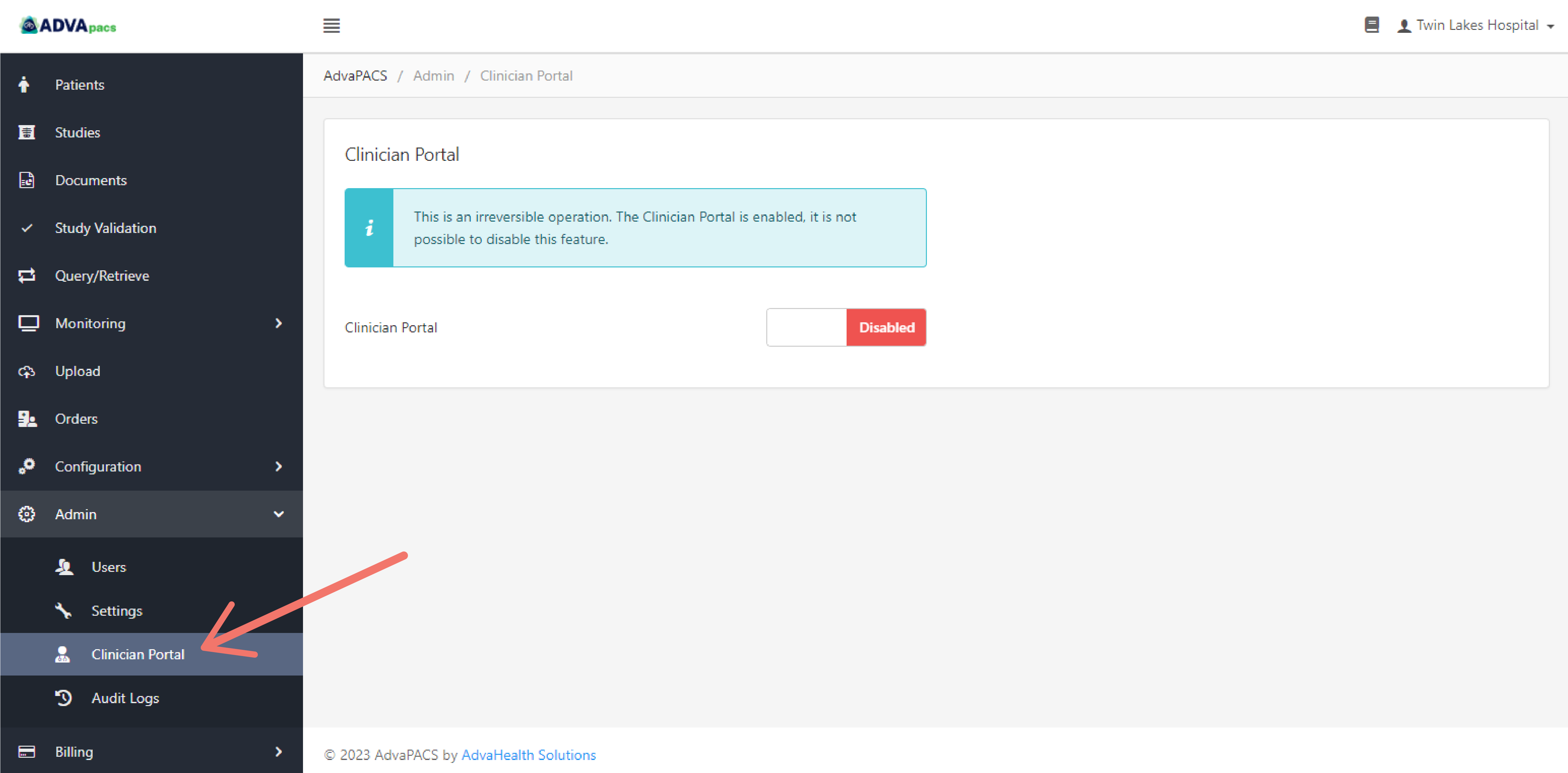
Step 1: Navigate to the Clinician Portal
From the Admin console, navigate to Clinician Portal.
Step 2: Enable the Clinician Portal
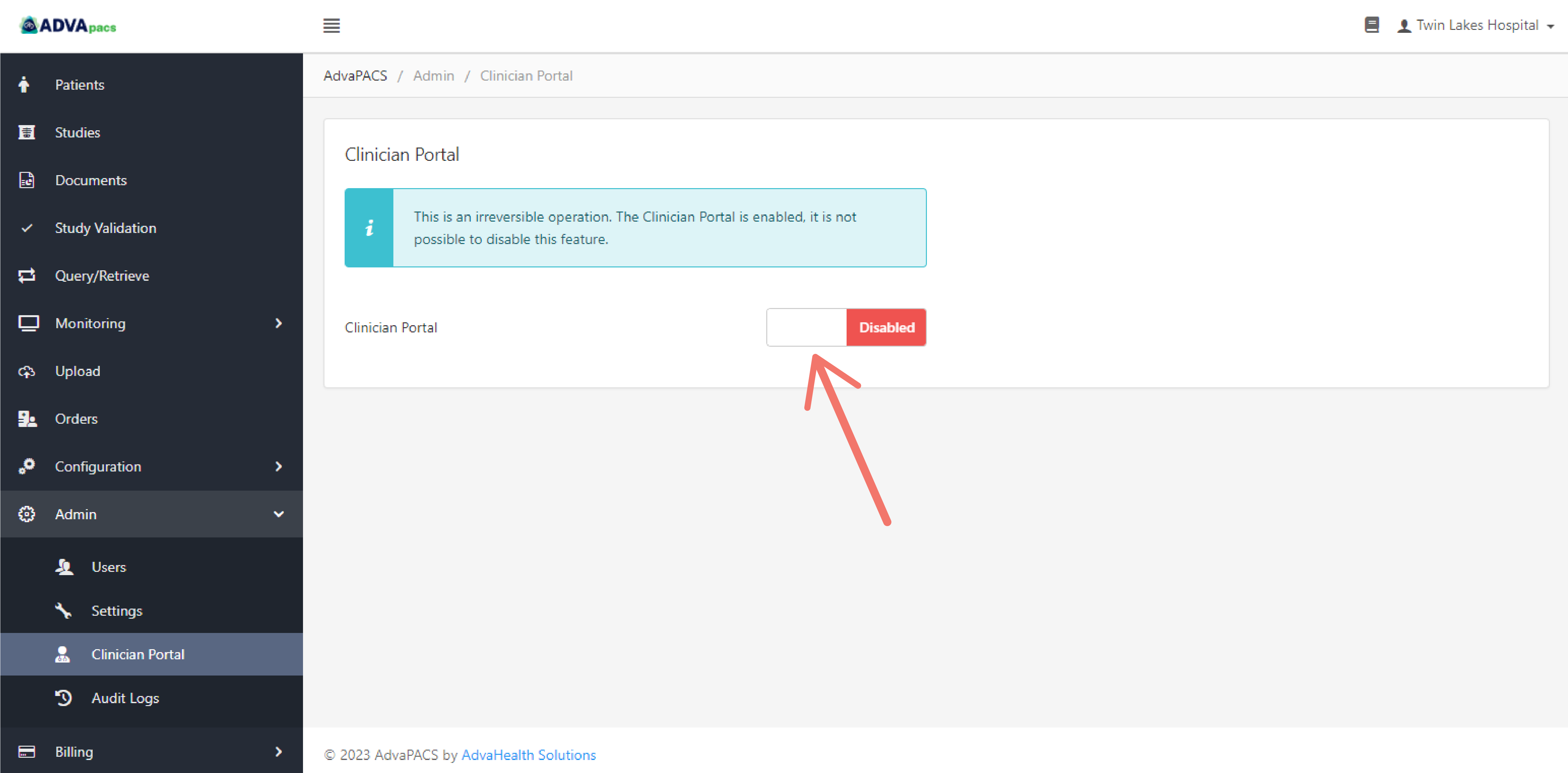
Toggle the switch to Enabled.
Step 3: Create a Brand
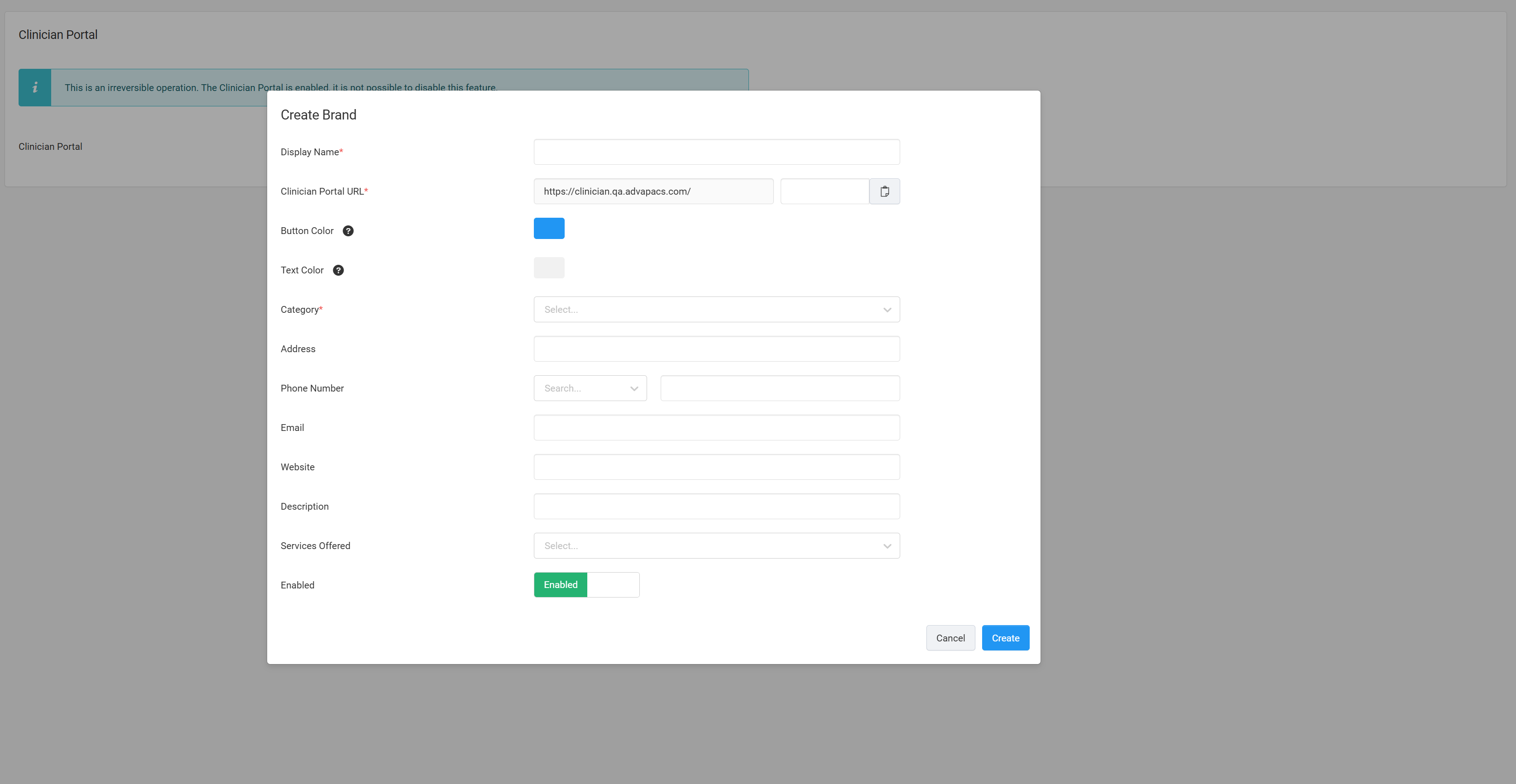
Complete the brand creation form with the following information:
-
Display Name: Enter the display name shown to Clinician Portal users.
-
Clinician Portal URL: Specify the portal endpoint. This value is auto-generated from the display name but can be customized.
-
Button Color: Select the color used for the login button.
-
Text Color: Select the text color for the login button.
-
Category: Choose the category that best describes your organization.
-
Address (Optional): Enter the organization’s address.
-
Phone Number (Optional): Enter a contact phone number.
-
Email (Optional): Enter a contact email address.
-
Website (Optional): Enter the organization’s website.
-
Description (Optional): Provide a short description of your organization.
-
Services (Optional): Select the services offered by your organization.
-
Enabled: Choose whether this brand is active.
Step 4: Create the Brand
After completing all required fields, click Create.
Step 5: Confirm Action
Enter the password you use to sign in to your account to confirm the action.

At this point, the Clinician Portal is enabled and your brand is visible in the PACS Directory. Clinician Portal users can now request access to your organization. Access requests can be reviewed and managed on the Access Control page.
Step 6: Upload Logo and Banner (Optional)
Once the brand is created, select Edit to upload a logo and banner image.
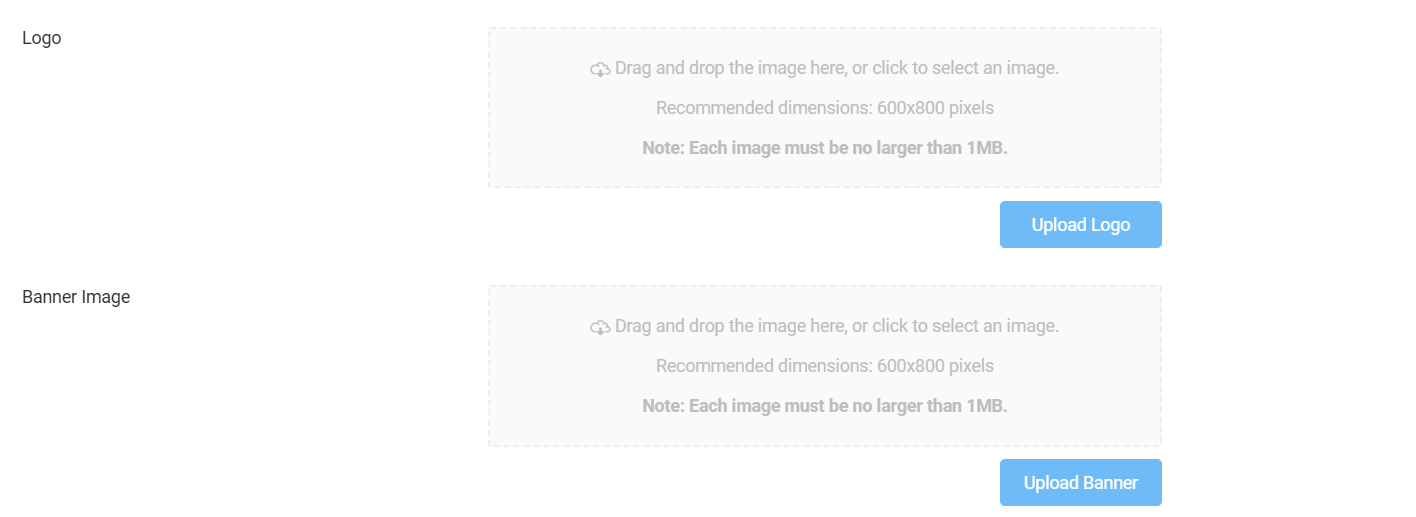
Uploading a logo and banner is optional. If not provided, default AdvaPACS images will be displayed on the login page.
Click Save to apply your changes.
Next Steps
After the Clinician Portal is enabled, additional configuration options become available, including access control, role management, and security settings.