Reset a Users MFA
Administrators can reset Multi-Factor Authentication (MFA) for users who have lost access to their authenticator device, changed phones, or are unable to generate valid verification codes.
Resetting MFA removes the user's existing MFA configuration and requires them to complete the MFA setup process again the next time they sign in.
Before You Begin
Before resetting MFA, verify the user's identity according to your organisation's security policies.
Common reasons for resetting MFA include:
- The user has replaced or lost their mobile device.
- The authenticator application was removed or reinstalled.
- MFA codes are no longer being accepted.
- The user cannot access their registered authenticator.
Resetting MFA
- Navigate to Admin → Users.
- Locate and select the user whose MFA needs to be reset.
- Open the user's details page.
- Click Reset MFA.
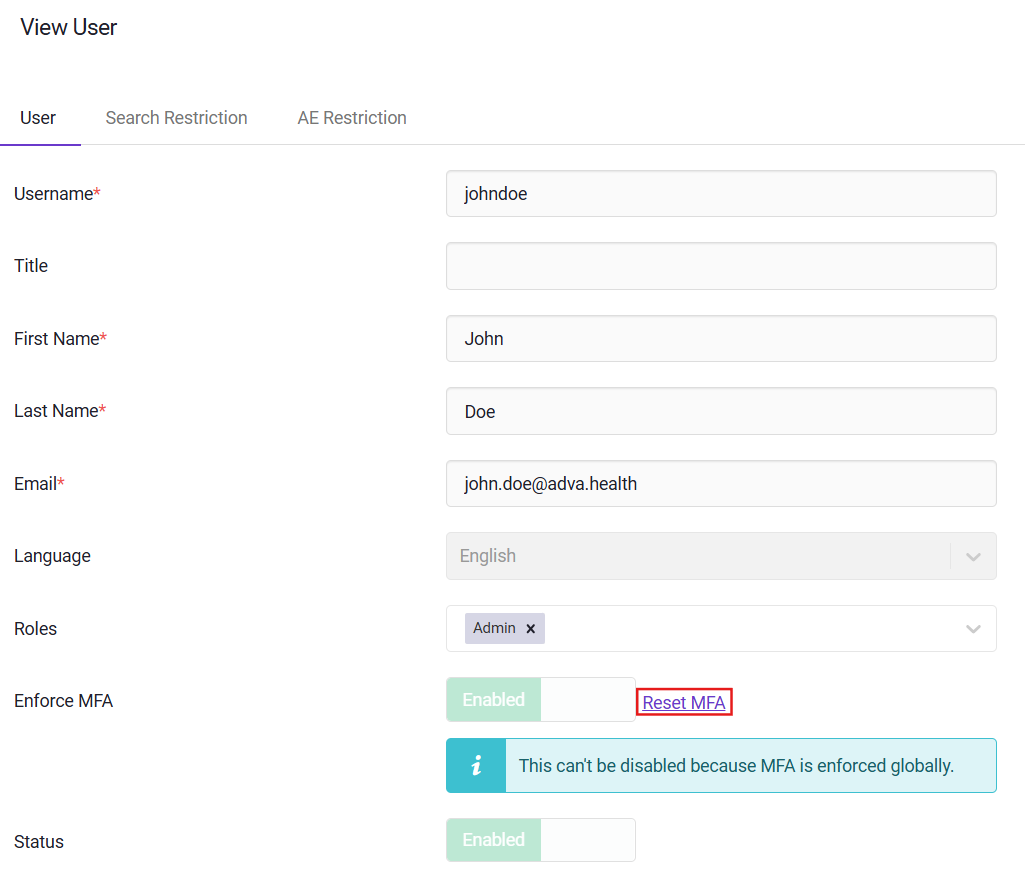
- Confirm the action when prompted.
The user's existing MFA configuration will be removed immediately.