Transform Rules
Transform Rules allow you to automatically modify DICOM tag values as instances are transferred between AdvaPACS and Remote AEs. Rules can be applied to both inbound and outbound transfers, ensuring DICOM metadata is transformed as part of the transfer workflow.
Transform Rules are useful when DICOM metadata needs to be modified to meet organisational requirements, maintain consistency between systems, or protect sensitive information. Automating these changes removes the need to manually update individual instances and ensures transformations are applied consistently.
For example, you can use Transform Rules to:
- Add an
EXT-prefix to Accession Numbers for studies received from an external facility. - Standardise Study Descriptions, such as converting different descriptions of contrast usage into a consistent format.
- Replace, remove, or modify DICOM tag values before instances are sent to another system.
- Remove information that should not be shared with a particular destination.
The following sections explain how Transform Rules work and how they can be configured for different transformation requirements.
Create a Transform Rule
To create a Transform Rule:
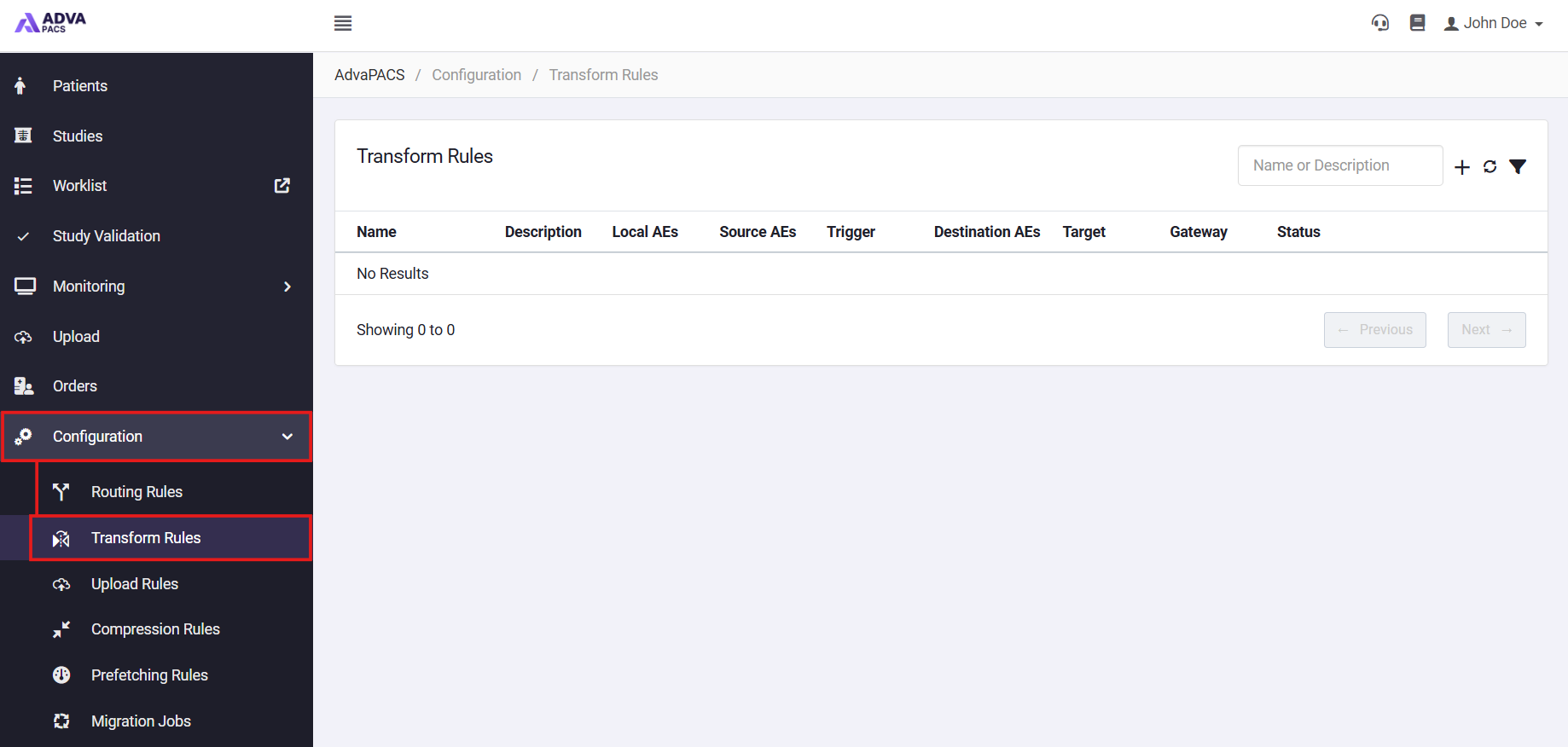
In AdvaPACS, go to Configuration > Transform Rules.
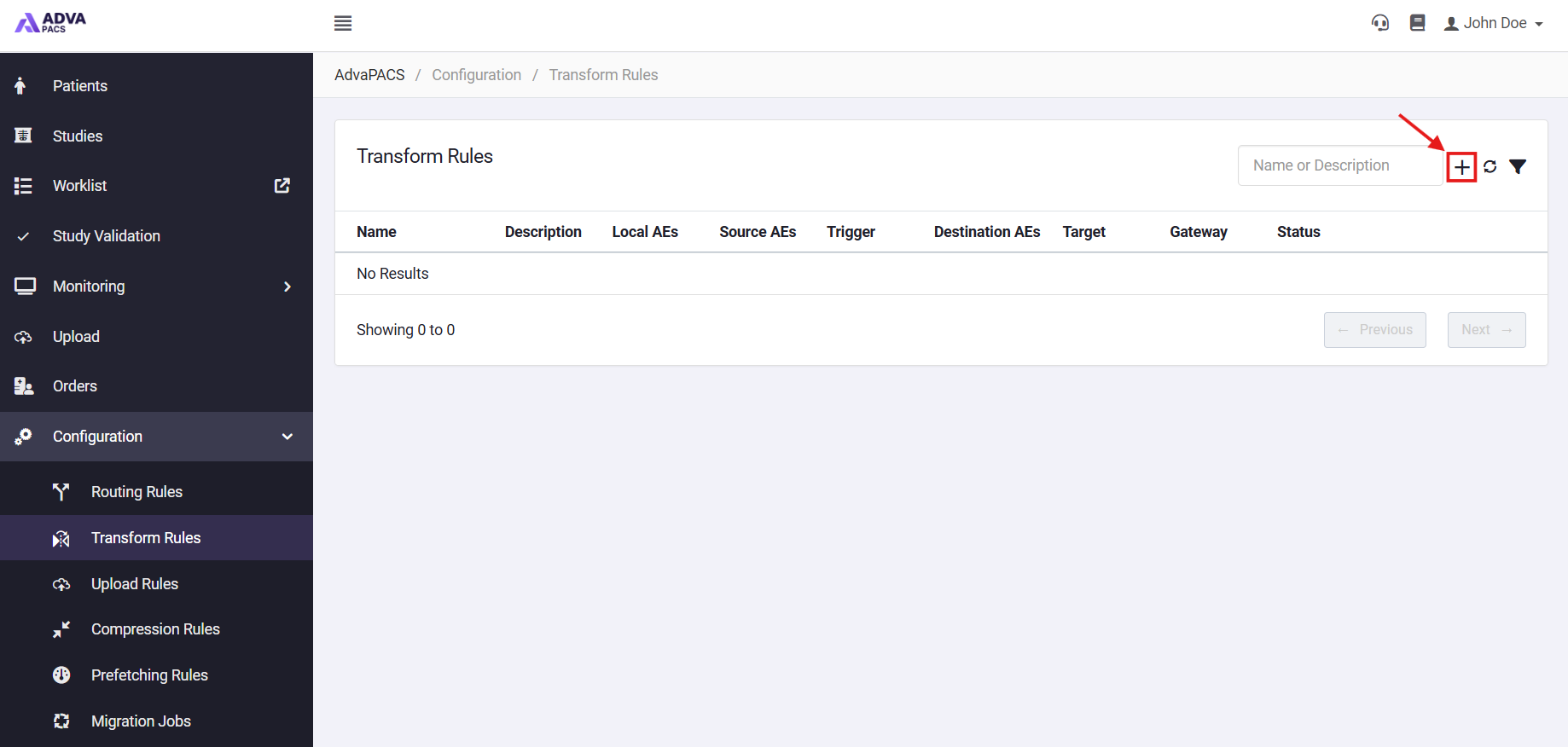
Click + to create a new rule.
A Transform Rule is composed of three configurations separated into different sections. This tutorial is divided into these sections and contains prompts to help you systematically create a transform rule.
Transform Rule
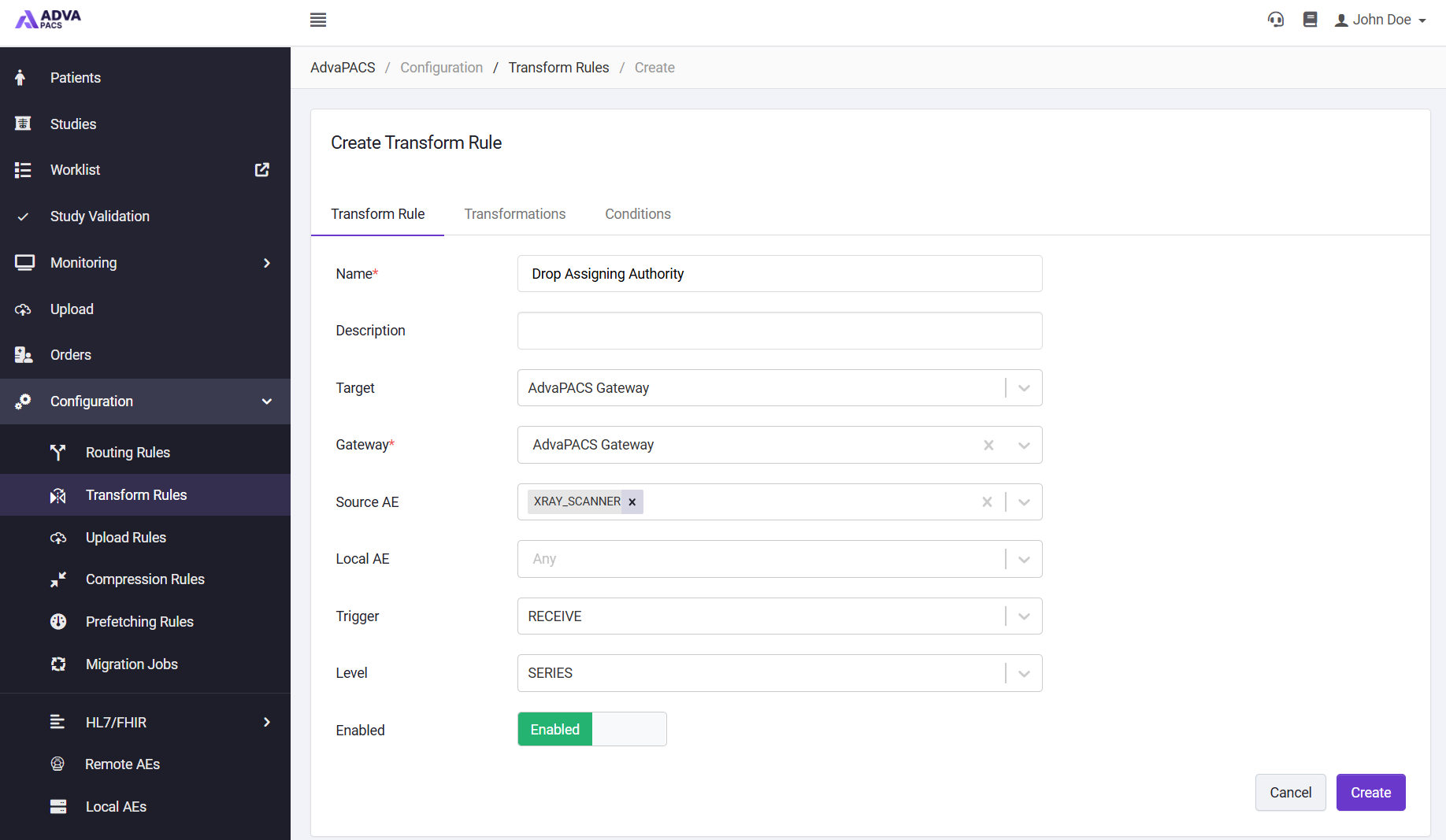
The Transform Rule tab contains the main configuration settings that determine how and when the rule is used. From here, you can define the basic information for the rule, select when the rule should be triggered, specify the Source, Local, or Destination AEs to which it applies, and select the DICOM hierarchy levels at which the transformation should be performed.
-
Enter a Name and Description for the Transform Rule. Use these fields to clearly identify the purpose of the rule and the transformations it performs.
-
Select the Target to determine where the Transform Rule will be applied:
- AdvaPACS Gateway — applies the Transform Rule to DICOM instances transferred through a specified AdvaPACS Gateway.
- AdvaPACS Cloud — applies the Transform Rule to DICOM instances received through the AdvaPACS Cloud Gateway.
-
If the Target Type is set to AdvaPACS Gateway, select the Gateway to apply the rule to.
-
Select the Trigger to determine when the Transform Rule is applied during a DICOM transfer. The available trigger depends on whether the rule should modify instances as they enter or leave AdvaPACS:
- Receive — applies the Transform Rule when DICOM instances are received by AdvaPACS from a Remote AE.
- Send — applies the Transform Rule when DICOM instances are sent from AdvaPACS to a Remote AE.
-
Set the Level at which the transform rule should be evaluated. It has three options:
Level Description Study Conditions are evaluated at study level and the entire study is routed when matched. Series Conditions are evaluated for each series and matching series are routed. Instance Conditions are evaluated for each individual instance and only matching instances are routed.
Transformations
Add the transformations that should be performed when the Transform Rule is triggered. Transformations define the changes that AdvaPACS will make to the DICOM instance, such as replacing, removing, copying, or modifying DICOM tag values. Multiple transformations can be added to a single Transform Rule, allowing several changes to be applied as part of the same rule.
For more information on the available transformation types and how to configure them, see the Transformations page.
Conditions
Add conditions to control when the Transform Rule should be applied. Conditions evaluate information associated with the transfer, such as DICOM tag values, the day or time of the transfer, or other configurable criteria.
When conditions are configured, the transformations are only applied when the conditions evaluate to True. Multiple conditions can be combined using AND or OR logic and can be nested to create more specific matching criteria. If no conditions are configured, the Transform Rule will apply whenever its other configured criteria, such as the trigger and AE settings, are met.
For more information on the available condition types and how to configure them, see the Conditions page.