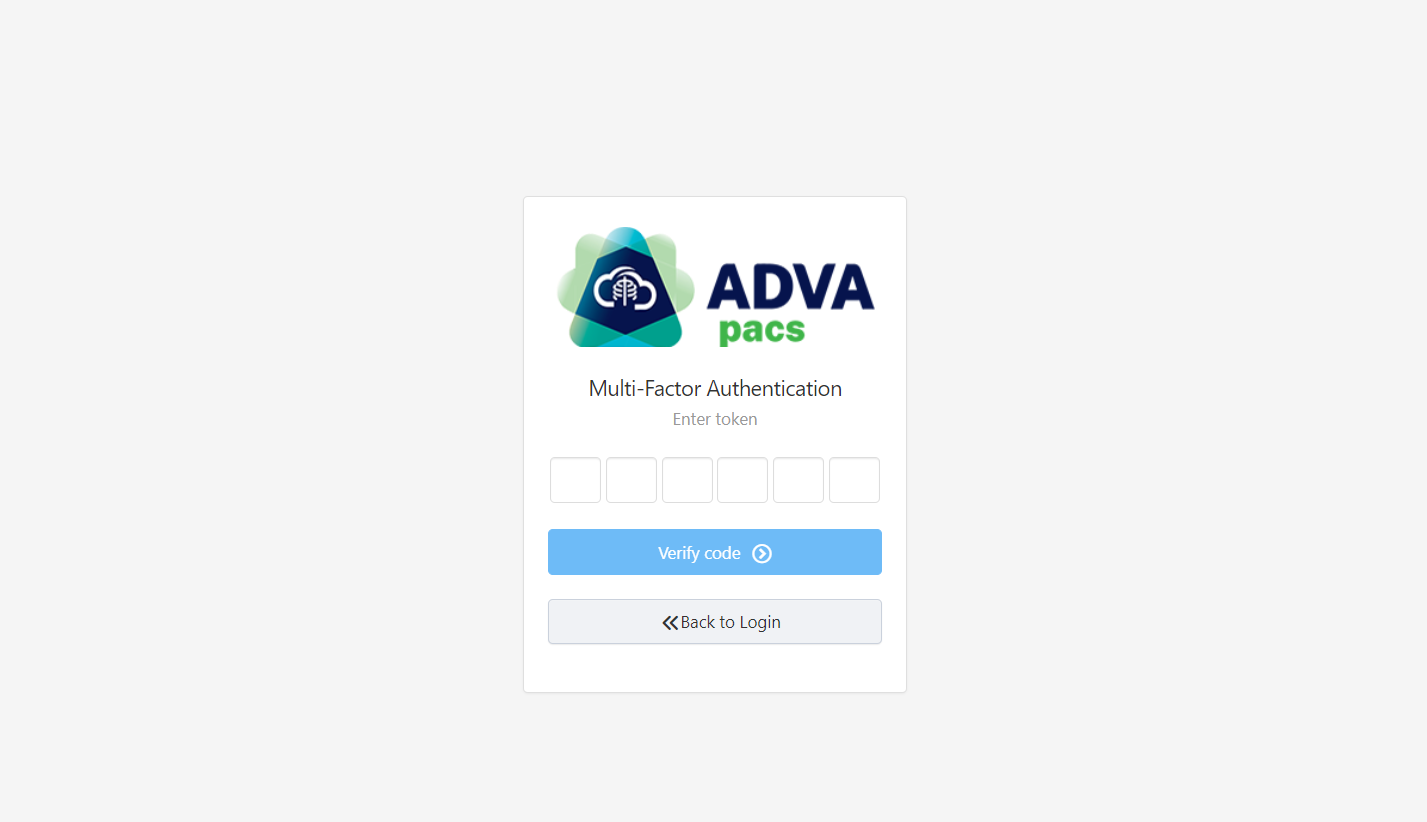
MFA
Multi-factor authentication adds an extra layer of protection to your AdvaPACS account. When MFA is enabled, you will need to enter a verification code from an authenticator app when signing in.MFA helps protect your account even if your password is compromised.
Types of MFA
AdvaPACS offers two types of Multi-Factor Authentication (MFA), and it is important to understand the differences:
-
TOTP (Time-based One-Time Passwords) – TOTP MFA is the most common type, where you will be prompted to enter a 6 digit code when you log in. This code is generated via an Authentication App, often on your phone.
-
Passkeys – Passkeys are a modern web standard that enables secure, passwordless authentication. Instead, it lets you use things like your fingerprint, face recognition, or a physical security key to prove who you are.
Setting Up MFA
- Click your account's name in the top-right corner and select Settings.
- Go to MFA tab.
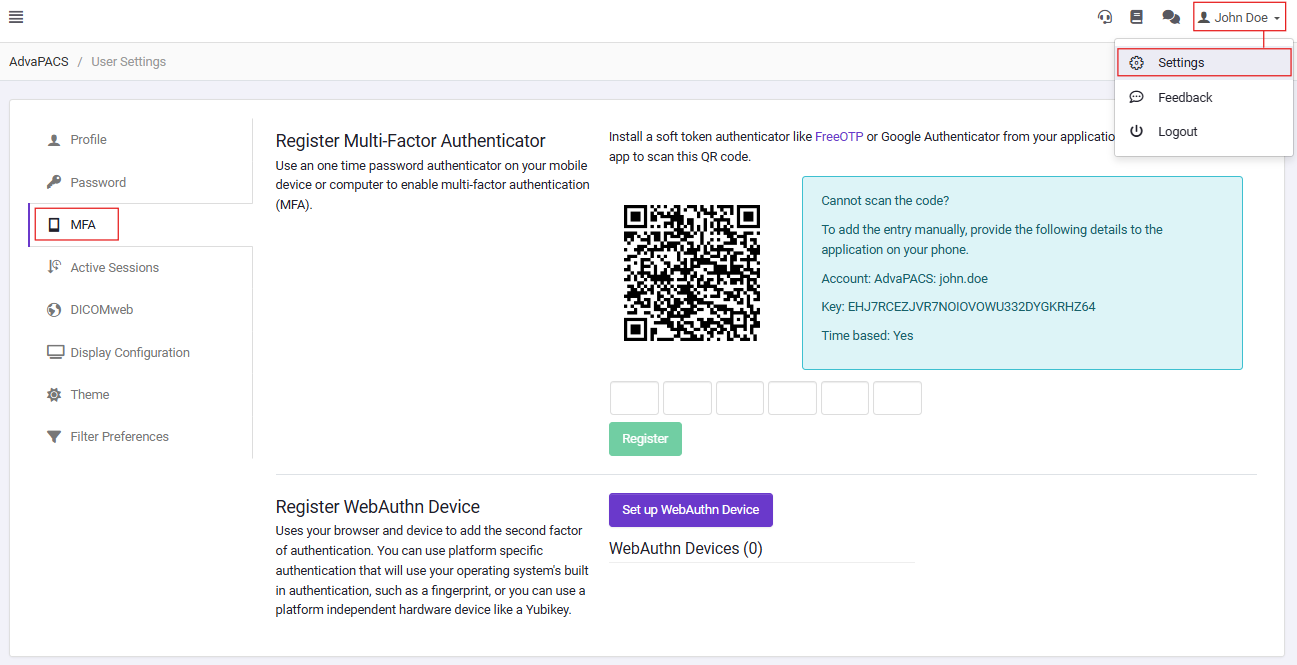
- Select Enable MFA.
- Scan the QR code using an authenticator app, such as Google Authenticator, Microsoft Authenticator, or 1Password.
- Enter the verification code generated by your authenticator app.
- Select Verify.
Multi Factors Authentication
MFA adds an extra layer of security when logging in to an AdvaPACS tenant. It requires users to input a token generated from a token authenticator after logging in.
Set up MFA
To enable MFA on your account, follow the steps below:
-
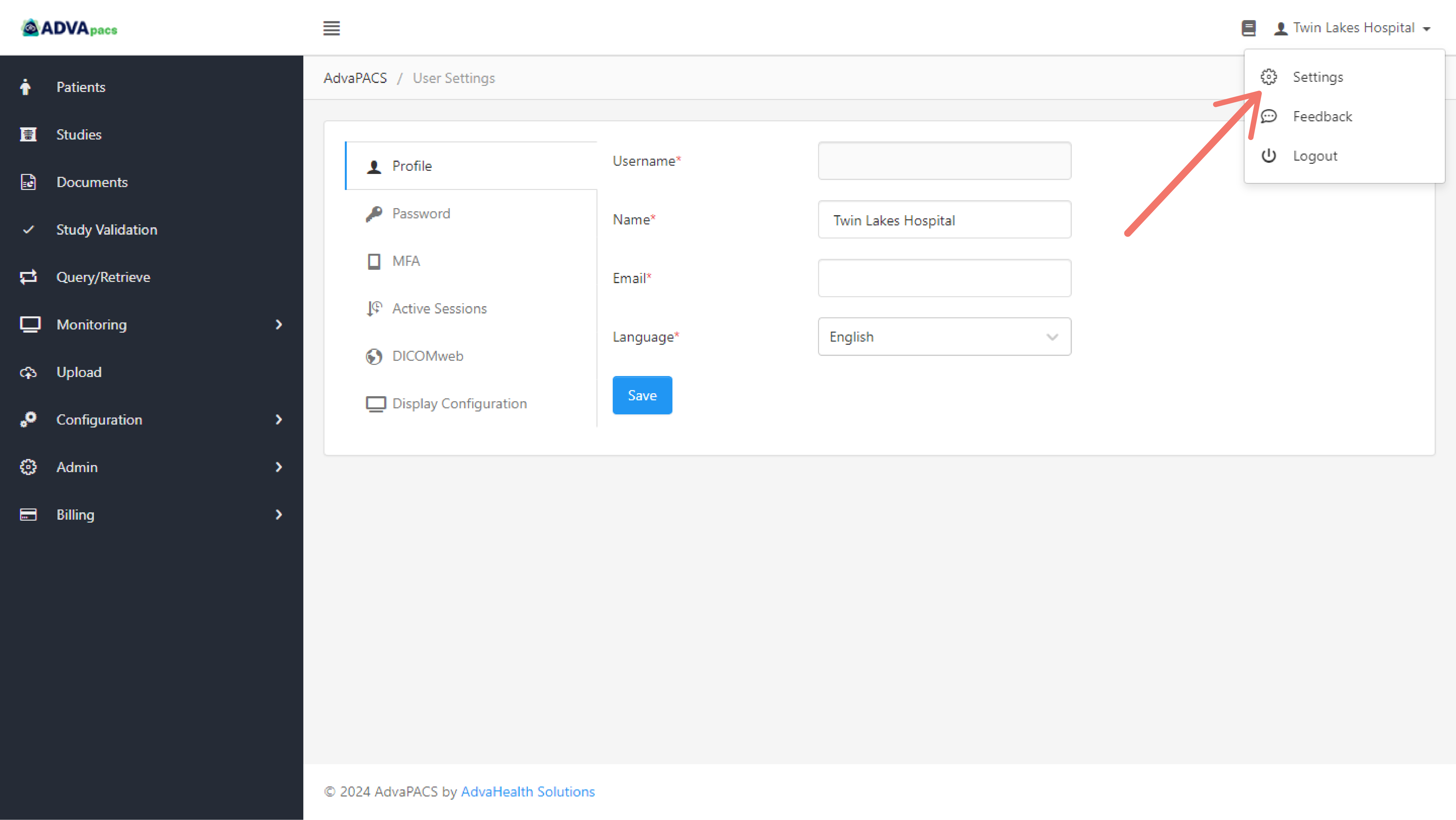
Click your account's name on the top-right corner of the dashboard.
-
Click Settings.
-
Click the MFA tab and follow the on-screen instructions to set it up.

Once you've completed the setup, log out of your account and log back in using your username and password. It will then prompt you to enter a token.