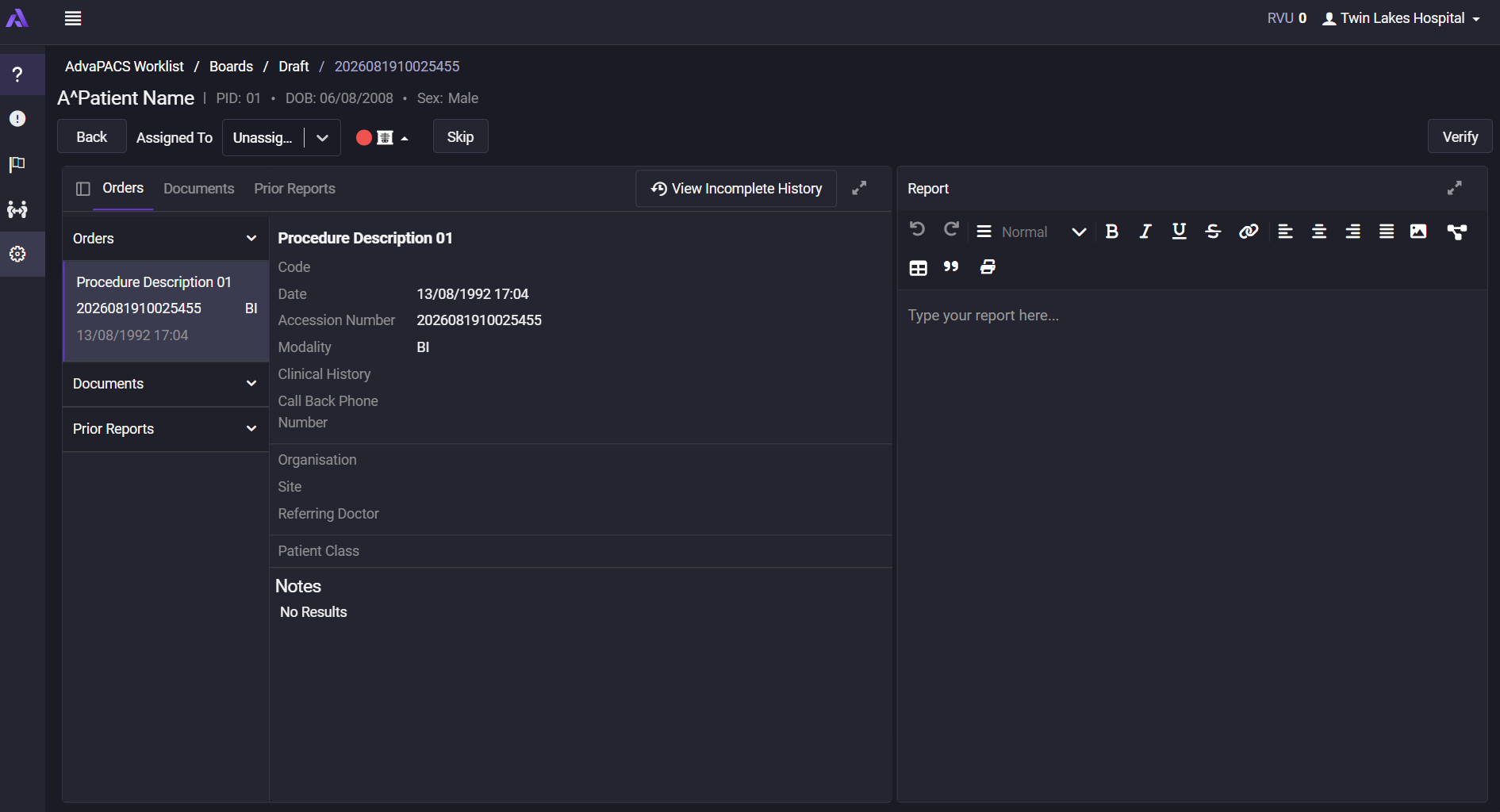
Order Management
When a user navigates to a board, the order list will be displayed according to the board’s specific configurations. Learn more about Board Configuration
Board Listing
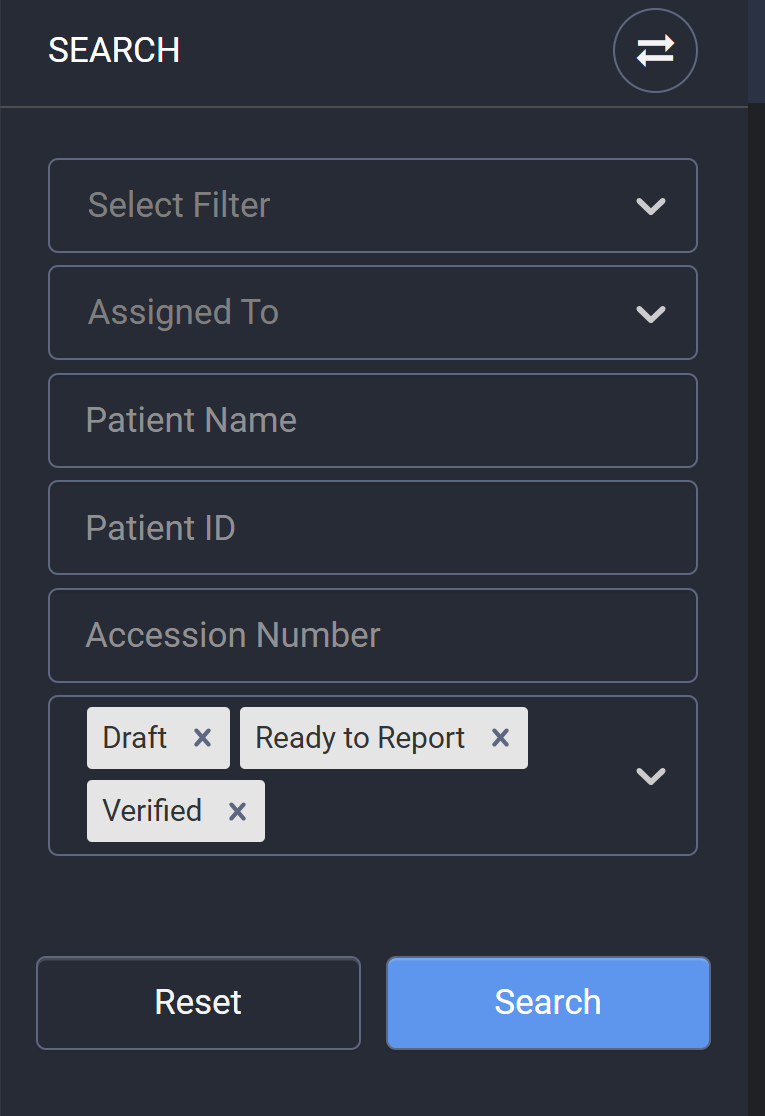
Search and Filter Options
Users can refine the order list using the following filters:
- Select Filter: If a board is assigned specific filters, this field will be visible. Users can select one or more filters. If a filter is mandatory, the system automatically applies it.
- Assigned To: Filters orders based on assigned users.
- Patient Name: Enables search by patient name.
- Patient ID: Enables search by patient ID.
- Accession Number: Enables search by accession number.
- Order Status: Prefilled based on board settings. At least one status must be selected.
Customizing Board Columns
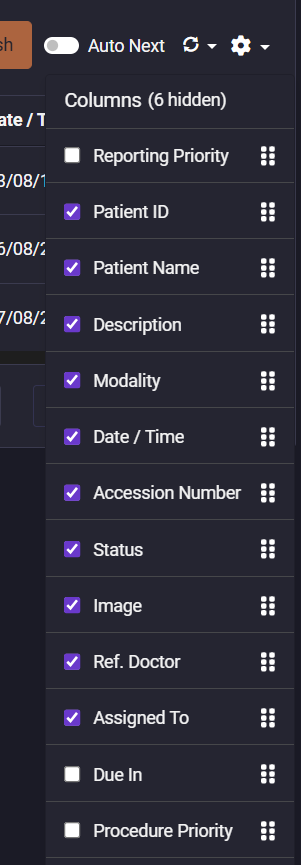
Users can customize the visibility and order of board columns:
- Click the settings icon in the top-right corner to show/hide specific columns.
-
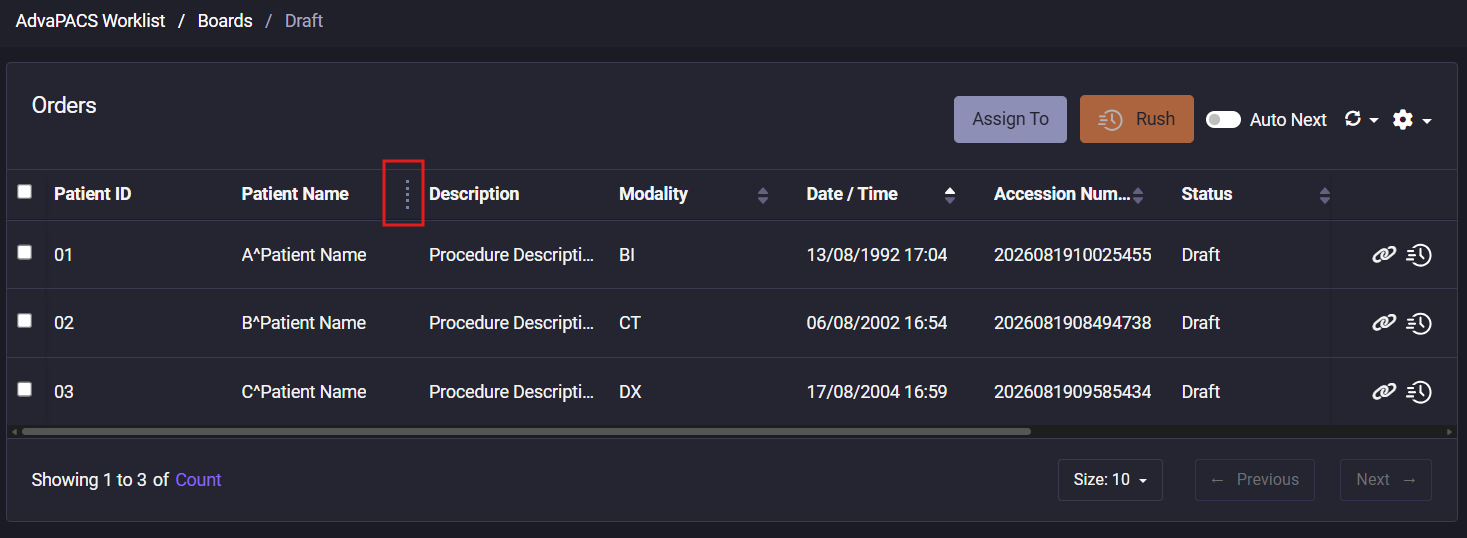
Reorder columns by dragging and dropping the column title in either the settings panel or directly in the table.
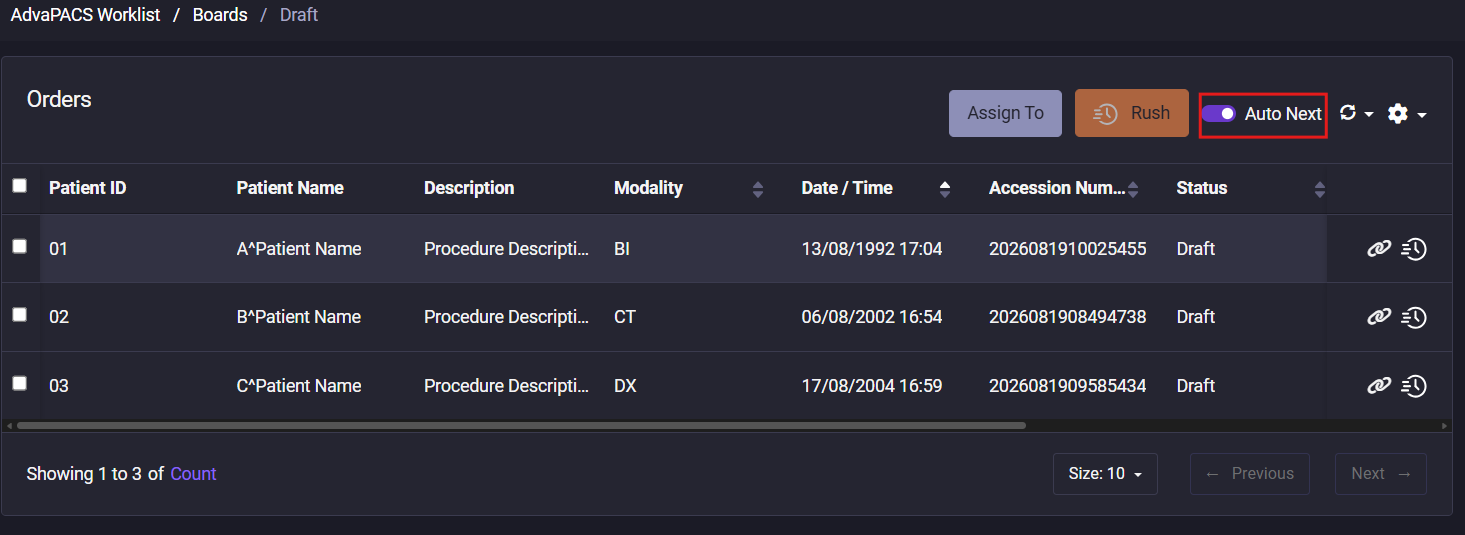
Auto-Next Mode
Auto-Next allows users to automatically move to the next order after completing one.
-
Enabled: The system automatically opens the next order upon completion.
-
Disabled: The user is redirected back to the board after finishing a report.
Order Detail
When a user opens an order from the Worklist, viewer window will launch in a new tab or new window.
- Viewer: Displays all medical images associated with the order.
- Order Detail: Provides patient details, relevant documents, and reports.