AdvaPACS Cloud Gateway
AdvaPACS Cloud HL7 Services let you securely receive and process HL7 messages from external systems directly in AdvaPACS. They are commonly used to connect RIS, HIS, EMR, integration engines, and other healthcare applications that use HL7 messaging workflows.
Unlike Gateway HL7 Services, no local AdvaPACS Gateway is required. Connections are made directly to AdvaPACS using MLLP secured with mutual TLS (mTLS) for encrypted and authenticated communication.
Creating a New Cloud HL7 Service
Follow these steps to create an AdvaPACS Cloud HL7 Service.
-
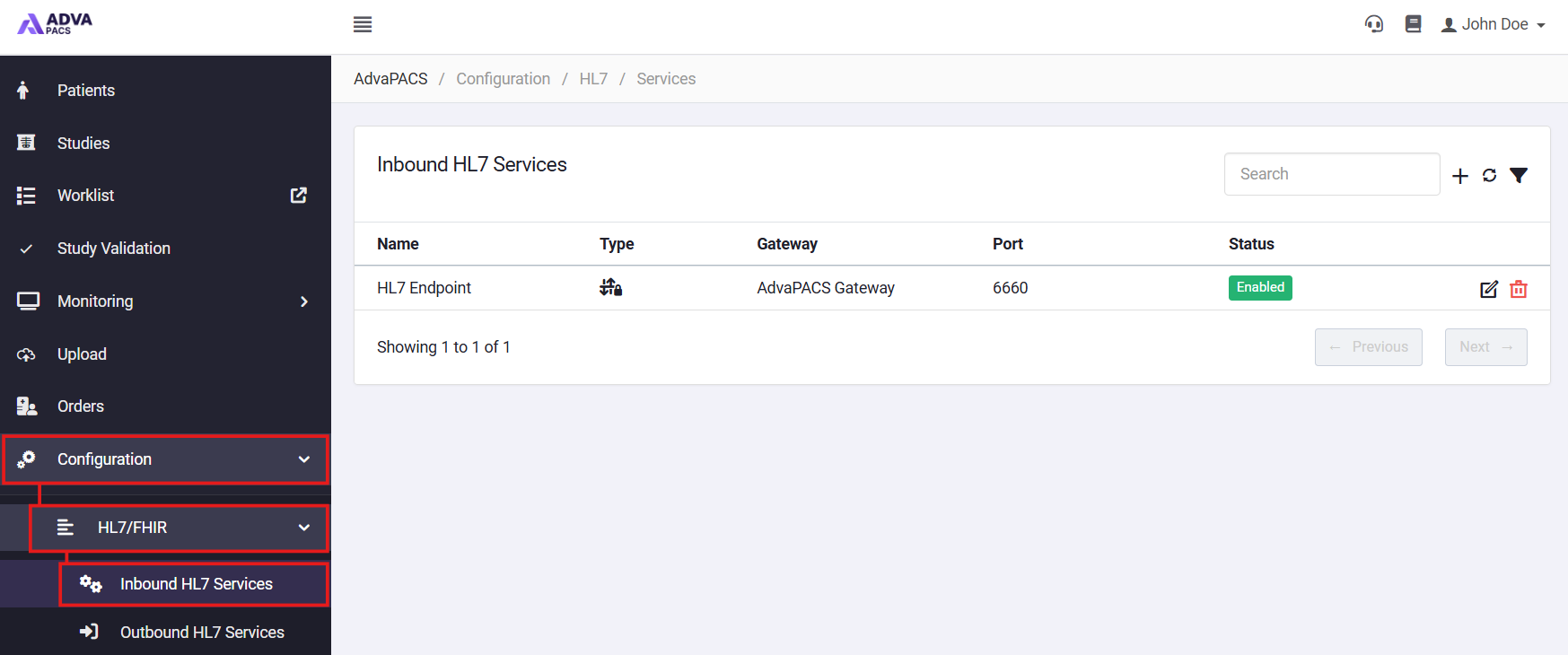
Navigate to Configuration → HL7/FHIR in AdvaPACS.
-
Select either Inbound HL7 Services or Outbound HL7 Services depending on whether you are receiving or sending HL7 messages.
-
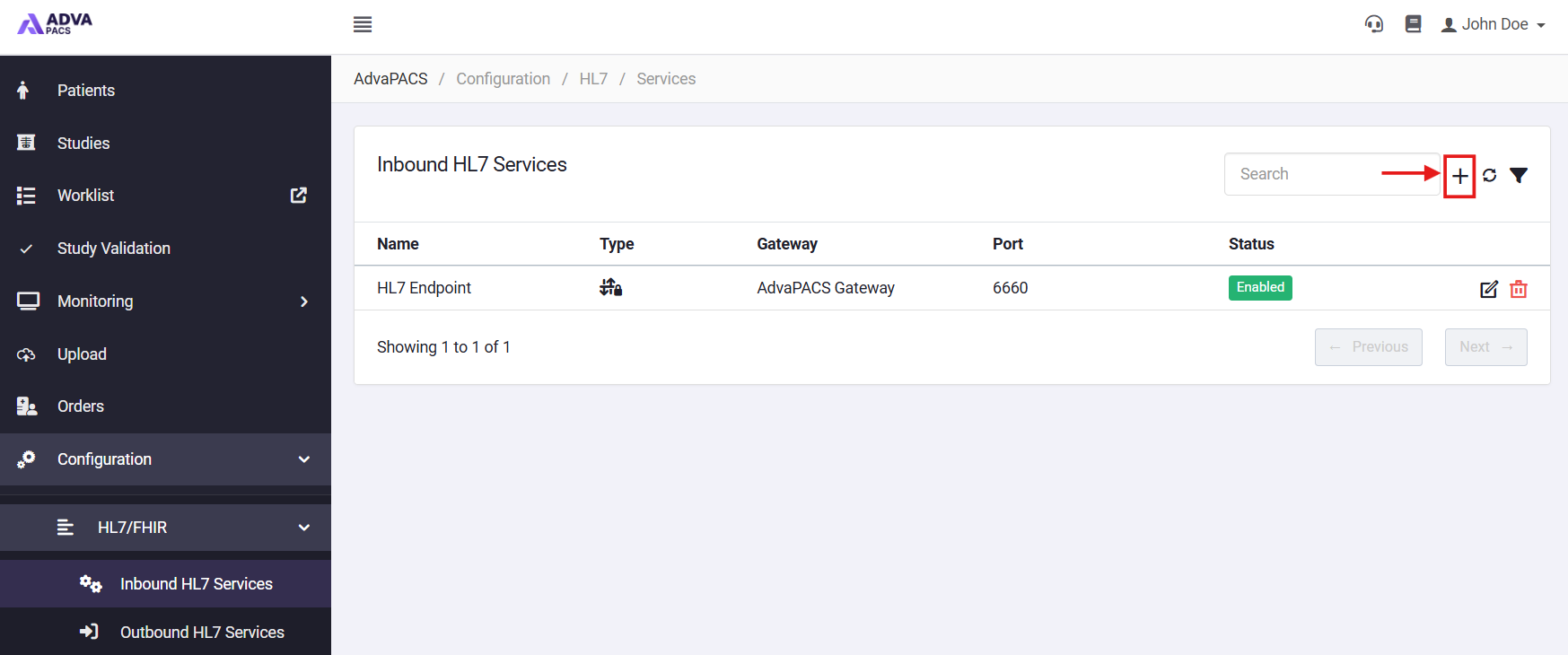
Click the + icon.
-
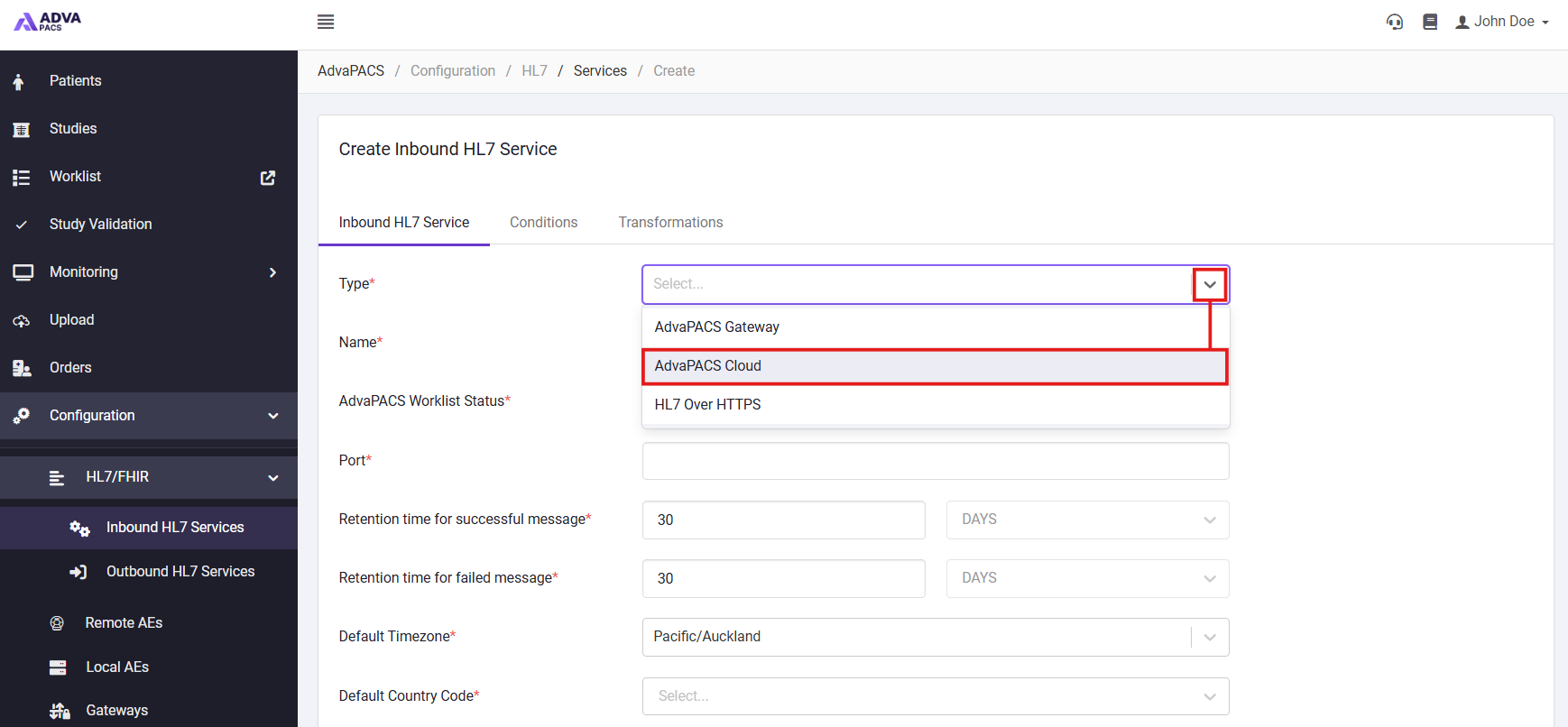
Select AdvaPACS Cloud from the Type dropdown.
-
Fill in the appropriate details on the Inbound HL7 Service tab, noting the following:
Setting Description AdvaPACS Worklist Status Sets the status that associated studies will appear as on the Reporting Worklist. Default Timezone Sets the timezone to use when an incoming HL7 message does not contain a timezone offset. Successful Message Retention Sets how long successfully processed HL7 messages are retained in the message logs. Failed Message Retention Sets how long failed HL7 messages are retained in the message logs. Whitelist IPs Restricts connections to specified source IP addresses. Interface Version Sets the AdvaPACS HL7 interface version used to process incoming messages. Mode Sets how incoming HL7 messages are processed. Live processes messages synchronously as they are received, while Migration queues messages for asynchronous processing. -
If applicable, add any Conditions or transformations.
-
Click Create to create the service.
Once created, AdvaPACS automatically assigns the connection details required to communicate with the service.
Connecting to the Service
AdvaPACS Cloud HL7 Services use MLLP over mutual TLS (mTLS). The sending system must therefore be configured with the service connection details and a valid certificate before it can send HL7 messages to AdvaPACS.
To connect an external system, you will need:
- Service URL – The URL generated for the AdvaPACS Cloud HL7 Service.
- Certificate Bundle – The certificates and keys used to authenticate the connection.
- IP Whitelisting – The source IP address of the sending system must be included in the service's whitelist if IP restrictions are configured.
Service URL
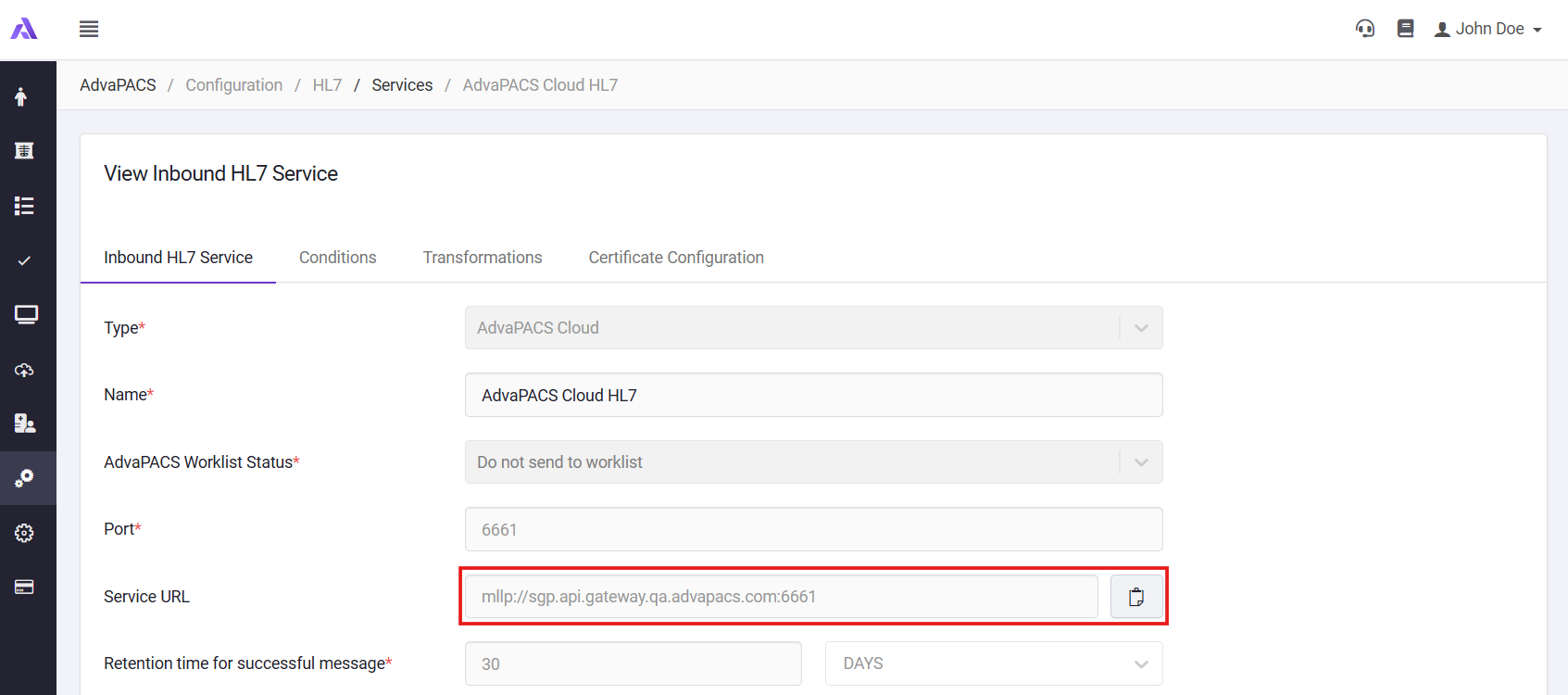
To connect to the service, you need the service URL and a certificate to connect, otherwise, without one, it will fail. To obtain the Service URL:
-
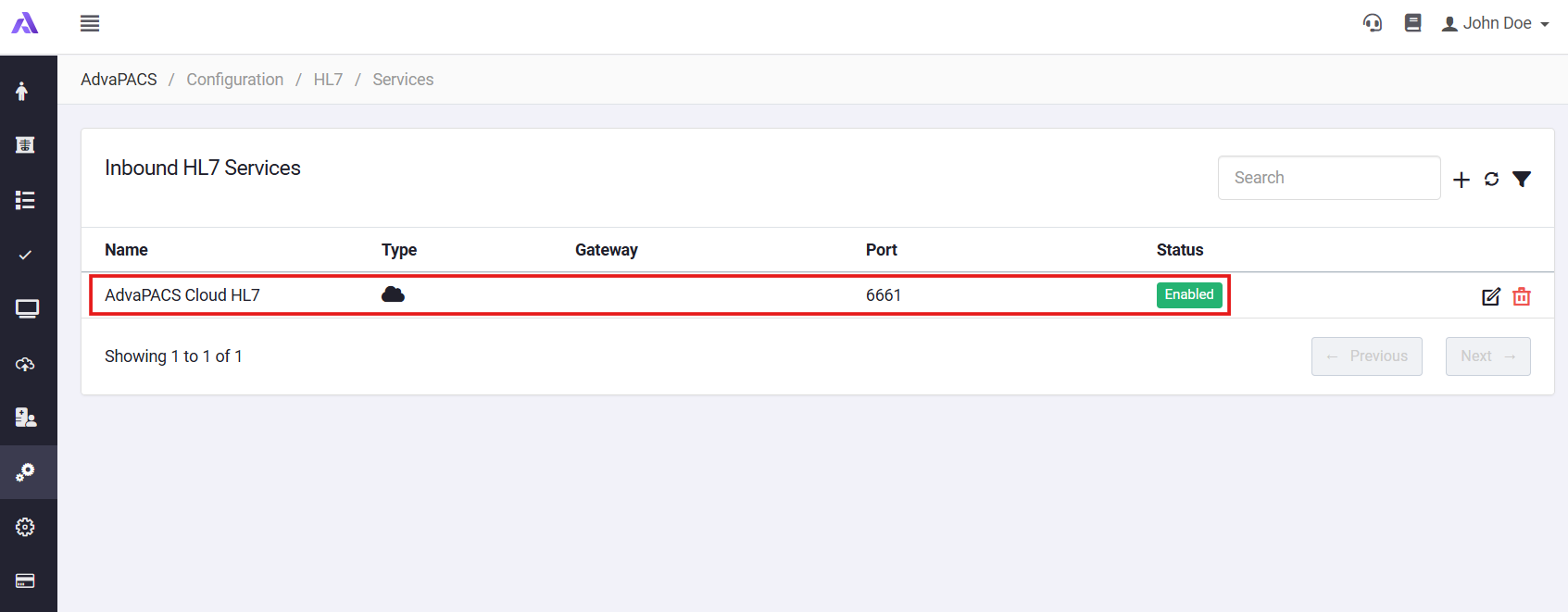
Click on the newly created Cloud Gateway Service to view it:
-
Copy and save the Service URL:
Certificate
AdvaPACS Cloud HL7 Services use mutual TLS (mTLS), meaning the connecting system must present a valid client certificate when establishing a connection.
To create a certificate:
-
Click on the newly created Cloud Gateway Service to view it:
-
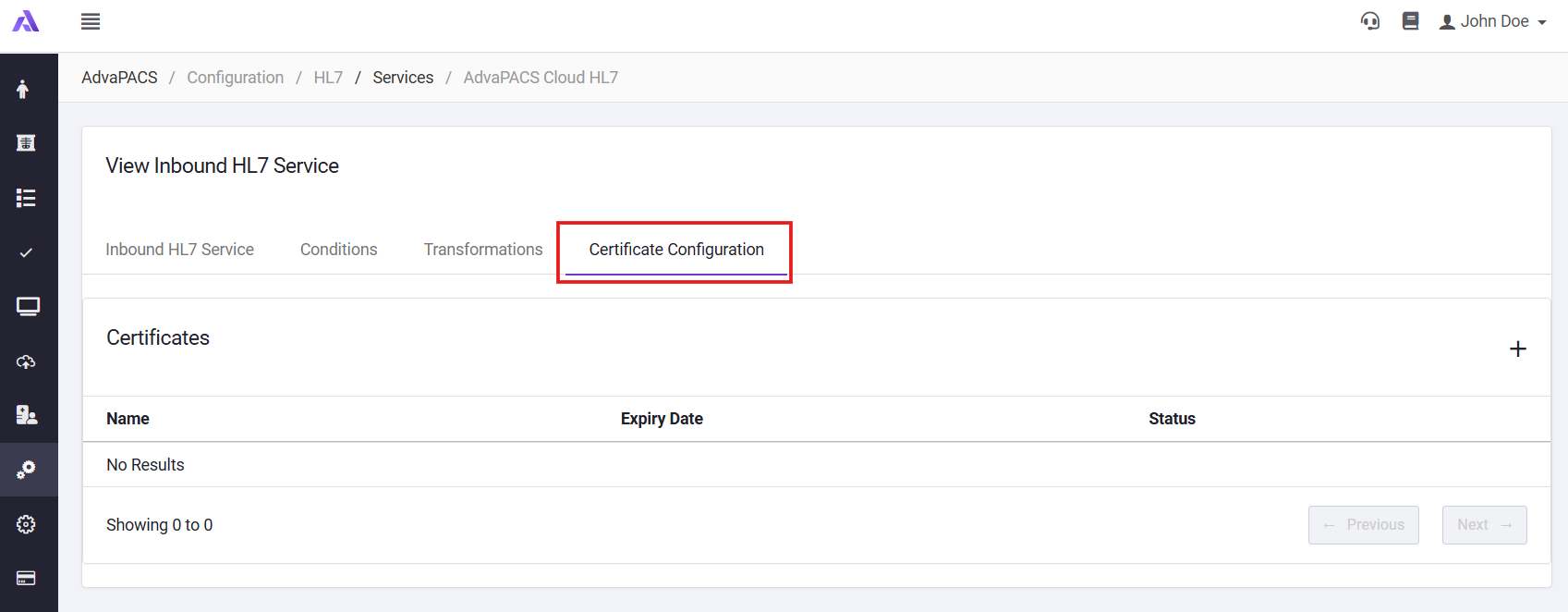
Select the Certificate Configuration tab:
-
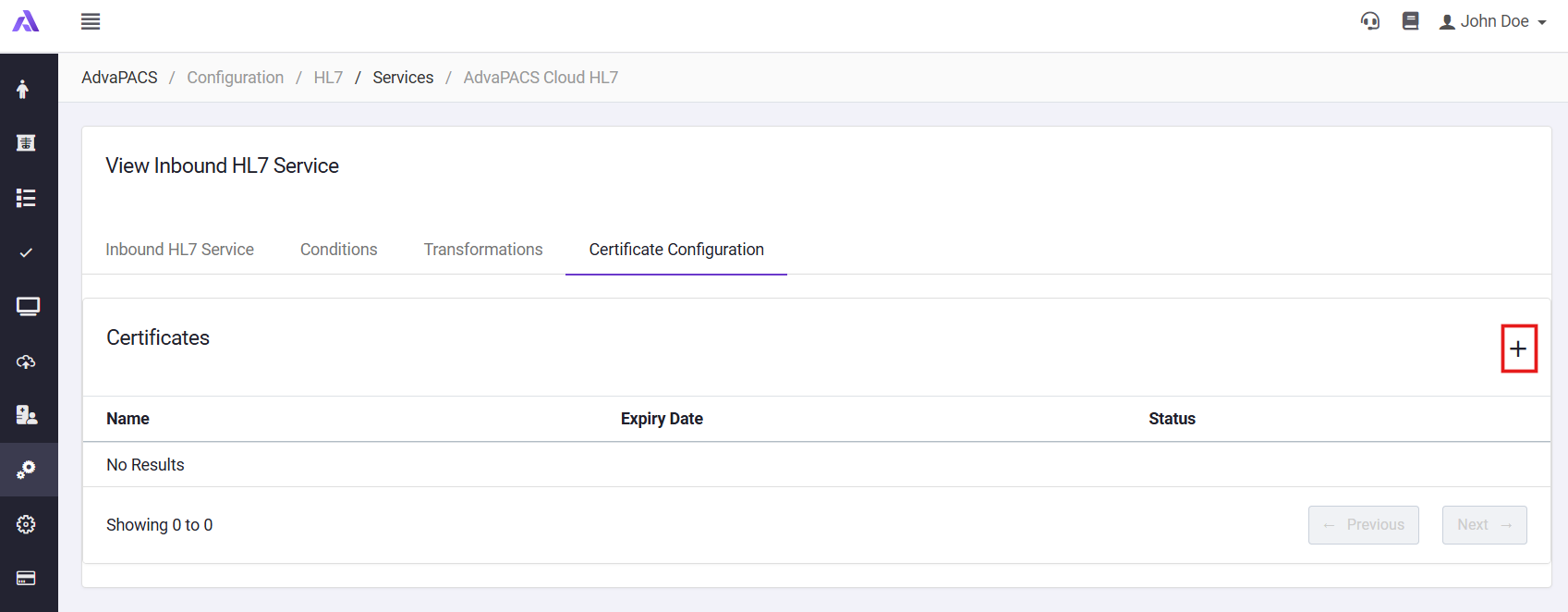
Click the + icon to create a new certificate.
-
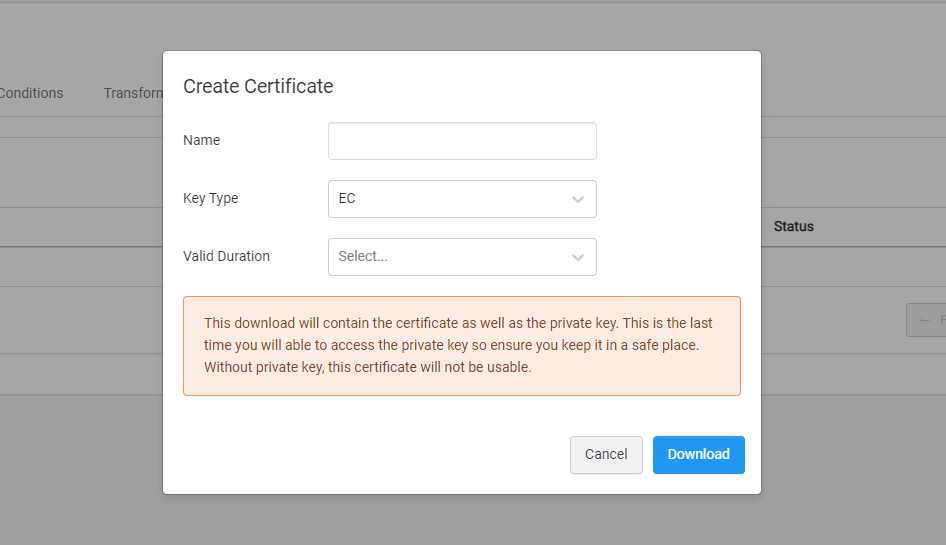
Add a name for the certificate.
-
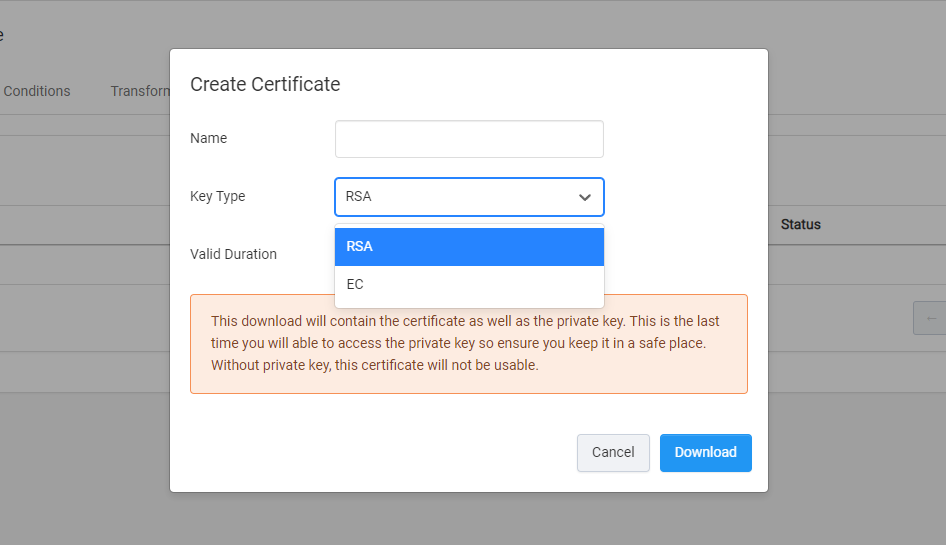
Select a key type.
-
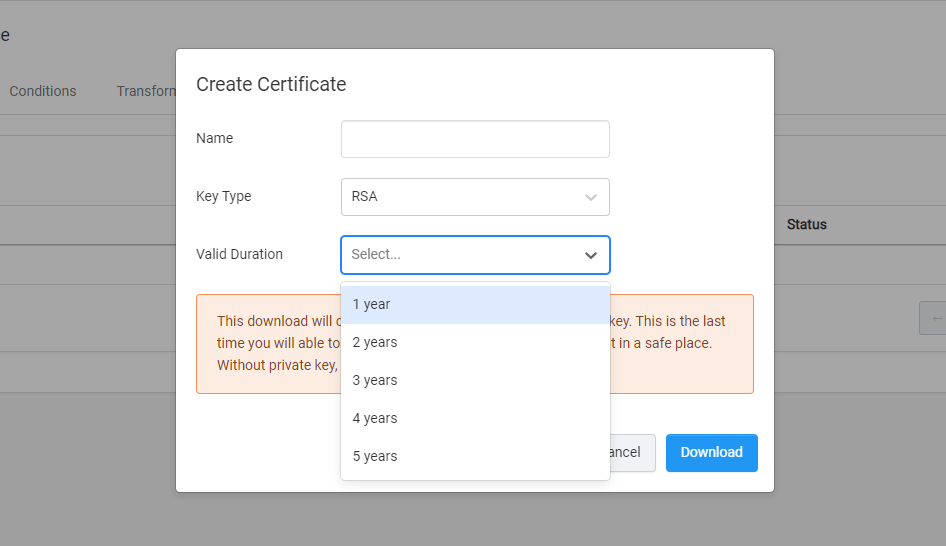
Specify the validity duration of the certificate.
-
Download the certificate bundle. This will contain certificates and keys needed to establish a mutual TLS connection with AdvaPACS.
Store the certificate bundle securely, as it contains the certificates and keys used to authenticate the connection to the AdvaPACS Cloud HL7 Service.
Configure the device
The final step is to provide the service URL and certificate to the device you wish to communicate with the service.
If you are unsure on how to set it up in your device please contact your IT department or your HL7 software vendor's technical support.