Report Signature
Introduction
A signature can be added to radiology reports to clearly identify the reporting or verifying radiologist. Signatures can include details such as the radiologist's name, qualifications, registration number, and a graphical or text-based signature, depending on your report template.
This guide explains how to configure and display signatures within report templates.
Radiologist signatures are supported only on tenants with a custom PDF report template. If a PDF template has not been configured for your account, the signature methods described in this guide will not be available.
Please contact AdvaPACS Support to discuss enabling a custom report template.
Add a Report Signature
Each user can configure their own report signature, which can then be displayed on PDF reports if the report template has been configured to include it.
- Click your profile icon in the top-right corner of AdvaPACS and select User Settings.
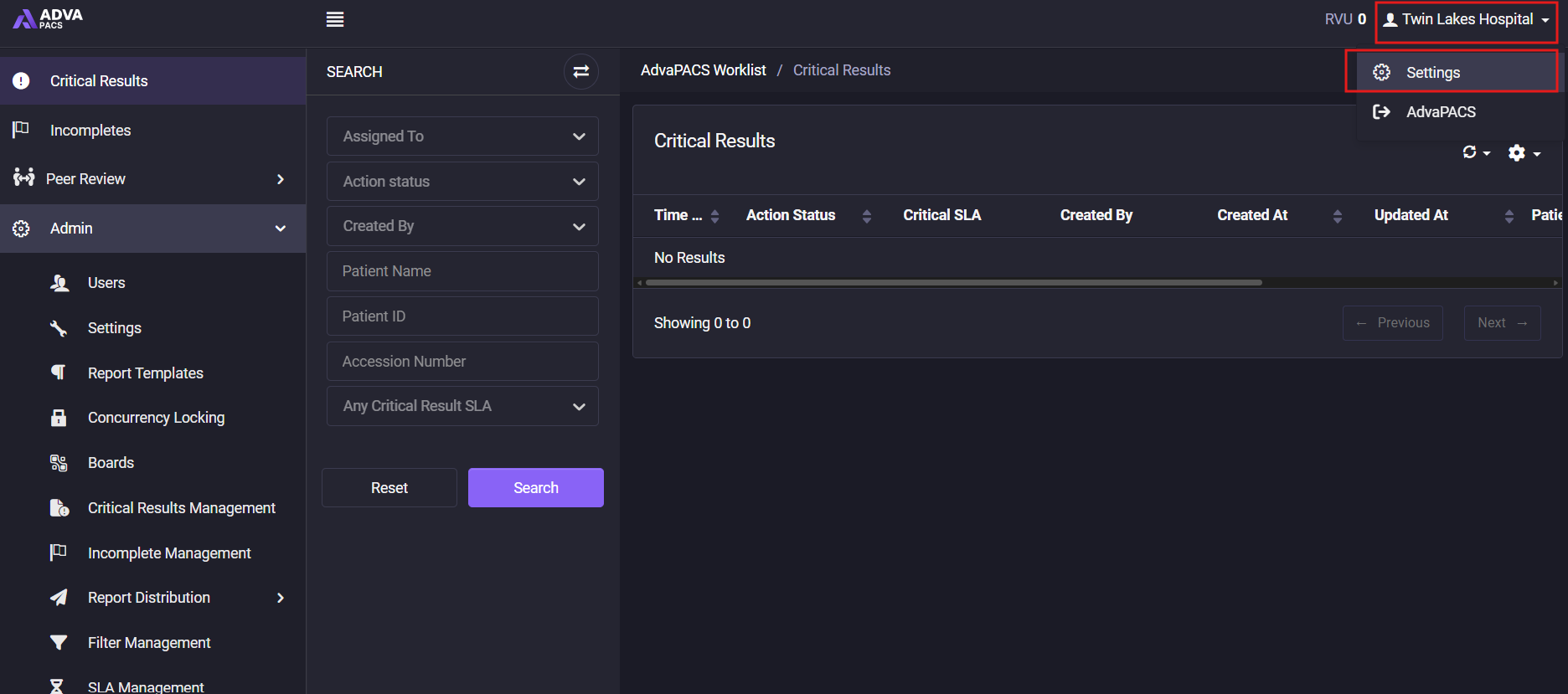
- From the left-hand menu, select Signature.
- Enter your signature using the editor. You can:
- Type a text-based signature.
- Paste an existing signature.
- Insert an image of your handwritten signature using the Image button in the toolbar.
- Use the formatting options to adjust the appearance of your signature as required.
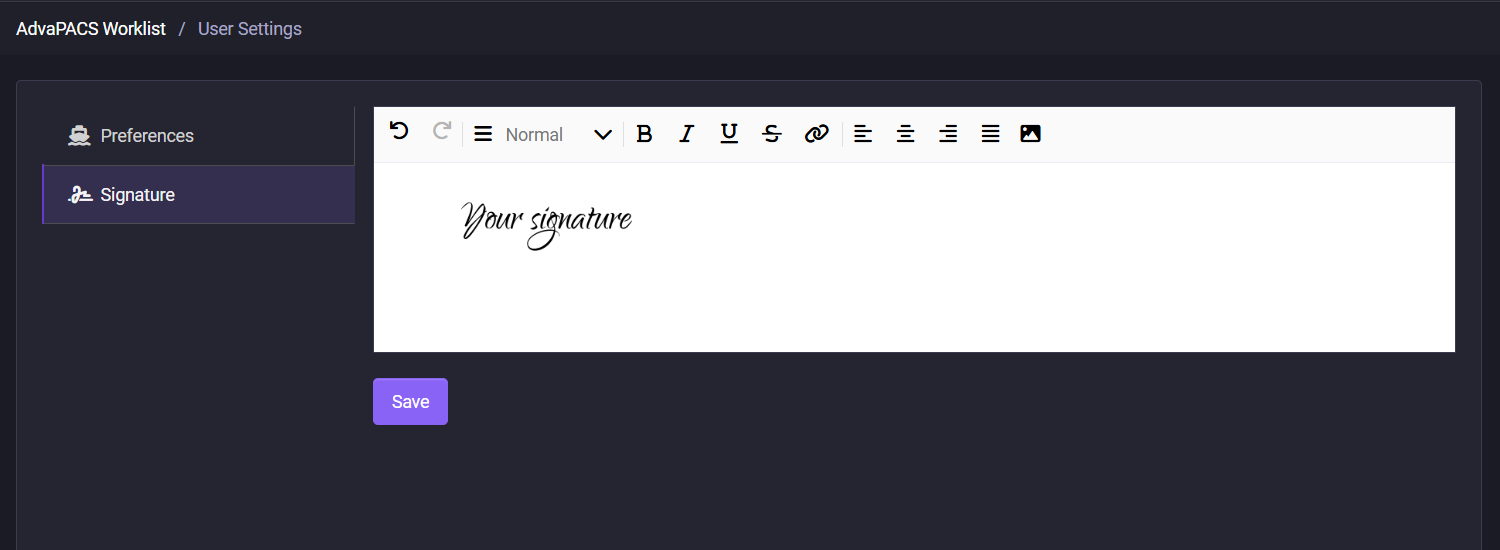
- Click Save to apply your changes.
Once saved, your signature will automatically appear on supported PDF report templates whenever your signature is referenced by the template. Any changes you make will be reflected on all new and pre-existing reports.