Preferences
Preferences allow you to personalise how the Reporting Worklist looks and behaves. These settings apply to your user account and can be adjusted to suit your reporting workflow.
To access your preferences, open User Settings, then select Preferences.
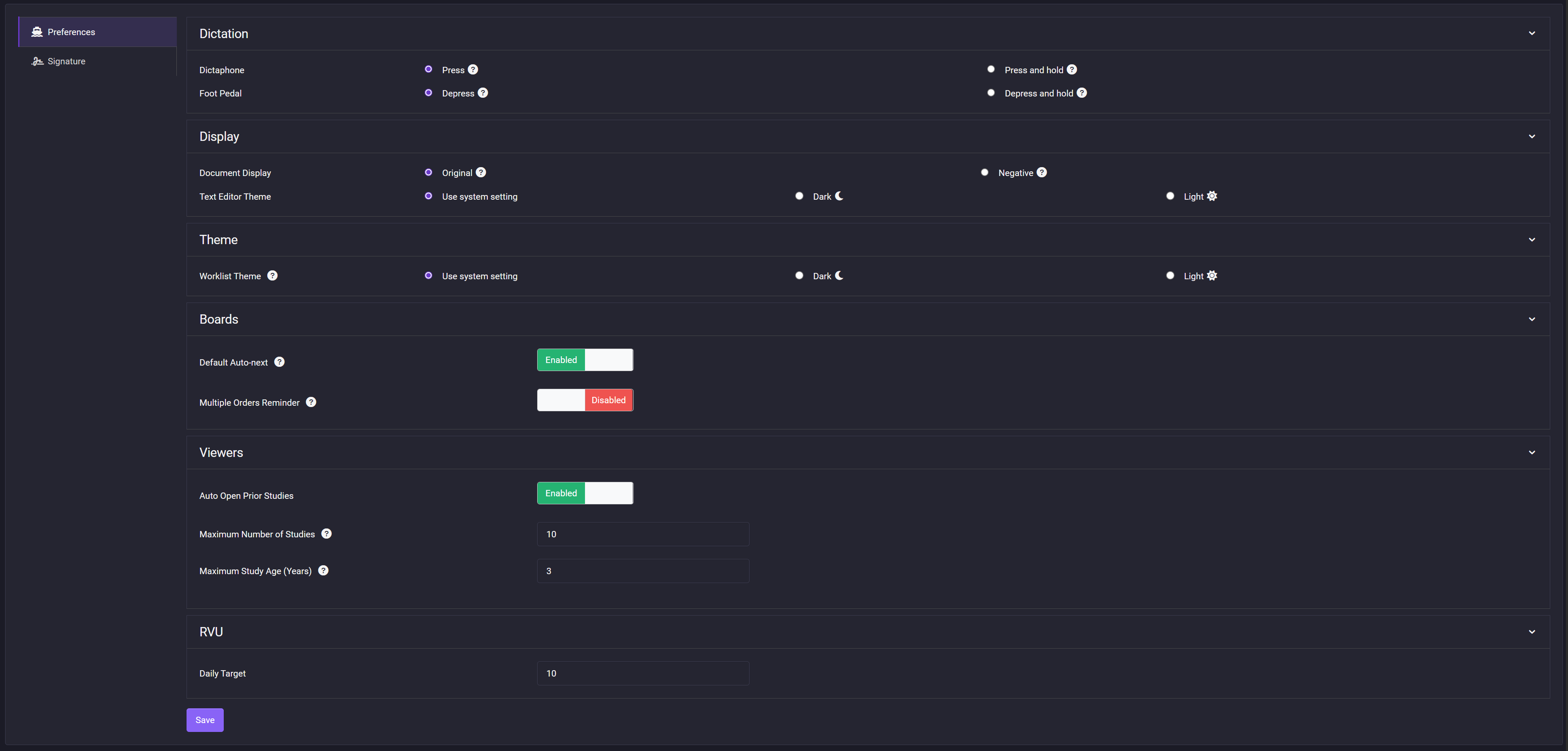
1. Dictation
Use the Dictation settings to choose how your dictaphone and foot pedal control dictation.
Dictaphone
- Press to start and stop: Press the dictaphone control once to start dictation, then press it again to stop.
- Press and hold to start and stop: Press and hold the dictaphone control while dictating, then release it to stop.
Foot Pedal
- Depress to start and stop: Depress the foot pedal once to start dictation, then depress it again to stop.
- Depress and hold to start and stop: Depress and hold the foot pedal while dictating, then release it to stop.
2. Display
Use the Display settings to control how documents and the Text Editor appear.
Document Display
Select how image documents are displayed:
- Original: Displays the document in its original appearance.
- Negative: Displays the document with its colours inverted.
Text Editor Theme
Select the appearance of the Text Editor:
- Use system setting: Matches the theme configured on your device.
- Dark: Uses a dark theme.
- Light: Uses a light theme.
3. Theme
Select the appearance of the Reporting Worklist:
- Use system setting: Matches the theme configured on your device.
- Dark: Uses a dark theme.
- Light: Uses a light theme.
4. Boards
Use the Boards settings to configure default behaviour across the boards you can access.
Default Auto-next
This setting applies to all boards you can access:
- Enabled: Turns Auto-next on by default.
- Disabled: Turns Auto-next off by default.
Multiple Orders Reminders
Choose whether the Reporting Worklist displays a reminder when you report grouped orders:
- Enabled: Displays a reminder when you report grouped orders.
- Disabled: Does not display a reminder when you report grouped orders.
5. RVU
Daily Target
Enter the number of RVUs you aim to complete each day. As you complete reports and earn RVUs, the Reporting Worklist displays your progress towards the daily target in the top-right corner of the screen, next to your user name.